🌍 Change App Language
The apps take their languages from your admin panel. You add a language, upload its translations and choose the default there, and both apps pick it up. No code change and no new build is needed.
The app decides which language to open in, in this order:
- The language the user chose in the app.
- The default language set in the admin panel.
- The fallback language bundled in the app, used only until the app has reached the admin panel once (for example, a first launch without internet).
🔄 Add a Language or Change the Default
- In the Super Admin Panel, open Language Settings.
- Add the language and upload its translation files for the Student/Parent App and the Staff/Teacher App. The panel offers a sample JSON file for each to translate.
- To make it the language new users start in, set it as the default language.
- Open the app again. The language appears in the app's language list.
See Language Settings for each field, including right-to-left languages.
Changing the default in the panel does not override a user who already chose a language in the app.
📦 Optional: Bundle a Language in the App
Do this only if the app must open in your language on a first launch without internet. Otherwise the panel is enough.
1️⃣ Add the Translation File
-
In
assets/languages/, copyen.jsonand name the copy after your language code, for examplehi.json. Find your code in Google's language code list.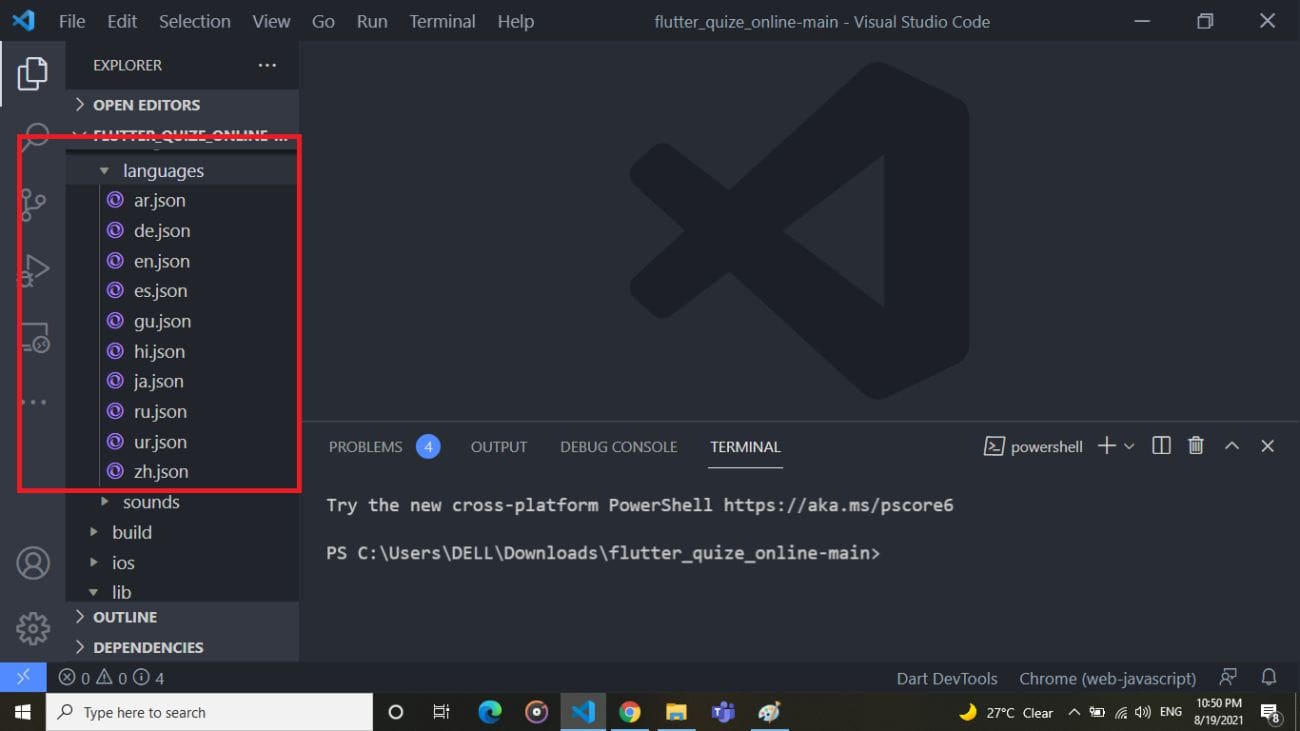
-
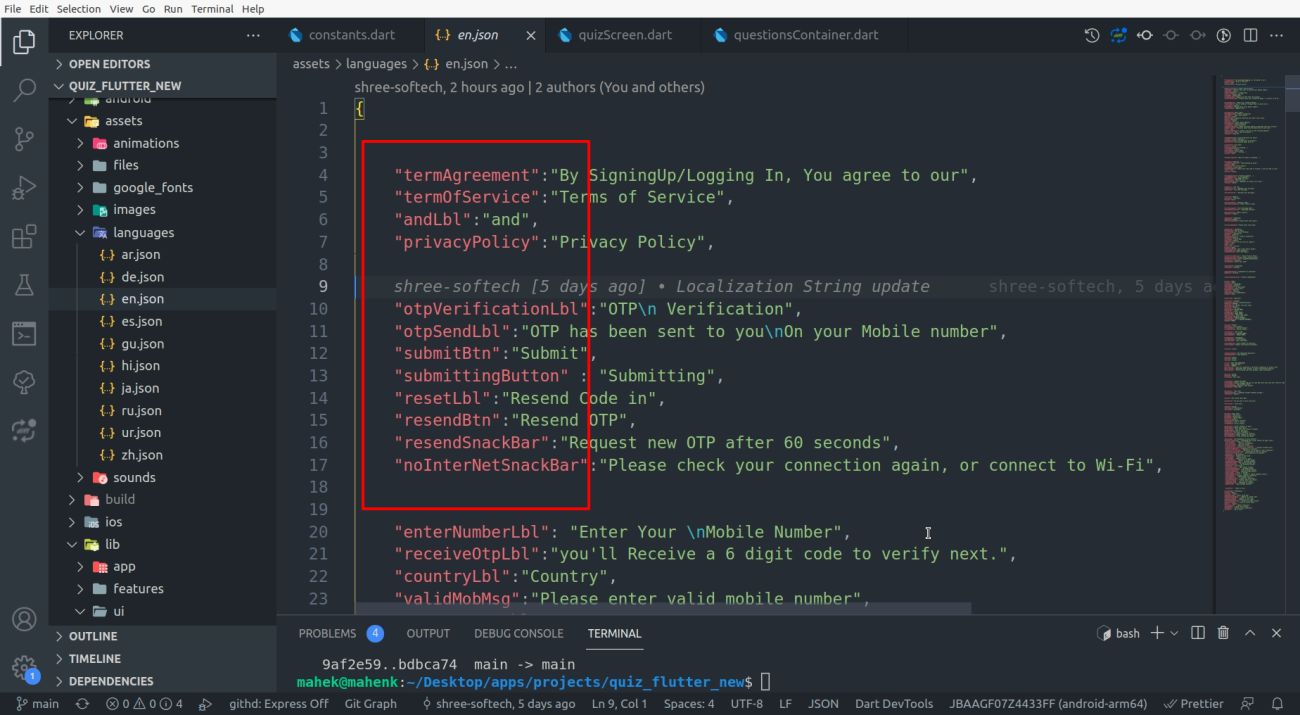
Translate the values and leave the keys as they are:
2️⃣ List the Language
Open lib/utils/appLanguages.dart and add the language to appLanguages:
const List<AppLanguage> appLanguages = [
  AppLanguage(languageCode: "en", languageName: "English"),
  AppLanguage(languageCode: "hi", languageName: "हिन्दी - Hindi"),
];
3️⃣ Make It the Fallback Language
In the same file, set bundledFallbackLanguageCode to your language code:
const String bundledFallbackLanguageCode = "hi";
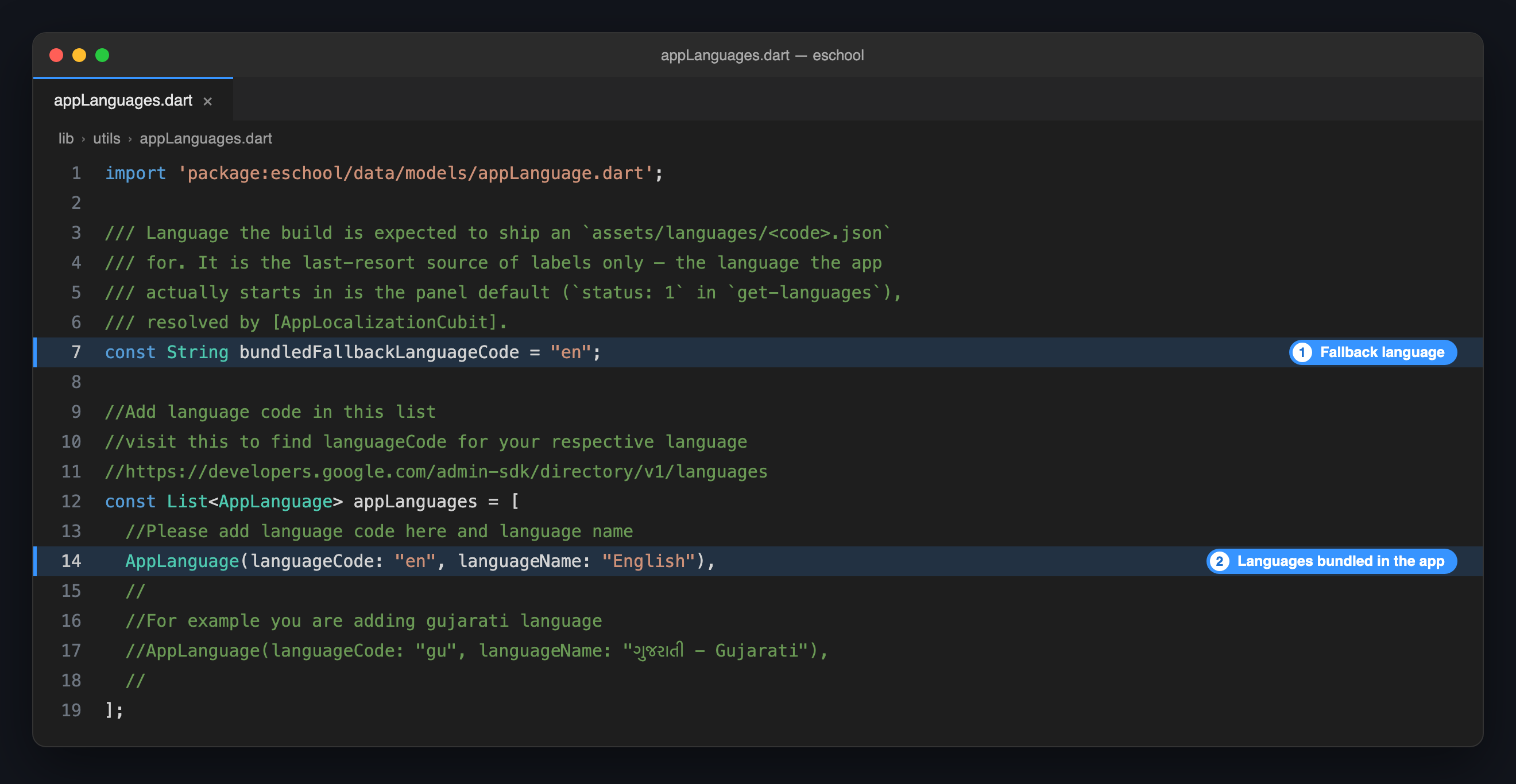
The fallback code must have a matching file in assets/languages/. Without hi.json, a fallback of "hi" shows label names in place of text.
4️⃣ Run the App Again
flutter run
Repeat these steps in the other app if both should start in your language.