School Inquiries
Prefer to watch?
The School inquiries video tutorial shows the whole flow with the setting ON and OFF.
Overview
Schools can sign up from your website with Start trial (or Register your school). The School inquiry setting decides what happens to that request.
| School inquiry | What happens when a school submits the Start trial form |
|---|---|
| ON | The request is saved as an inquiry with status Pending. The school sees "School inquiry sent to admin, wait for admin approval to successfully registered." The school is created only when you approve it. |
| OFF | The school is created straight away and set up in the background. The school sees "School creation process has been started. You will receive an email notification once the setup is complete." No inquiry is saved. |
To change the setting, go to Settings > System settings > General settings > Security & Server, click the School inquiry card, and click Submit.
Review an inquiry
- Navigate to Schools > School Inquiries.
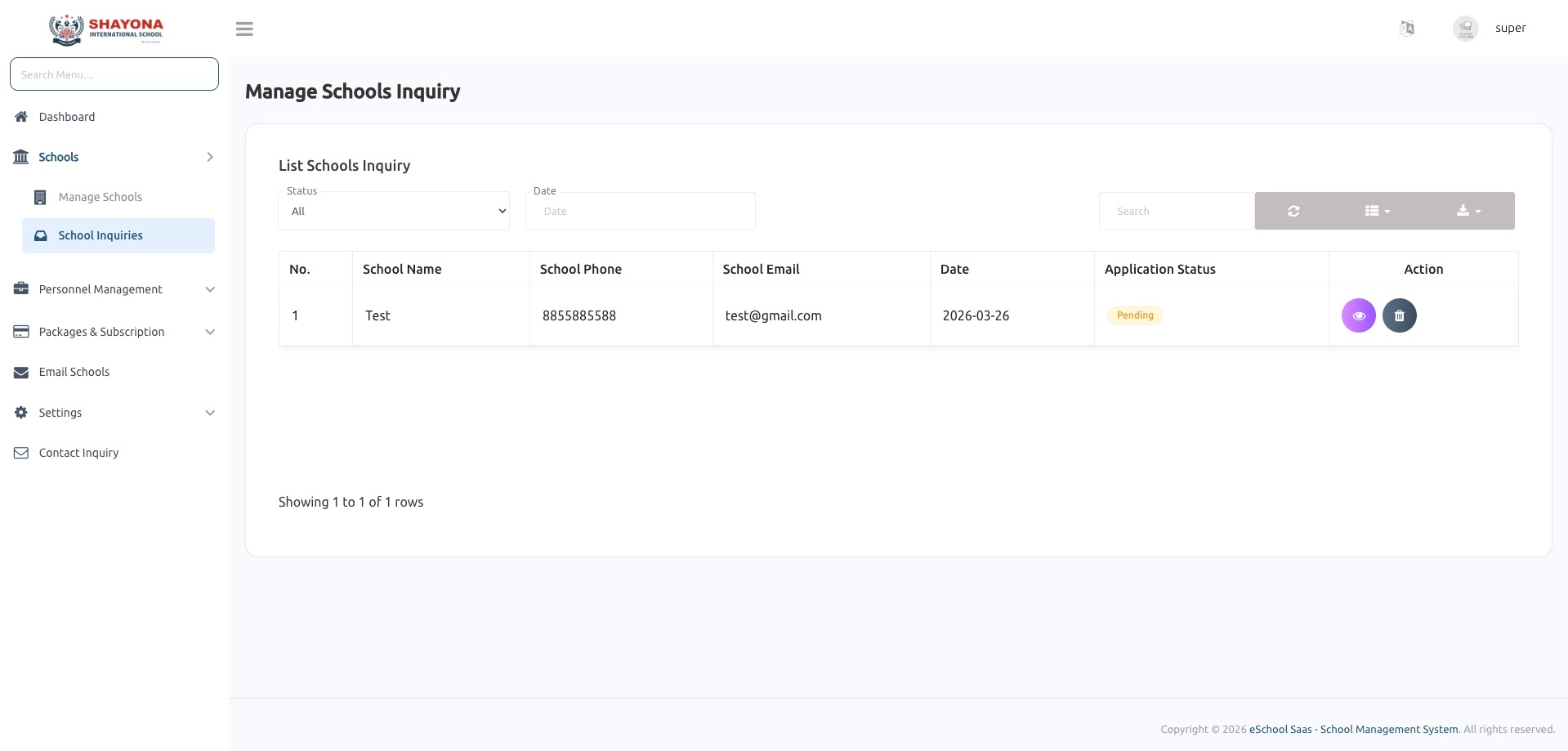
- Each request shows the school's name, phone, email, date and Application status. Use the Status filter to show All, Pending or Rejected requests.
- Click the eye icon to open a request. The school's details are read-only; you can still change the School code prefix.
Approve or reject
- Approve: set Application status to Approved and click Submit. The school is registered, leaves the inquiry list, and appears in Schools > Manage schools, where it is set up like any school you create yourself.
- Reject: set Application status to Rejected and click Submit. The request stays in the list as Rejected and no school is created.
- Delete: use the bin icon to remove a request. Select several requests with the checkboxes to delete them together.
note
When School inquiry is OFF, the School Inquiries page shows a notice with a link to switch it back on.