eMarket Admin Panel — Detailed Documentation
Welcome to the comprehensive, page-by-page visual guide and operational manual for the eMarket Admin Panel. Every screen across the platform is documented here with high-resolution Retina screenshots captured directly from the live system, complete field breakdowns, step-by-step procedures, and real-world business use cases.
eMarket is engineered as a unified multi-module commerce platform. Use the top bar Module Selector (e.g. Grocery, Pharmacy, eCommerce, Food Delivery) to switch operational context seamlessly. The sidebar navigation and functional features adapt dynamically based on the active module.
1. Master System Dashboard (/dashboard)
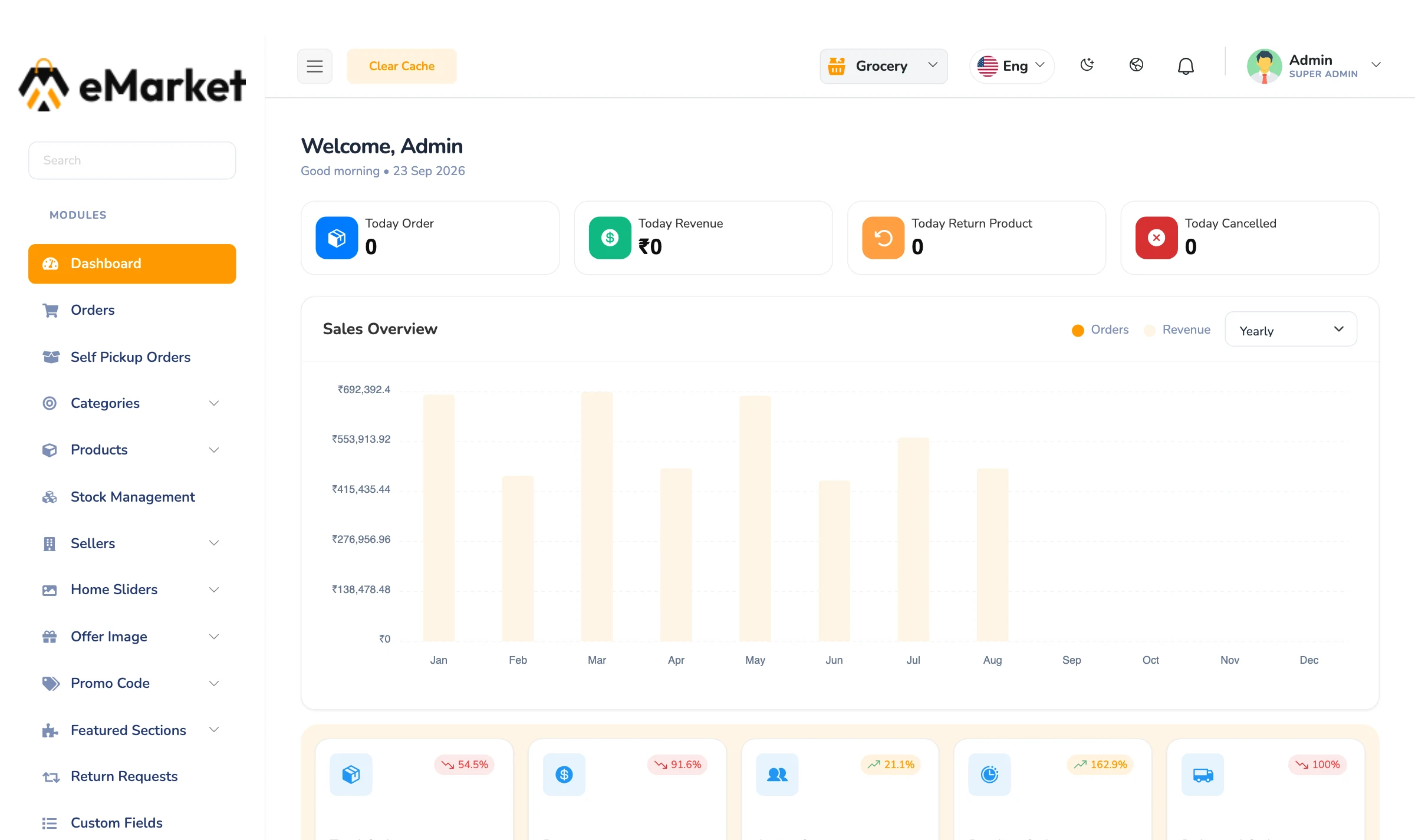
The Dashboard is the first screen administrators see after authenticating into http://127.0.0.1:8000/dashboard. It serves as the live command center of your marketplace, aggregating real-time sales figures, order volumes, inventory alerts, and dispatch activity into an intuitive, high-level overview.
1.1 Header Controls & Quick Actions
The persistent top header bar provides universal platform controls accessible from any screen:
- Sidebar Toggle (
☰): Collapses or expands the left navigation drawer to maximize working space on laptops or wide displays. - Clear Cache Button: Instantly clears cached application configurations, view templates, and translation dictionaries without requiring terminal SSH access.
- Module Selector (
Grocery ▾): The core switcher for your multi-store architecture. Selecting a module (e.g., Grocery, Pharmacy, eCommerce) filters the entire admin panel to show only data, orders, sellers, and products relevant to that sector. - Language Selector (
Eng ▾): Switches the admin interface language on the fly (supports English, Arabic with RTL mirroring, Spanish, French, Hindi, and more). - Dark Mode Toggle (
☾): Switches the entire admin panel between sleek Dark Mode and high-contrast Light Mode to reduce eye fatigue during long operational shifts. - Storefront Link (
🌐): Quick link that opens your live customer-facing website in a new tab. - Notification Bell (
🔔): Real-time alert tray notifying administrators of new customer orders, low stock warnings, seller registration requests, and driver cash limit breaches. - Admin Profile Menu (
Admin — SUPER ADMIN ▾): Access to logged-in administrator credentials, profile picture, account security, and session logout.
1.2 At-a-Glance Real-Time Metrics
Four high-visibility status cards provide an instantaneous pulse of daily trading:
- Today Orders (Blue Icon): Total count of customer orders received since 12:00 AM today across all payment methods.
- Today Revenue (Green Icon): Net gross monetary value generated today, formatted in your chosen currency symbol (e.g., ₹, $, €).
- Today Return Product (Orange Icon): Number of return or replacement requests initiated by customers today requiring operational inspection.
- Today Cancelled (Red Icon): Number of orders cancelled today by customers or merchants, highlighting potential fulfillment issues or out-of-stock spikes.
1.3 Sales Overview Analytics Chart
The large central visualization card renders a comparative bar chart tracking sales velocity over time:
- Orders vs. Revenue: Compares raw volume of orders against total monetary turnover.
- Period Filter Dropdown: Toggle between:
- Yearly View: 12-month rolling macro performance to identify seasonal peaks.
- Monthly View: Day-by-day velocity across the current calendar month.
- Weekly View: Hourly or daily trends across the last 7 days to optimize courier staffing.
1.4 Daily Administrative Routine: Step-by-Step
Follow this recommended 5-minute morning routine to maintain peak marketplace efficiency:
- Log in to Dashboard: Open
http://127.0.0.1:8000/dashboardand verify the active Module (e.g., Grocery). - Review Today's KPI Cards: Check Today Orders and Today Revenue. If Today Cancelled or Today Return Product shows an abnormal spike, immediately click into the Orders section to diagnose the issue.
- Check Notifications Tray: Click the Notification Bell to review pending seller applications or driver cash remittal alerts.
- Inspect the Sales Overview Chart: Compare current-week revenue against the previous week to gauge whether ongoing promotional campaigns are performing as expected.
- Transition to Fulfillment: Click Orders in the left sidebar to begin assigning newly received orders to available delivery partners.
1.5 Real-World Dashboard Use Cases
- Morning Store Opening Checklist: Before dispatch hubs open at 8:00 AM, store managers review overnight orders and verify that delivery partners have reported on duty.
- Monitoring Flash Sale Spikes: During a weekend promotional campaign, marketing teams monitor the live revenue counter to measure real-time ROI on push notifications and social media ads.
- Fraud & Out-of-Stock Detection: A sudden surge in Today Cancelled alerts the team that a popular vendor forgot to mark out-of-stock items, allowing administrators to intervene before more shoppers are disappointed.
2. Multi-Module Platform Architecture (/modules)
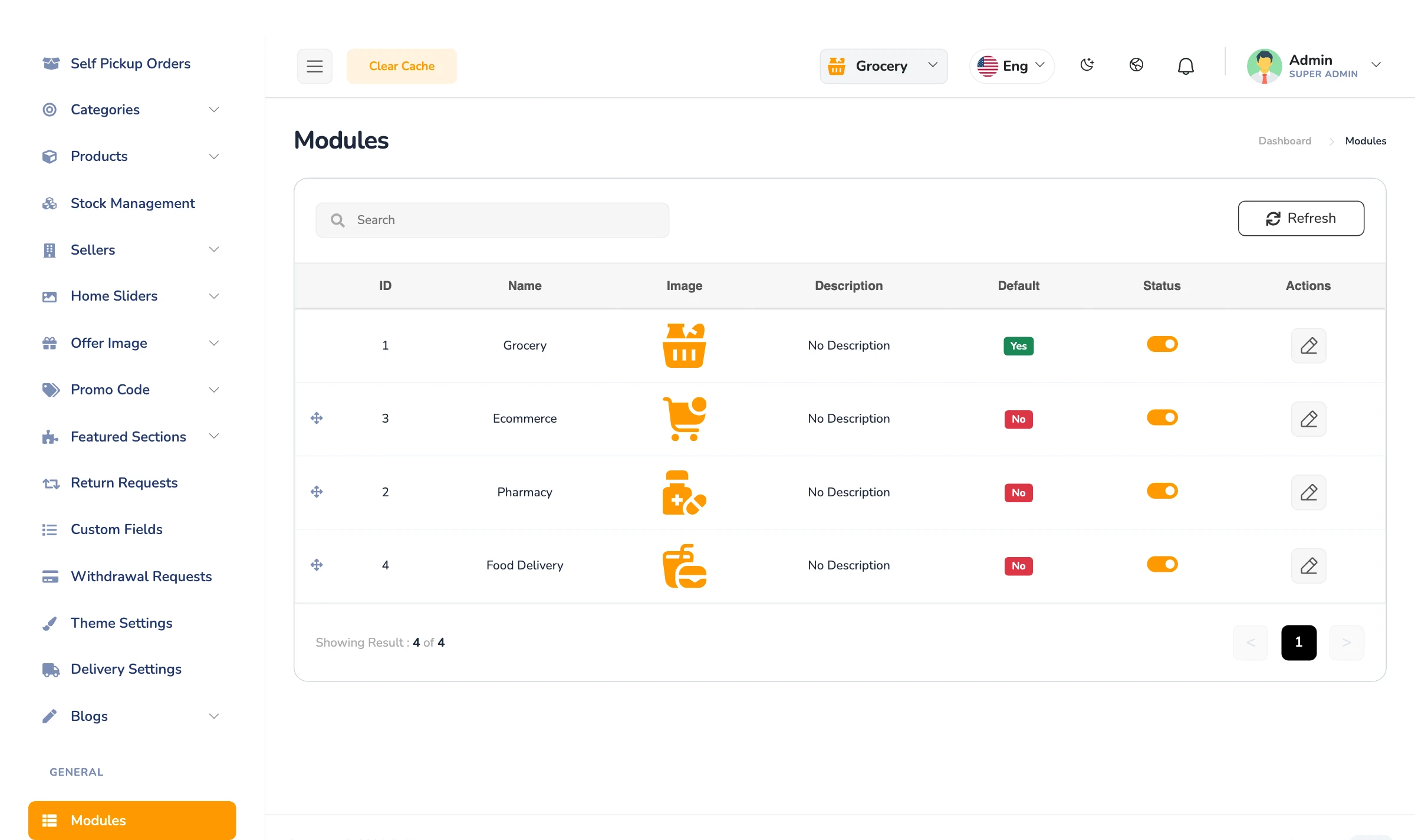
eMarket supports multiple distinct business models inside a single software installation. Each module functions as an independent business vertical with its own categories, seller rules, and delivery constraints.
Supported Industry Verticals
- Grocery & Supermarket: Fast-moving consumer goods, scheduled morning/evening delivery time slots, weight-based inventory (kg, grams).
- Pharmacy & Healthcare: Prescription validation requirements, licensed pharmacist verification, temperature-sensitive cold chain items.
- eCommerce & Retail: Standard courier parcel shipping, multi-variant sizing (clothing, electronics), nationwide shipping.
- Food Delivery: Restaurant menus, instant courier dispatch, custom item addons (toppings, crusts, spice levels).
3. Platform Navigation Directory
Explore the dedicated detailed documentation sections below for step-by-step instructions and real-world workflows across each operational module:
| Documentation Section | Topics Covered | Link |
|---|---|---|
| Order Management & Fulfillment | Doorstep orders, click-and-collect self-pickup, status lifecycle, PDF invoice generation. | Go to Orders Guide |
| Catalog & Product Management | Categories hierarchy, product wizard, seller approvals, media manager, bulk CSV tools, taxes, stock. | Go to Catalog Guide |
| Seller & Vendor Management | Merchant onboarding, identity KYC, store commissions, seller wallet ledgers, vendor policies. | Go to Sellers Guide |
| Delivery Operations & Fleet | Delivery partner roster, time slot capacity, COD cash collection, settlements, salary models. | Go to Delivery Guide |
| Seller-wise Delivery Boys | Seller panel delivery boy requests, My Delivery Boys list, and delivery boy salary entries. | Go to Seller Delivery Boys Guide |
| Seller Custom Fields | Seller panel custom fields for products and delivery boys, field types, required and active options. | Go to Seller Custom Fields Guide |
| Point of Sale (POS) | Seller panel POS billing screen: products, multiple bills, customer, discount, additional charges and payment. | Go to POS Guide |
| Marketing & Promotions | Home sliders, promotional deals, app popups, promo discount codes, featured product showcases. | Go to Marketing Guide |
| Abandoned Carts | Seller panel list of products customers added to cart but did not check out. | Go to Abandoned Carts Guide |
| Customer & Financial Operations | Customer directory, wishlists, digital wallets, payment gateway logs, returns & withdrawals. | Go to Finance Guide |
| Communications & Messaging | Push notification broadcasts, transactional trigger templates, emails, SMS gateway settings. | Go to Communications Guide |
| Platform & Store Settings | Core store configuration, payment processors, additional fees, Firebase, SEO metadata. | Go to Settings Guide |
| Localization & Zones | Multi-language translation dictionaries, RTL support, countries, deliverable cities & pincodes. | Go to Localization Guide |
| Web Presence, Blogs & Plans | Public website branding, social media links, content marketing blogs, vendor subscription tiers. | Go to Content & Web Guide |
| Reports & Business Intelligence | Gross sales analytics, SKU turnover rates, platform commission earnings, financial CSV exports. | Go to Reports Guide |
| Administration, Roles & FAQs | Admin user accounts, granular RBAC permission matrix, customer FAQs, system upgrades. | Go to Admin & FAQs Guide |
4. End-to-End Order Lifecycle Flow
The diagram below illustrates how each component of the eMarket admin suite collaborates throughout a customer transaction:
graph TD
    A[Customer Places Order in Mobile App] --> B[Orders Hub /orders receives order]
    B --> C[Order Notification dispatched to Seller]
    C --> D[Seller packs items -> Status updated to Processed]
    D --> E[Dispatcher assigns Delivery Partner via /delivery_boys]
    E --> F[Driver picks up package -> Status updated to Out for Delivery]
    F --> G{Delivery Mode}
    G -->|Doorstep Delivery| H[Driver delivers to Customer & collects COD or OTP]
    G -->|Self Pickup| I[Customer collects from store using OTP verification]
    H --> J[Status marked as Delivered]
    I --> J
    J --> K[Vendor earnings credited to /seller_wallet_transactions]
    J --> L[COD Cash recorded in /cash_collection for Driver reconciliation]