Adding a Property
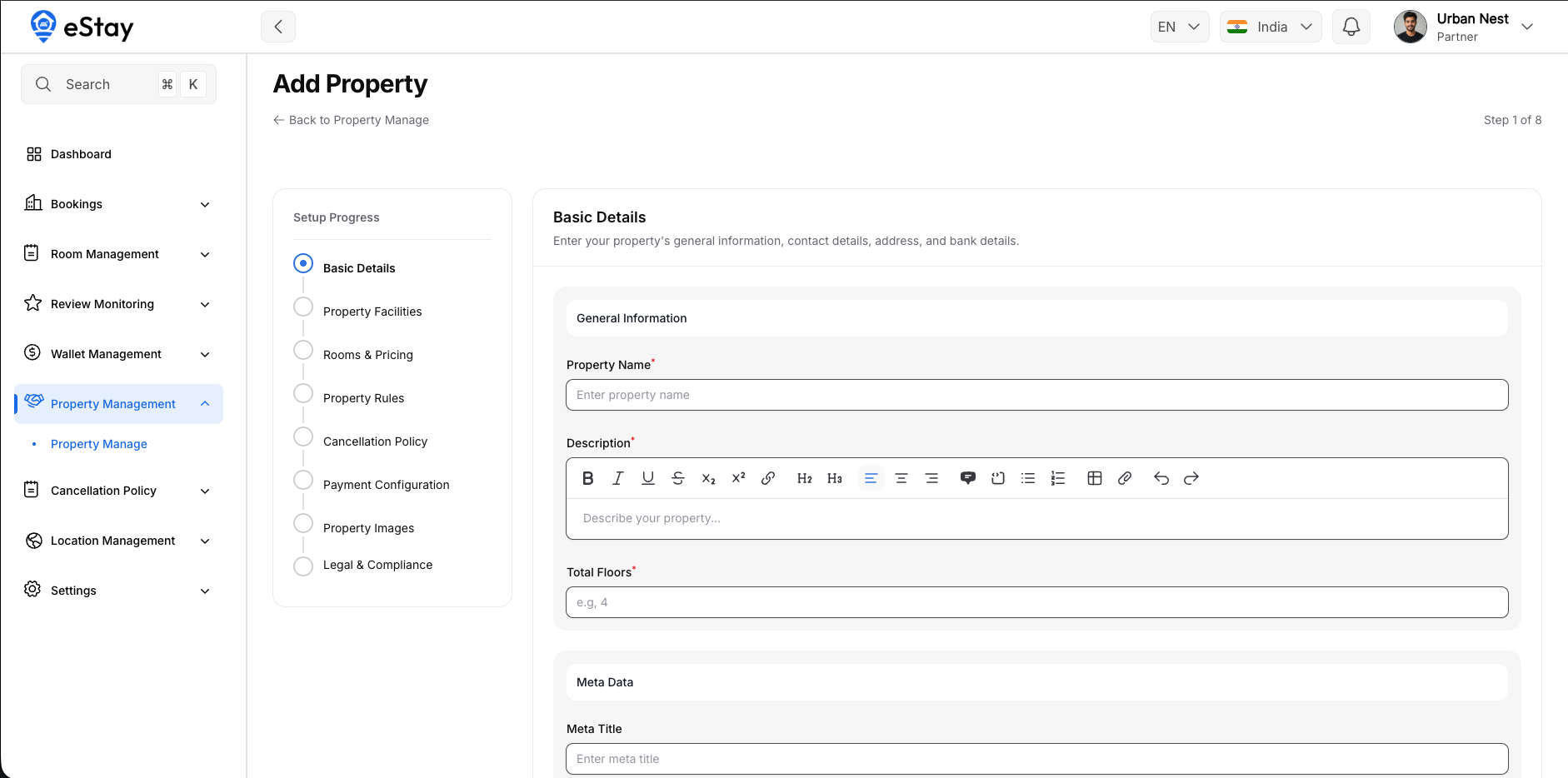
An 8-step wizard, the same shape as the admin's own property setup wizard — progress saves after every step (Save Draft included), so a partner can stop and resume anytime; the properties list tracks how far they've gotten (X/8 Steps).
The 8 Steps
- Basic Details — name, description, SEO fields, contact info, address (with the same OpenStreetMap-based location picker used platform-wide — see Map Provider), floor count, and Bank Details (account holder, bank name, account number, bank code). This is the same bank account Wallet withdrawals pay out to.
- Property Facilities — select from the platform's global amenities.
- Rooms & Pricing — add rooms from the partner's Room Types, with pricing.
- Property Rules — check-in/out times, pet policy, and any admin-configured policy questions.
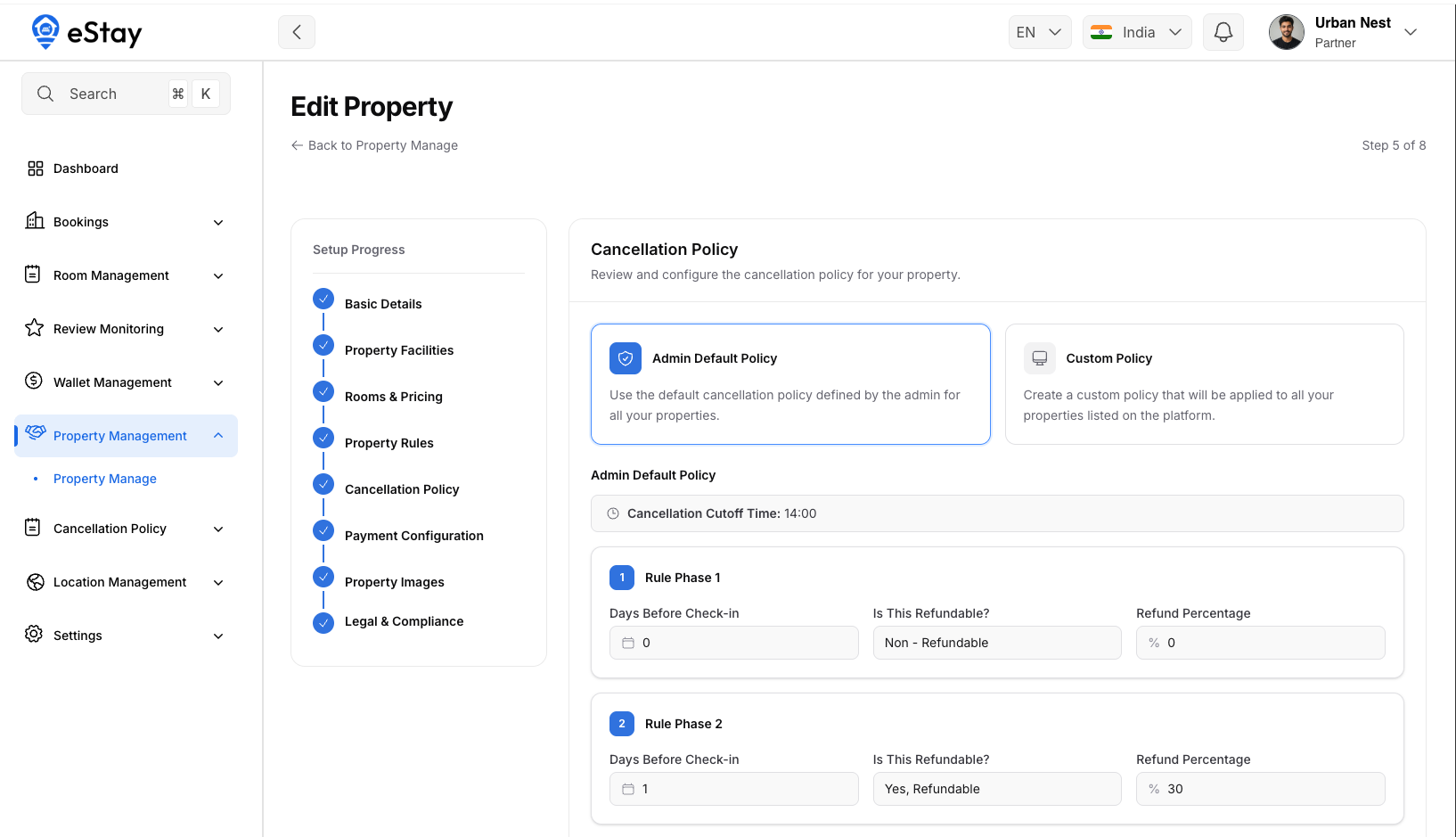
- Cancellation Policy — choose to inherit the admin's default policy for this country and property type, or set a custom one (cutoff time plus tiered refund rules, same structure as the admin default). If the admin hasn't configured a default at all, this is forced to custom.
- Payment Configuration — whether guests can Pay At Property, and if so, what percentage must be paid online upfront.
- Property Images — primary showcase media and gallery groups (max file size per image is a server setting — see Image Upload Limits).
- Legal & Compliance — any Registration Fields required for the country/property type, then submit.
Entire Property (Whole-Unit) Listings
If the admin has enabled it for your property type and country, Step 1 offers a choice: list room-wise (guests book an individual room, the default) or as an Entire Property — guests book the whole villa/unit at once, for one nightly price. This choice is made once, at creation, and can't be changed afterward — create a new listing to switch modes.
Choosing Entire Property changes the rest of the wizard slightly:
- Step 1 adds a Max Guests field for the whole property's capacity.
- Step 3 still lets you add named rooms (Master Bedroom, Guest Room, etc.) for display, with a Quantity field instead of a per-room price — plus one single Property Price field for the whole listing.
- Room Inventory doesn't apply and is skipped entirely.
- Your Availability Calendar shows one row for the whole property instead of one per room type.
After Submitting
Finishing step 8 sends the property straight into the admin's Property Verification queue — it starts as Pending, and stays invisible to guests until approved. Unlike single-mode's admin-created properties (which go live immediately), a partner-created property always needs that review first, no exceptions.
Where to Go Next
- Where the property shows up while waiting → Property Management.
- What the admin does with it → Property Verification.