Availability Calendar
A visual, date-based view of room availability for the currently selected property, with two layouts.
Calendar View
A timeline grid — room types down the side, dates across the top (16 days by default, centered a few days back from today, or a custom range you pick). Each booking renders as a block spanning its check-in to check-out dates. Search narrows blocks to a specific guest name.
Click Today to jump the view back to the current date.
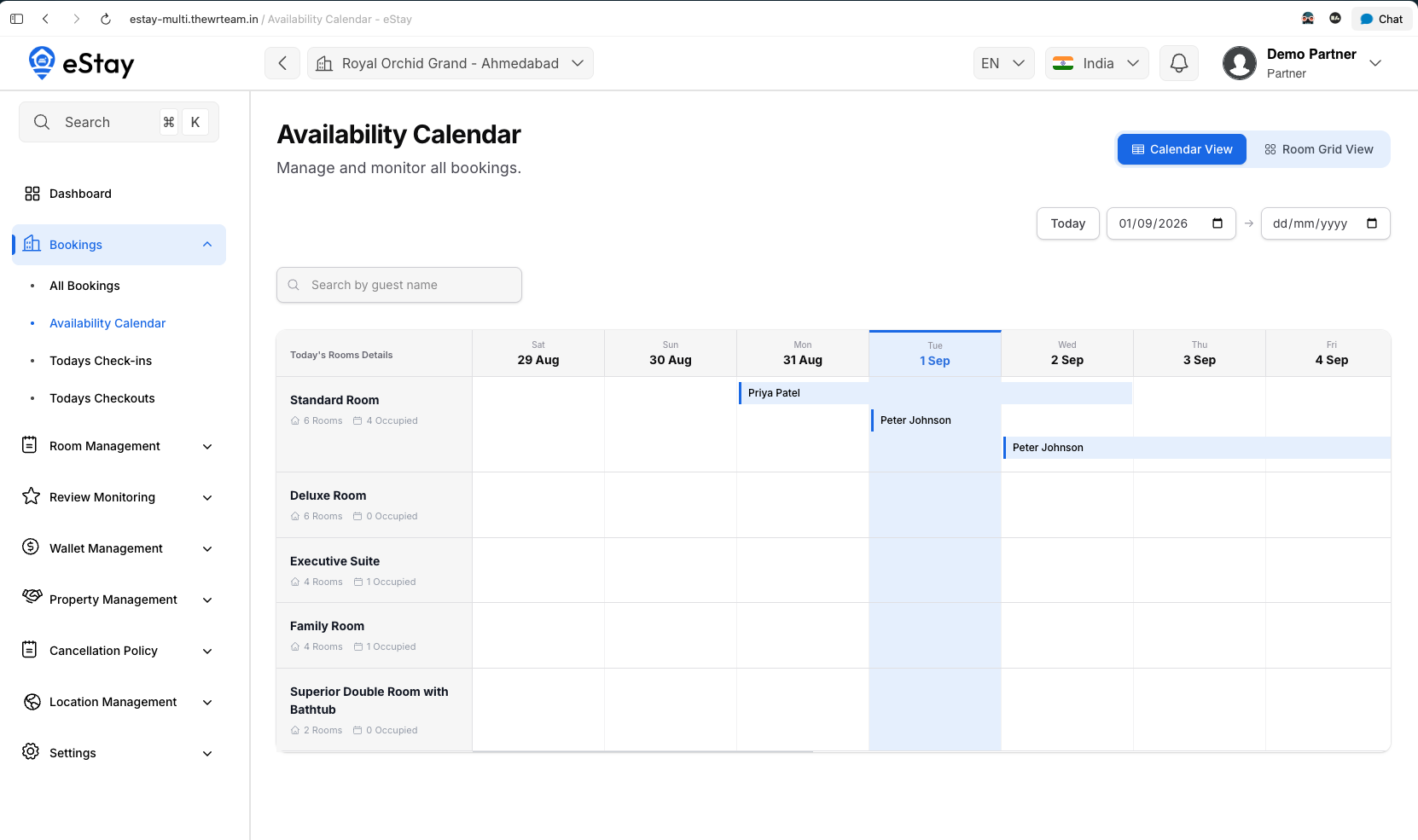
For a property listed as a whole-unit rental (see Adding a Property), this view shows a single row for the whole property instead of one row per room type, labeled Vacant or Occupied rather than a room count.
Room Grid View
Switch views to see actual rooms, grouped by floor, each marked Available, Booked, or Inactive for the selected date range. Filter to one room type, or search by room number or guest name. A summary line per room type shows X Confirmed · Y Checked-in · Z Available so you can see utilization at a glance.
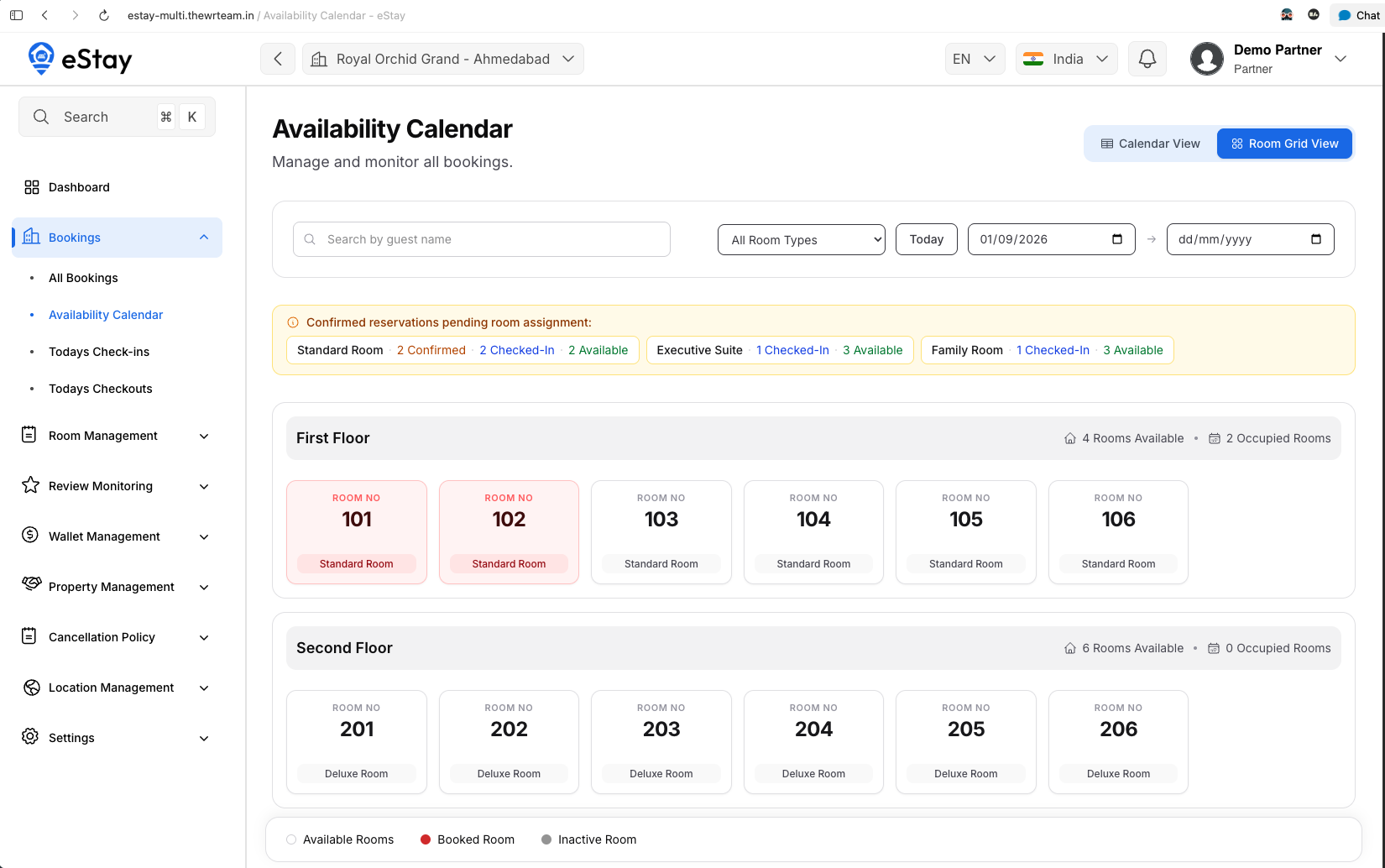
Room Grid View is based on physical room numbers, which whole-unit listings don't have. The toggle to switch views is hidden entirely for those properties.
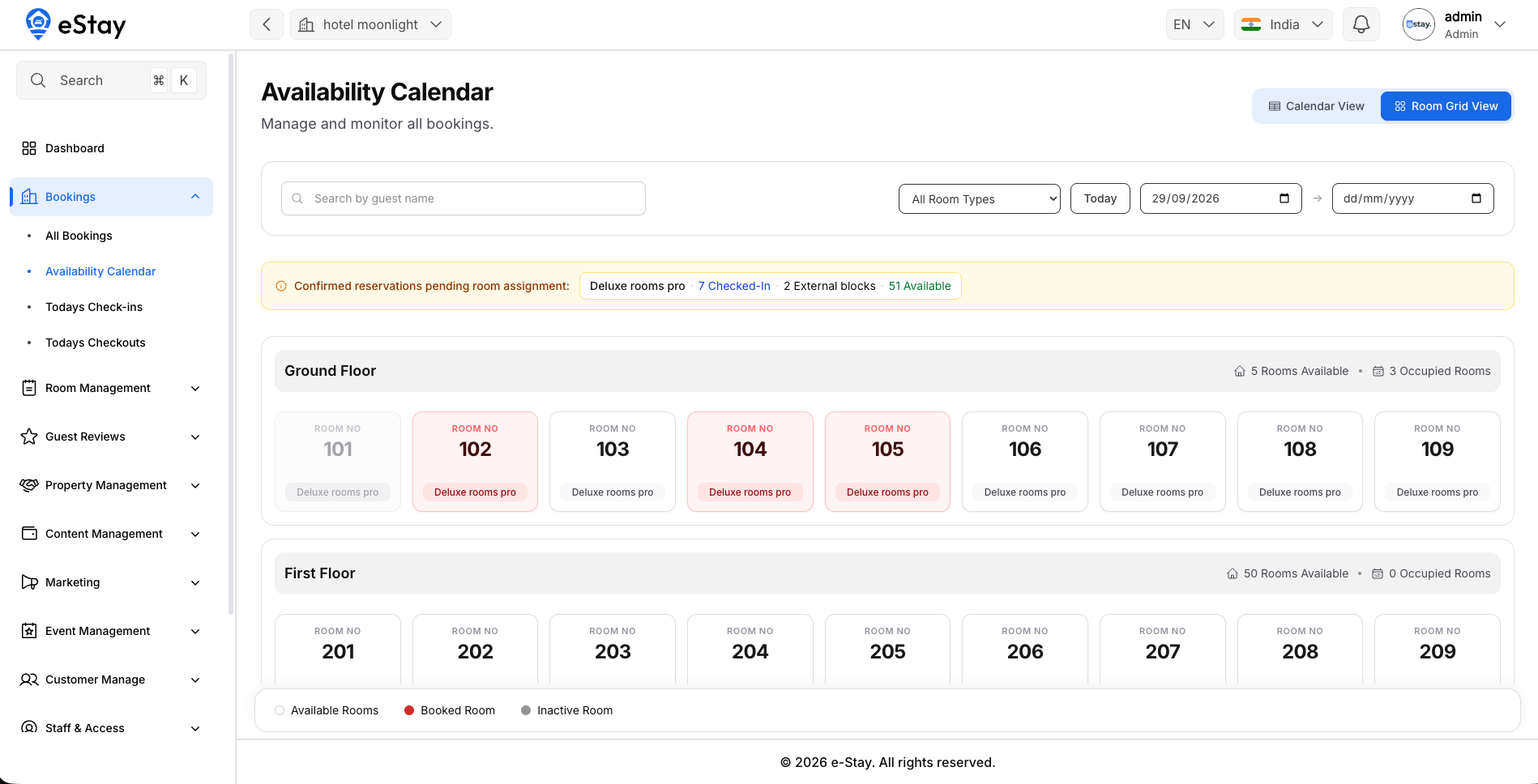
If any of this room type's rooms have an active Calendar Sync import, the utilization line also shows an External blocks count alongside Confirmed/Checked-in/Available:
External Calendar Blocks
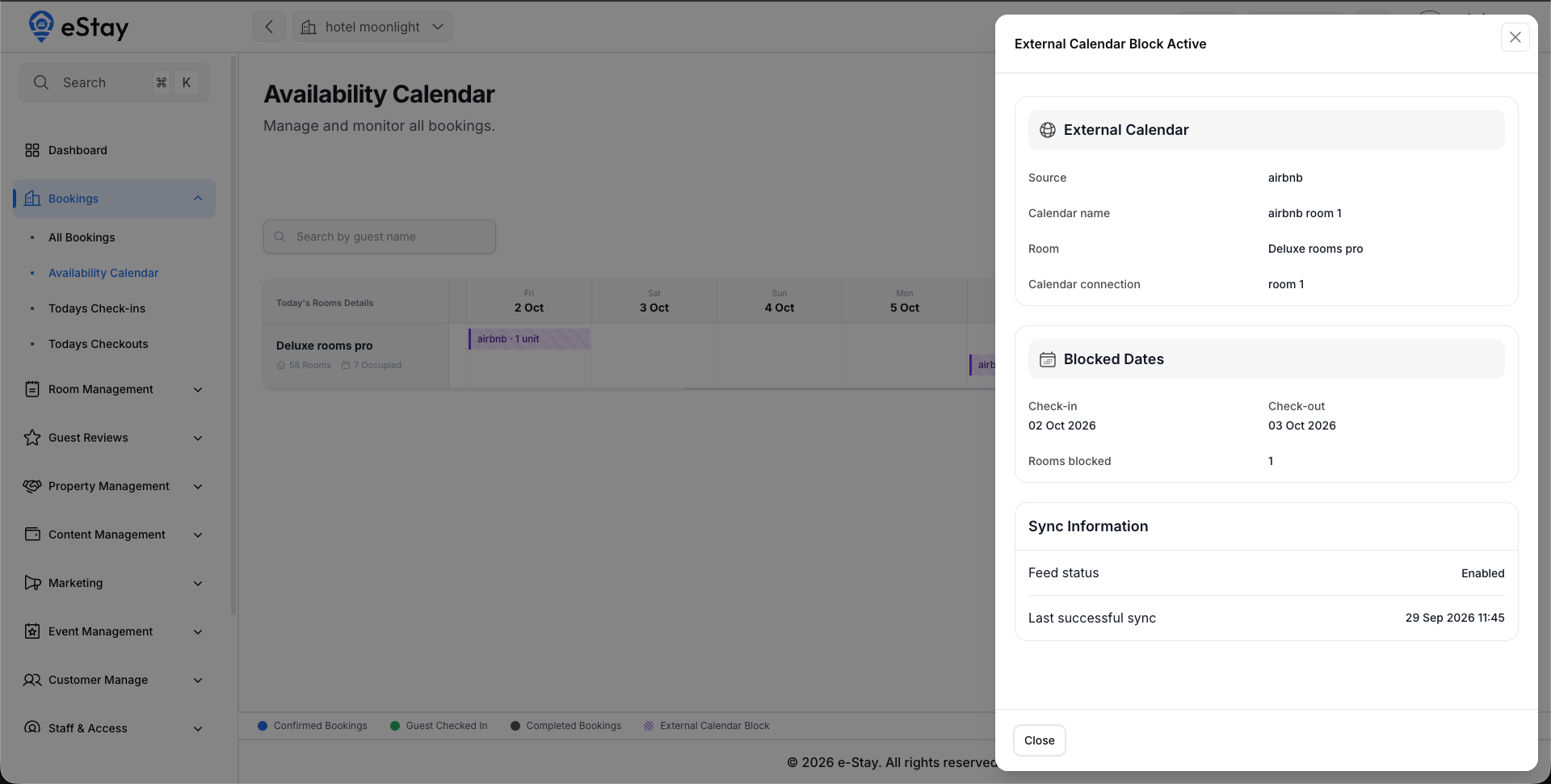
If Calendar Sync is turned on and a room has an active imported calendar (from Airbnb, Booking.com, etc.), any dates that platform has blocked show up here too — as a distinct, diagonally striped purple block, clearly different from a normal booking.
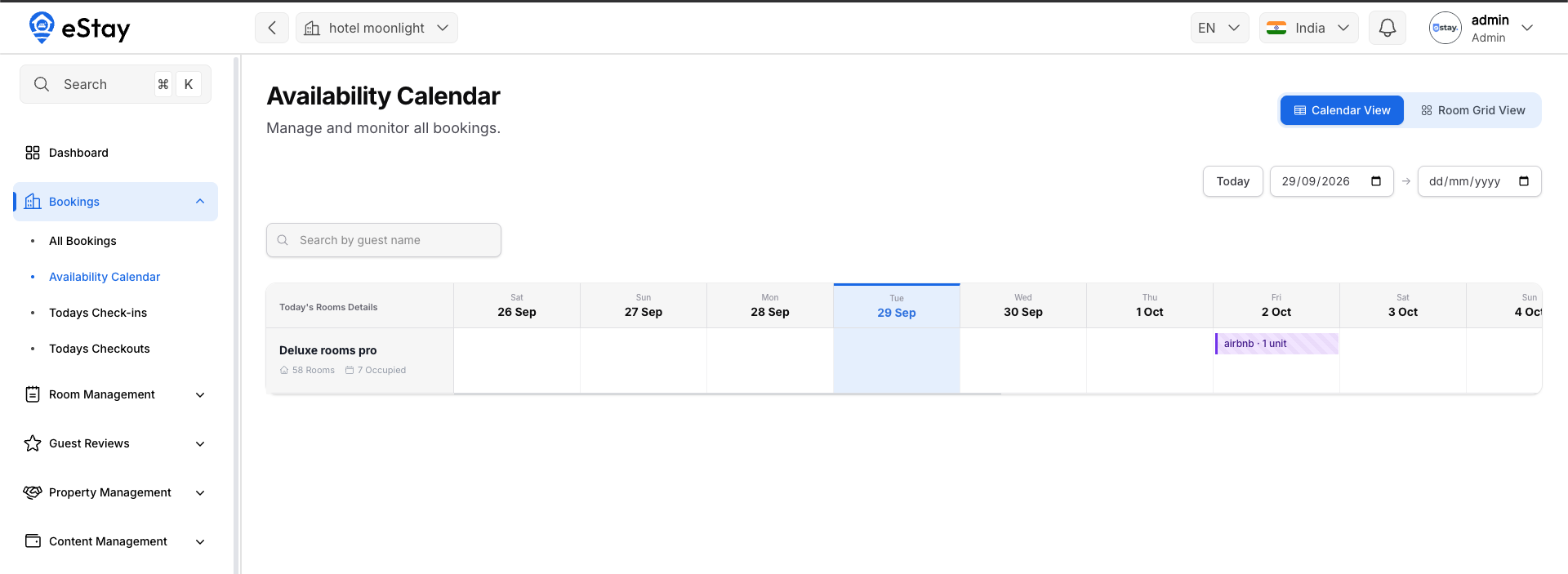
Click it to open a read-only External Calendar Block panel — source platform, calendar name, connected room, blocked dates, and sync status. It never shows customer or payment information, because there isn't any: it's not a booking, just inventory another platform has claimed.
Checking a Booking
Click a booking block (Calendar view) or a booked room (Room Grid view) to open a read-only summary — guest, room, dates — with a View Full Details link through to the complete booking detail page if you need to act on it (cancel, etc.).
Where to Go Next
- Acting on a specific booking → Bookings.
- Setting up rooms shown here → Room Management.
- Connecting a room to Airbnb/Booking.com → Calendar Sync.