Bookings
Every booking across the partner's properties (or just the one selected in the topbar, if narrowed), plus the detail view for a single booking.
The List
Stats at the top: Total (excludes Expired/Pending-payment/Cancelled), Cancelled, and a split of bookings From App vs From Website.
| Column | Description |
|---|---|
| Booking Info | Booking number, with the creation date/time in the property's own timezone. |
| Customer Info | Guest name and email — shows "(account deleted)" if the customer later deleted their account, but the booking itself is untouched. |
| Room Details | Room type, plus the actual assigned room number(s) once assigned. |
| Booking Dates | Check-in → check-out, with nights/days. |
| Financial Summary | Total amount; shows "X% Paid" underneath for a partially-paid booking. |
| Payment | Status badge and method. |
| Status | Booking status — a Checked-in booking whose checkout date has already passed shows a red ⚠ overdue warning. |
Filter by status, booking source, or payment status. Search by booking ID or customer.
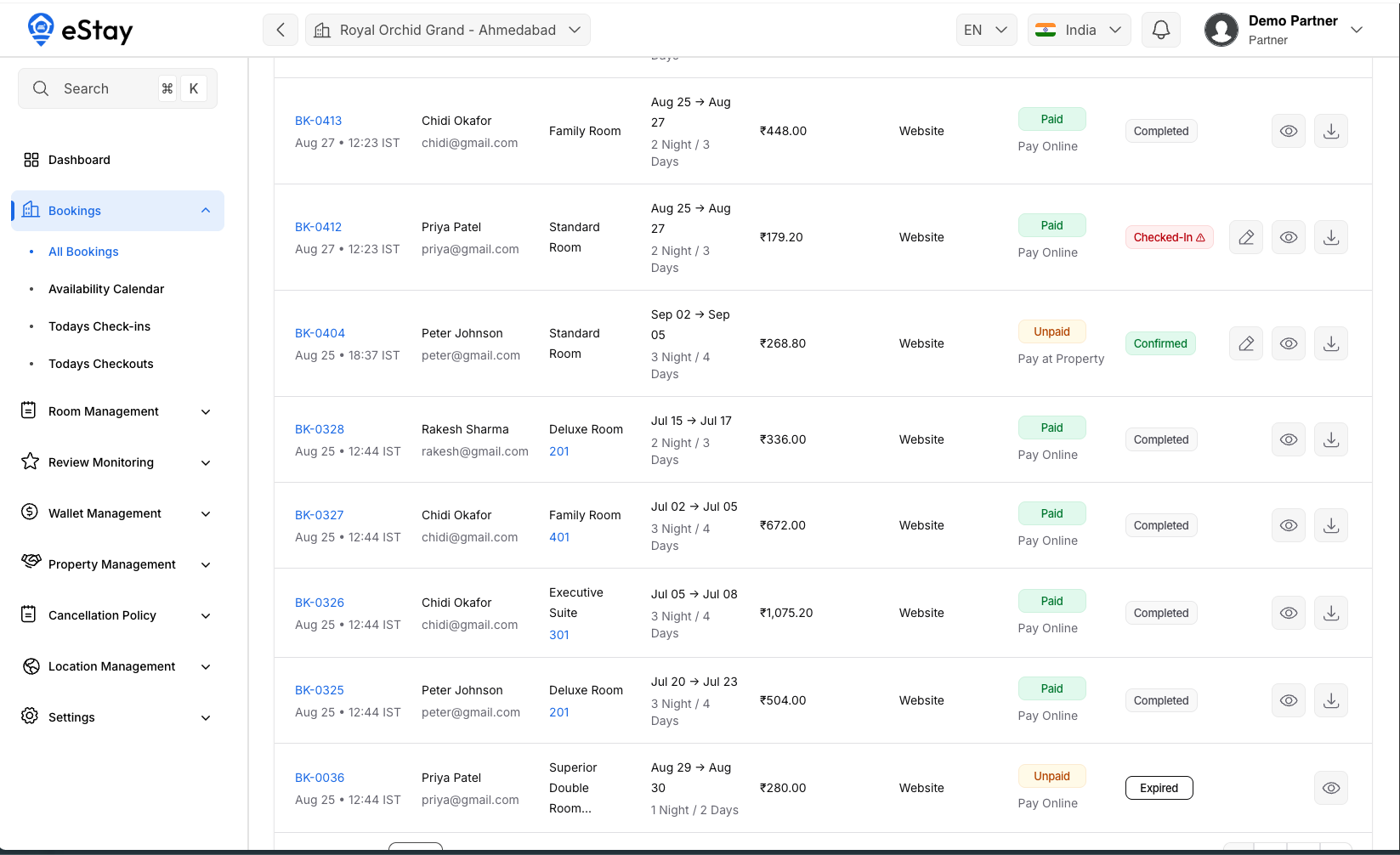
There's no "Add Booking" button. Every booking must come from a guest going through the real online booking flow — a partner can't create one directly. This is intentional: a manually-entered cash/UPI booking marked "Paid" wouldn't have gone through the platform's payment collection, so it would break how commission and wallet crediting are calculated.
Editing a Booking
The edit icon is only available on bookings that are still open (not Expired/Cancelled/Completed) and only when the booking needs partner action — it's how a partner:
- Records a manual payment for a Pay At Property booking (cash or UPI, with a transaction ID for UPI).
- Confirms a Pending booking, once it's paid.
- Checks a guest in — this opens a mandatory room-selection step first; the booking only actually moves to Checked-in once specific rooms are assigned. Guest documents (ID proof, etc.) can optionally be uploaded at this same step.
- Checks a guest out — moves Checked-in to Completed.
- Cancels a booking (Pending or Confirmed only), with a required reason.
Status changes are blocked if the booking isn't fully paid yet — settle payment first.
Booking Detail
Click a booking to see everything: guest, property/room, payments and refunds, promo code or coupon used, and assigned rooms.
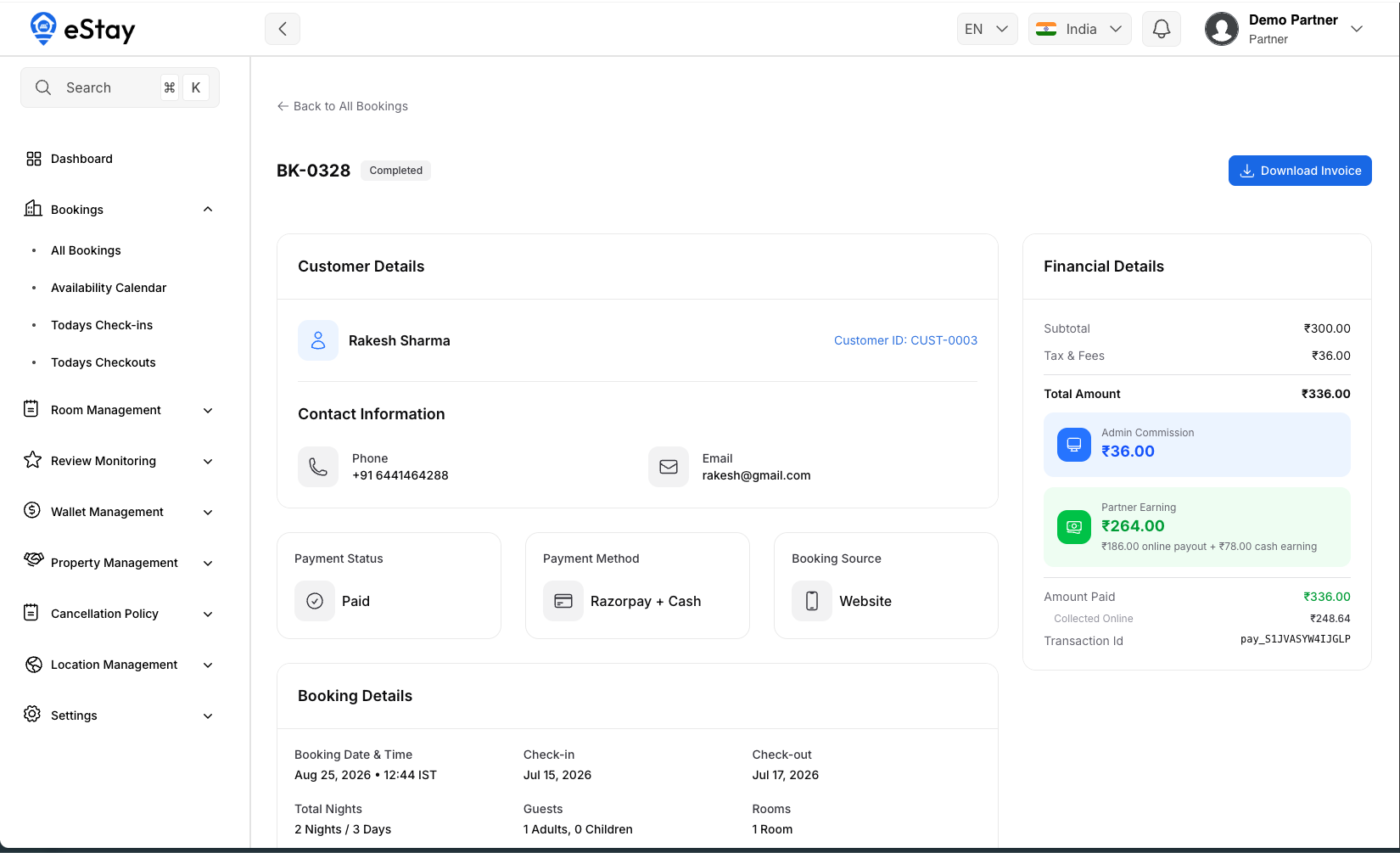
Cancel Booking (shown for Pending, Pending-payment, or Confirmed bookings) opens a summary with a refund preview and asks for a reason.
Whatever the booking's cancellation policy would normally calculate, a partner-initiated cancellation always refunds the customer in full. If the original payment was cash, UPI, or pay-at-property, the refund isn't automatic — a note flags that it needs manual handling on your end.
Where to Go Next
- Today's arrivals and departures → Today's Check-ins & Check-outs.
- Room availability at a glance → Availability Calendar.