Room Inventory
Generates and manages the actual, individually numbered rooms guests get assigned to at check-in — organized by floor. This is the step after setting up a room offering: a room type with pricing doesn't have any bookable rooms until you generate them here.
If your selected property is listed as an Entire Property, it has no numbered physical rooms to generate — guests book the whole unit, not a room within it. This page shows a "not applicable" state and the + Add Rooms action is hidden.
Generating Rooms
Click + Add Rooms and fill in:
| Field | Description |
|---|---|
| Floor | Which floor these rooms belong to. |
| Room Type | Which room offering they're numbered under. |
| No. of Rooms | How many to create. |
| Start Number | The first room number — the rest are generated sequentially from there. |
If some of the generated numbers already exist, those are skipped and you're told which ones — the rest are still created.
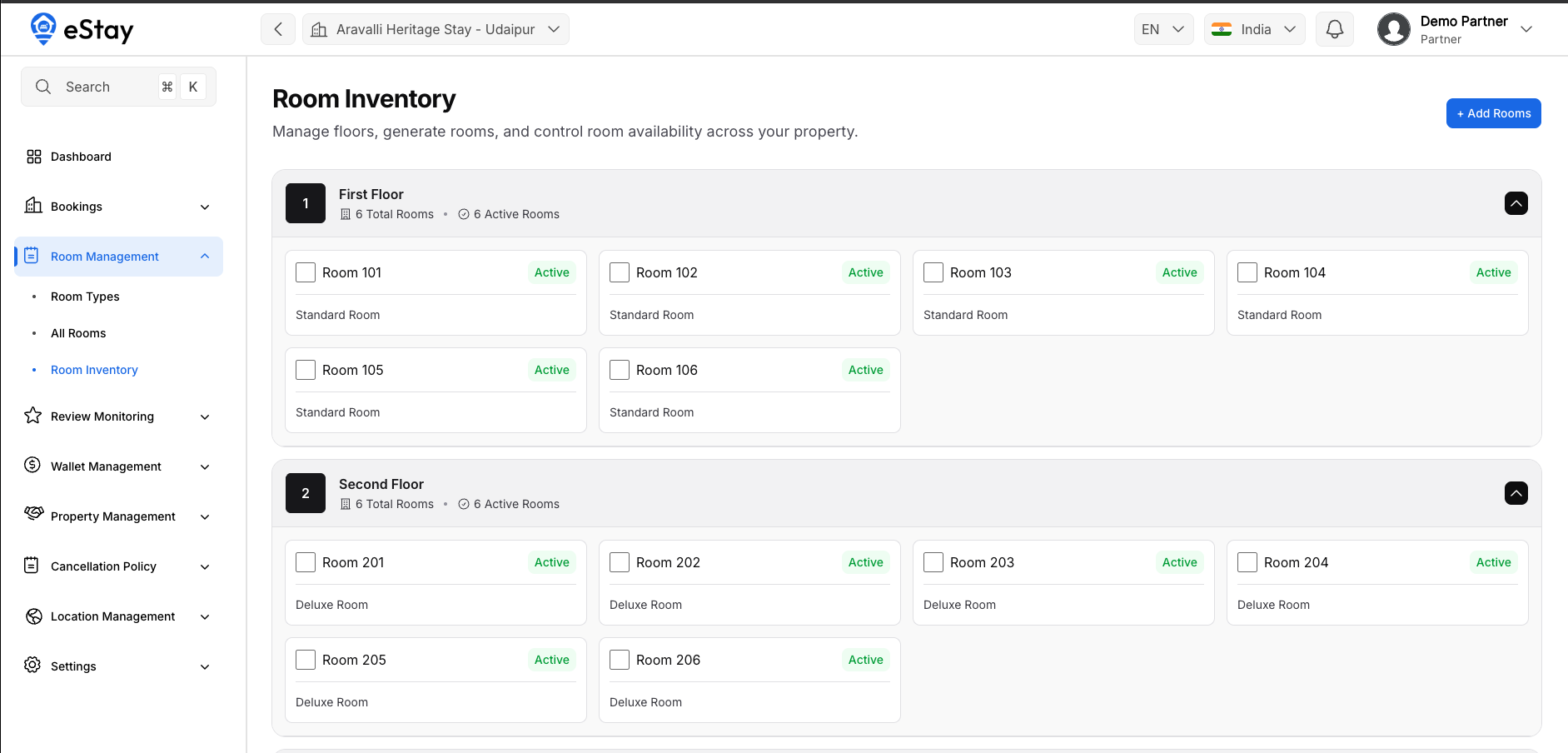
Managing Existing Rooms
Rooms are grouped by floor. Editing a room lets you change its number, room type, floor, or Active/Inactive status. Bulk-select rooms to activate or deactivate several at once.
You can't deactivate, delete, or change the room type of a room that has a Confirmed or Checked-in booking assigned to it. Bulk deactivate silently skips any blocked rooms and tells you which ones it couldn't touch — the rest still go through.
Deleting or deactivating a room automatically recalculates that room type's total room count, which is what drives availability everywhere else in the panel.
Where to Go Next
- Defining the room type/pricing these numbers belong to → Room Management.
- Seeing rooms on a calendar → Availability Calendar.