Facebook App Events
Overview
The app sends app events (installs, opens, in-app actions) to Meta Events Manager for ad measurement and attribution. The integration is already built into the app — you only need to plug in your own Facebook app's App ID and Client Token.
1. Get Your App ID and Client Token
- Go to developers.facebook.com and log in with the Facebook account that should own this app.
- Click My Apps and open your app (or Create App if you don't have one yet).
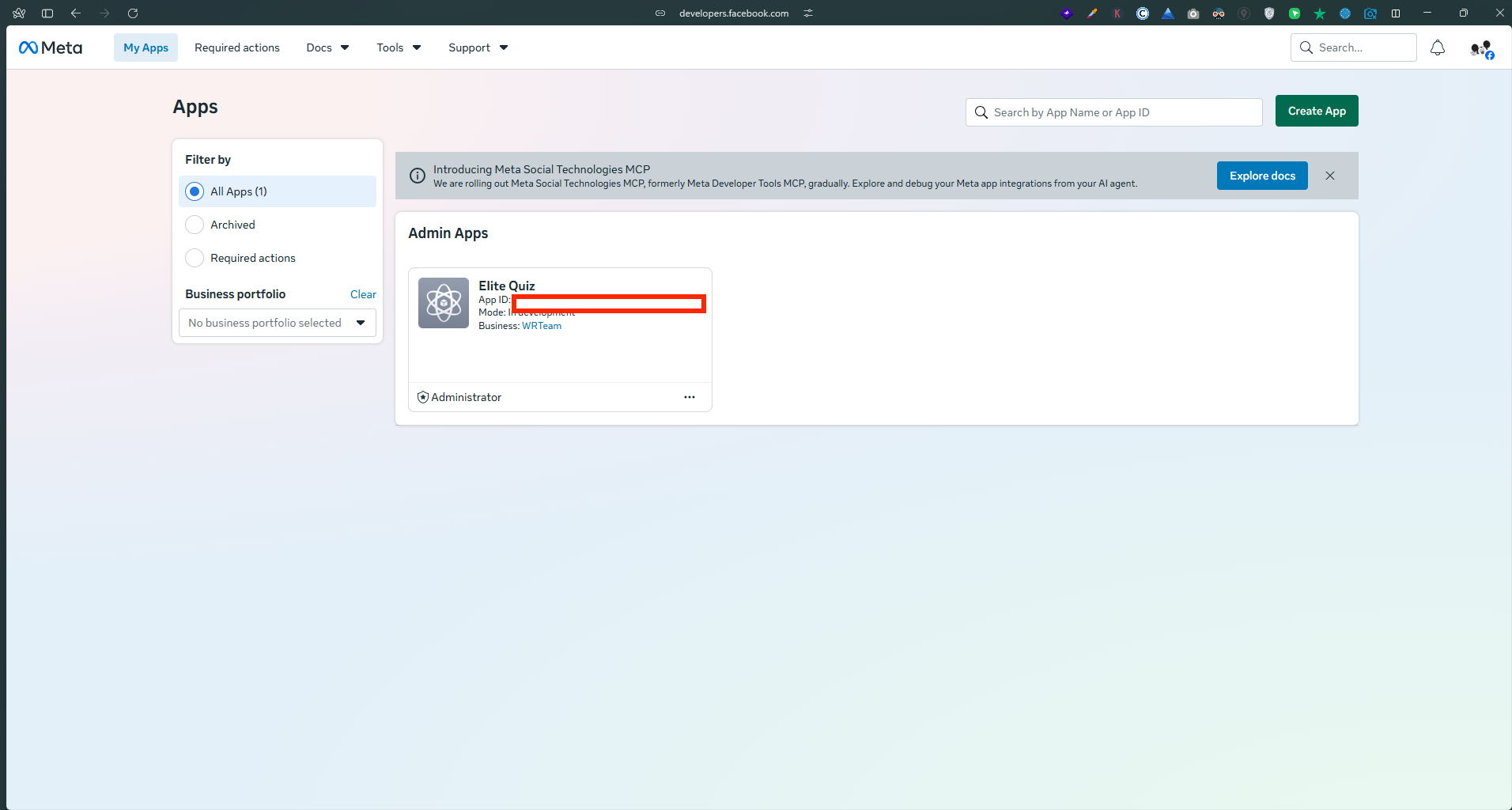
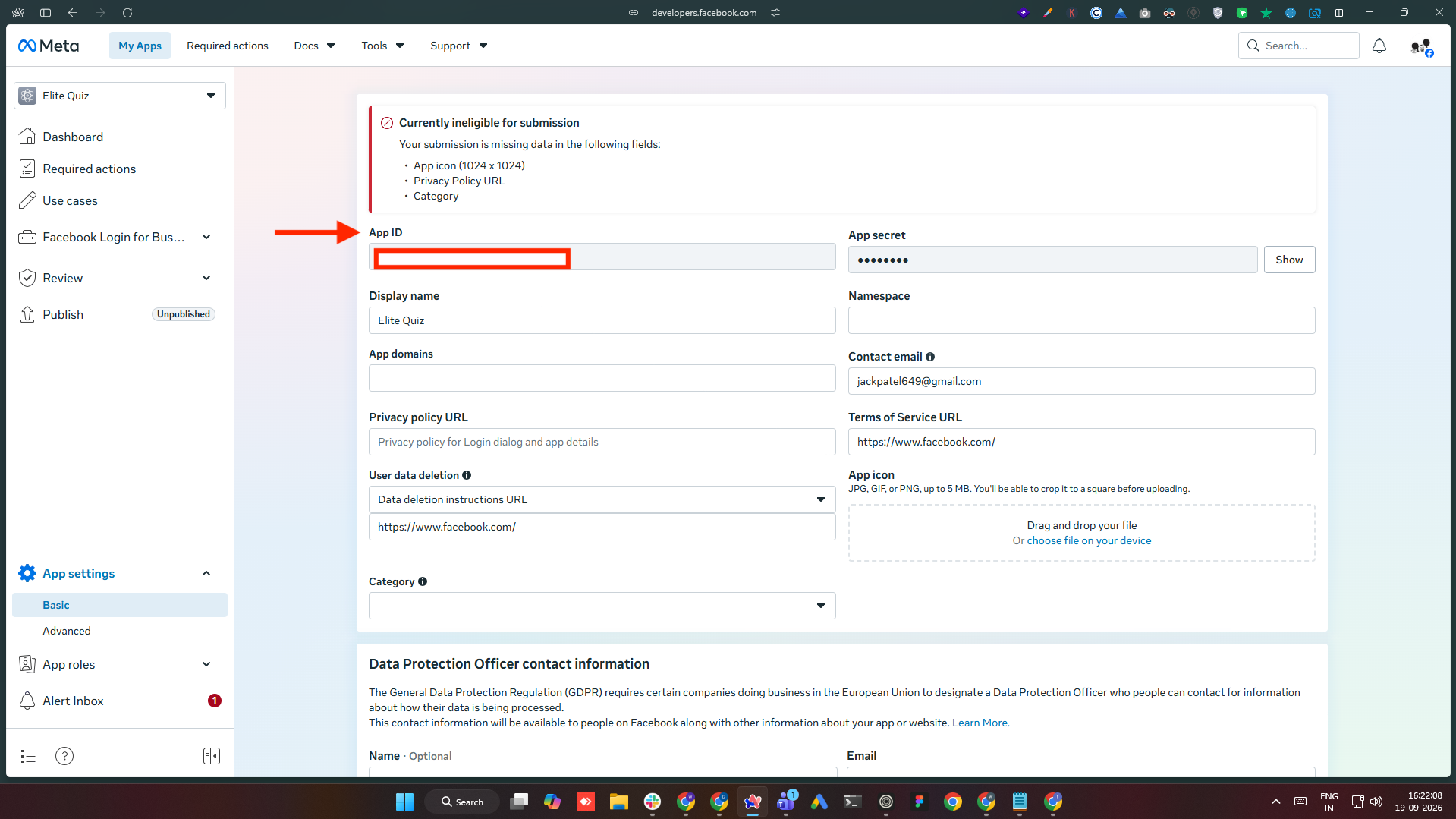
- In the left sidebar, open App settings → Basic. The App ID is at the top of the page.
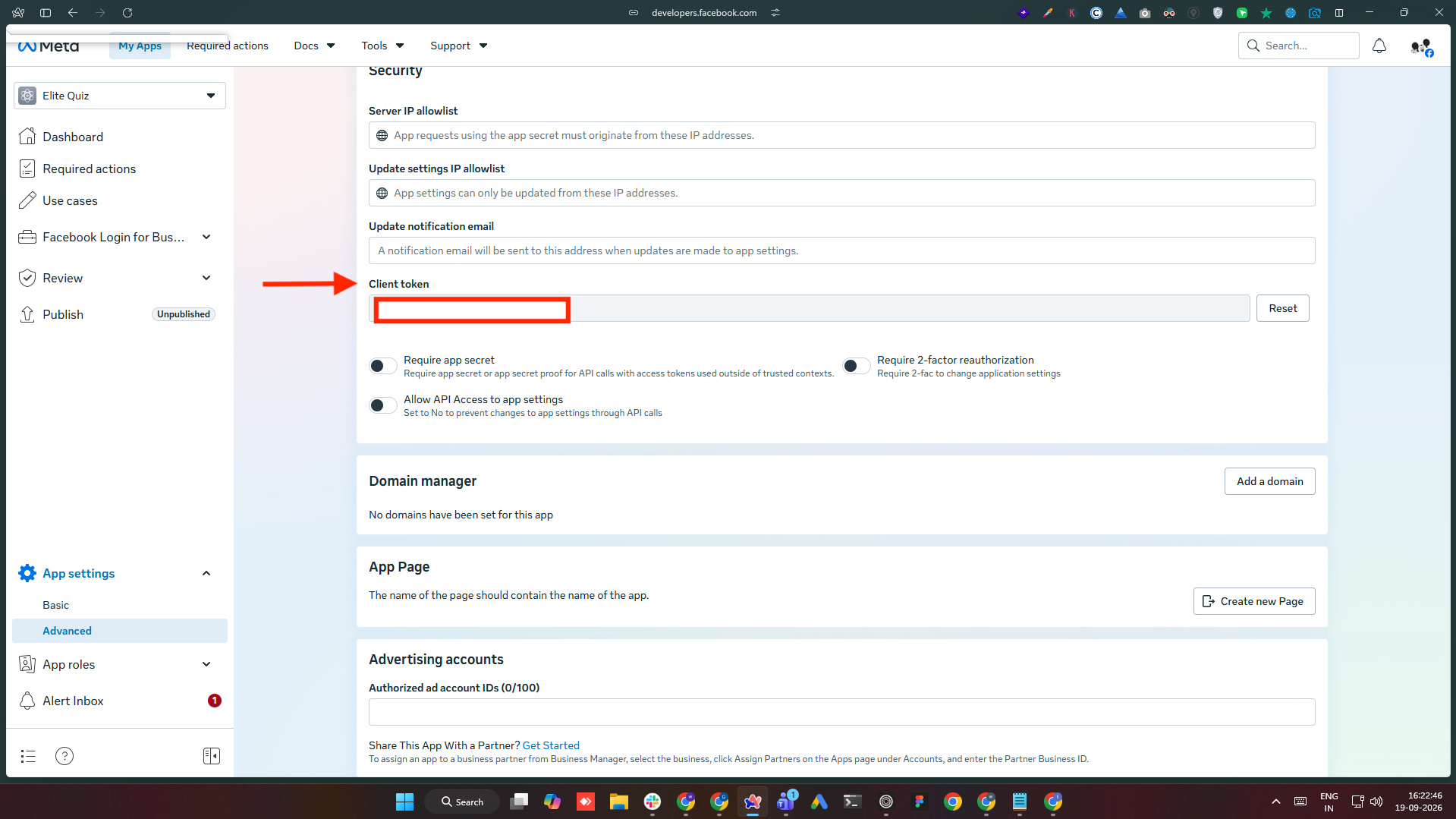
- Open App settings → Advanced, scroll to the Security section, and copy the Client token.
Keep both values handy — you'll add them to the Android and iOS configuration below.
2. Android Setup
Open android/app/src/main/res/values/strings.xml and replace the placeholder values with your own App ID and Client Token:
<string name="facebook_app_id">YOUR_FACEBOOK_APP_ID</string>
<string name="facebook_client_token">YOUR_FACEBOOK_CLIENT_TOKEN</string>
Nothing else needs to change on Android — AndroidManifest.xml already references these two string resources.
3. iOS Setup
Open ios/Runner/Info.plist and replace the placeholder values for these three keys:
<key>FacebookAppID</key>
<string>YOUR_FACEBOOK_APP_ID</string>
<key>FacebookClientToken</key>
<string>YOUR_FACEBOOK_CLIENT_TOKEN</string>
<key>FacebookDisplayName</key>
<string>YOUR_APP_NAME</string>
FacebookDisplayName is just the app name Meta shows in its own dashboards — use whatever you've named the app.
After saving, run pod install inside the ios/ folder before your next iOS build so CocoaPods picks up the Facebook SDK.
4. Rebuild the App
A full rebuild is required after changing native config — a hot reload/hot restart is not enough:
flutter clean
flutter run
5. Connect the App to Meta Events Manager
Before events show up anywhere, your app has to be added as a data source in Events Manager — this is a one-time setup, separate from the App ID/Client Token you already added to the code.
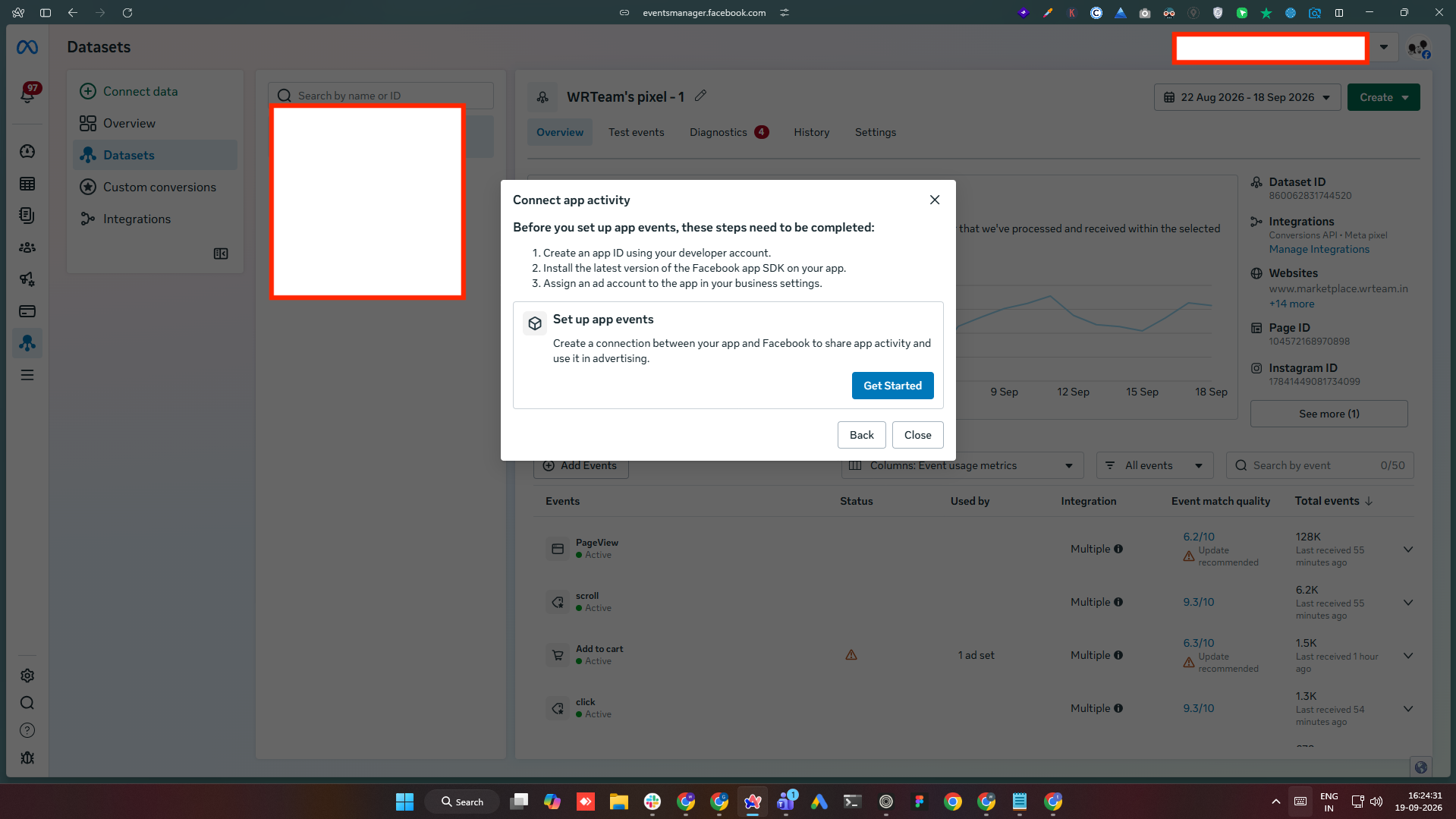
- Go to Meta Events Manager, open (or create) the dataset you want app events to flow into, and click Connect data. Choose App as the data source type.
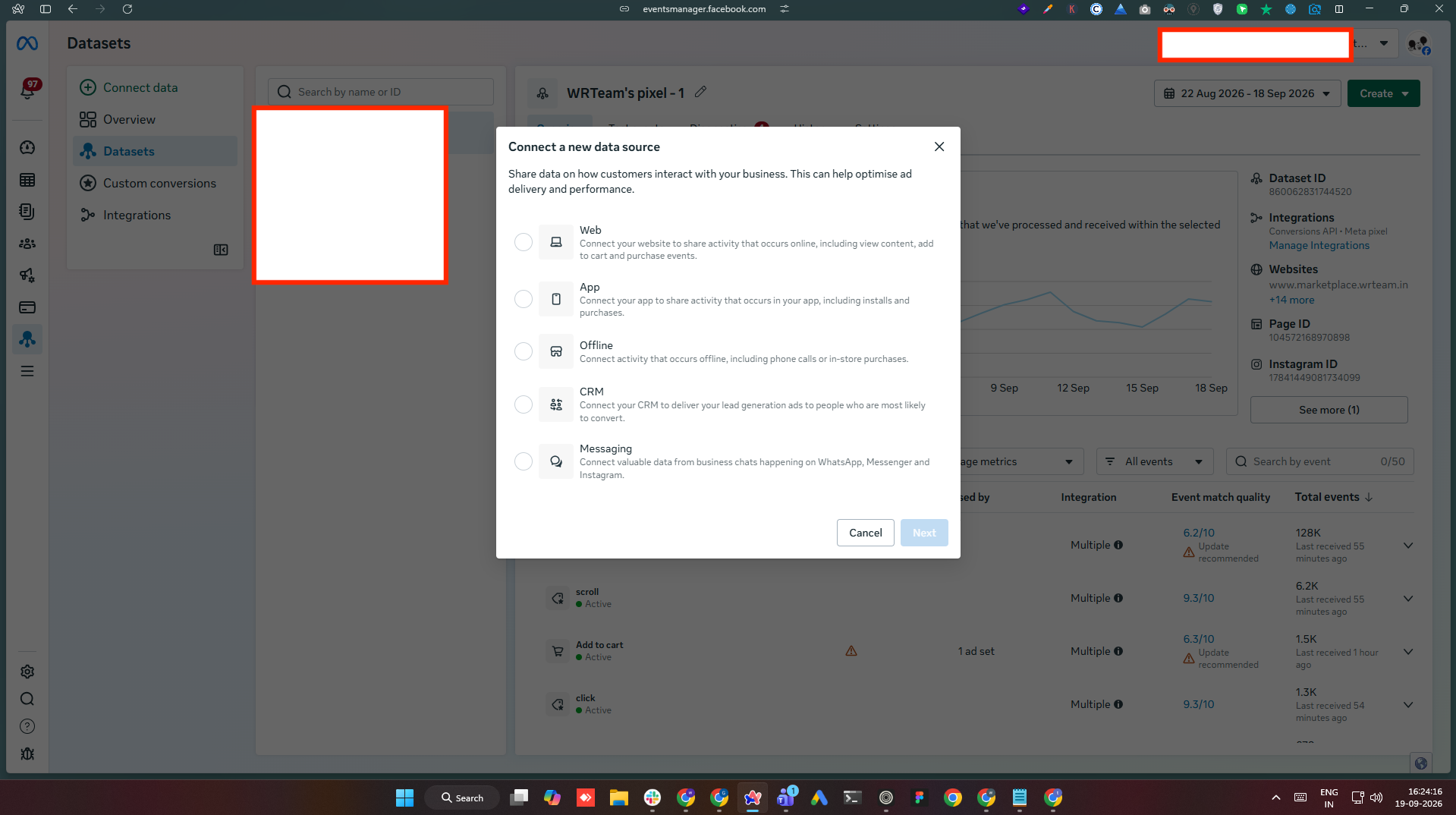
- If the dataset shows a Connect app activity prompt instead, click Get Started.
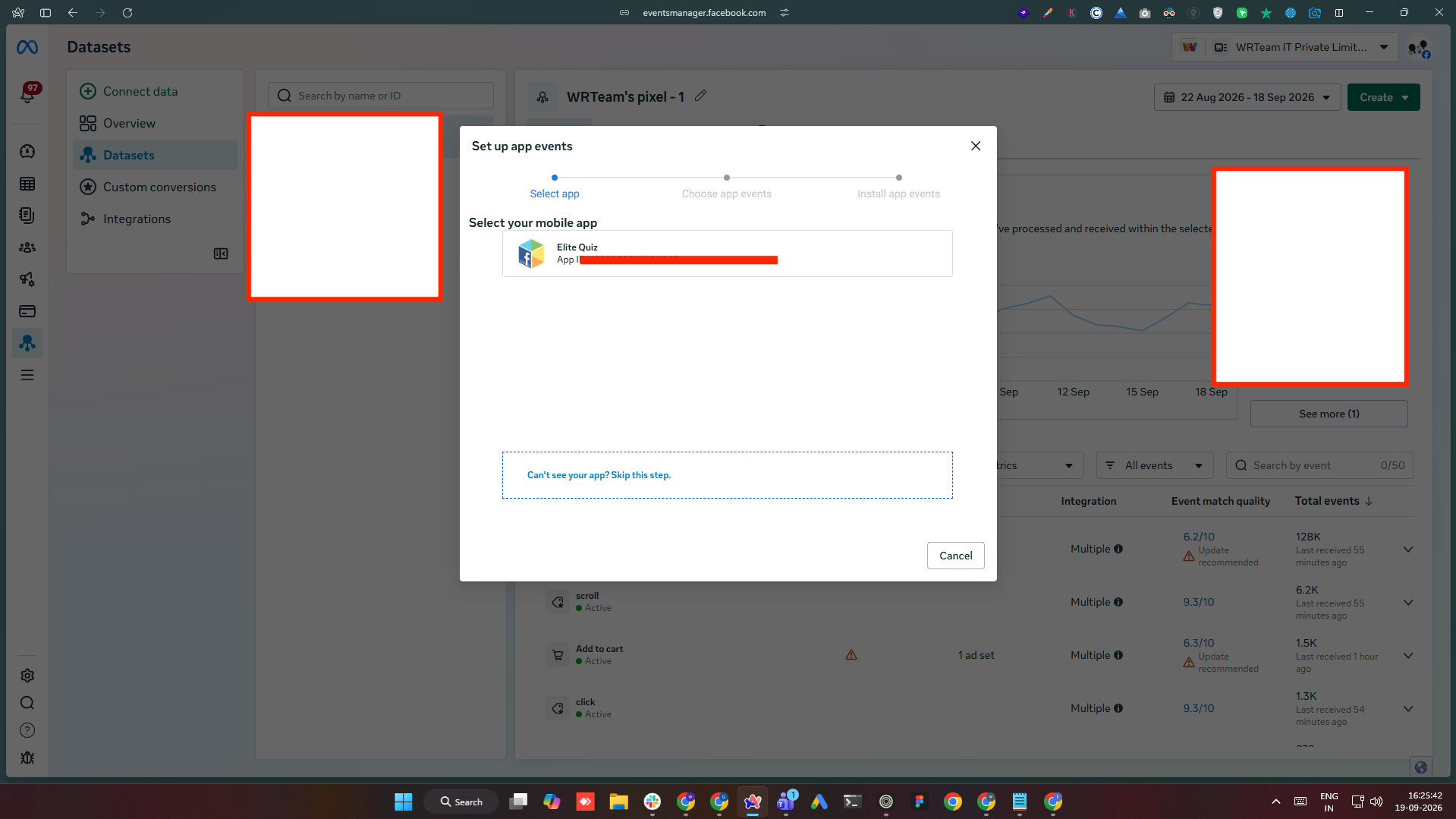
- In the Set up app events wizard, select your app from the list — it's matched by the App ID from step 1.
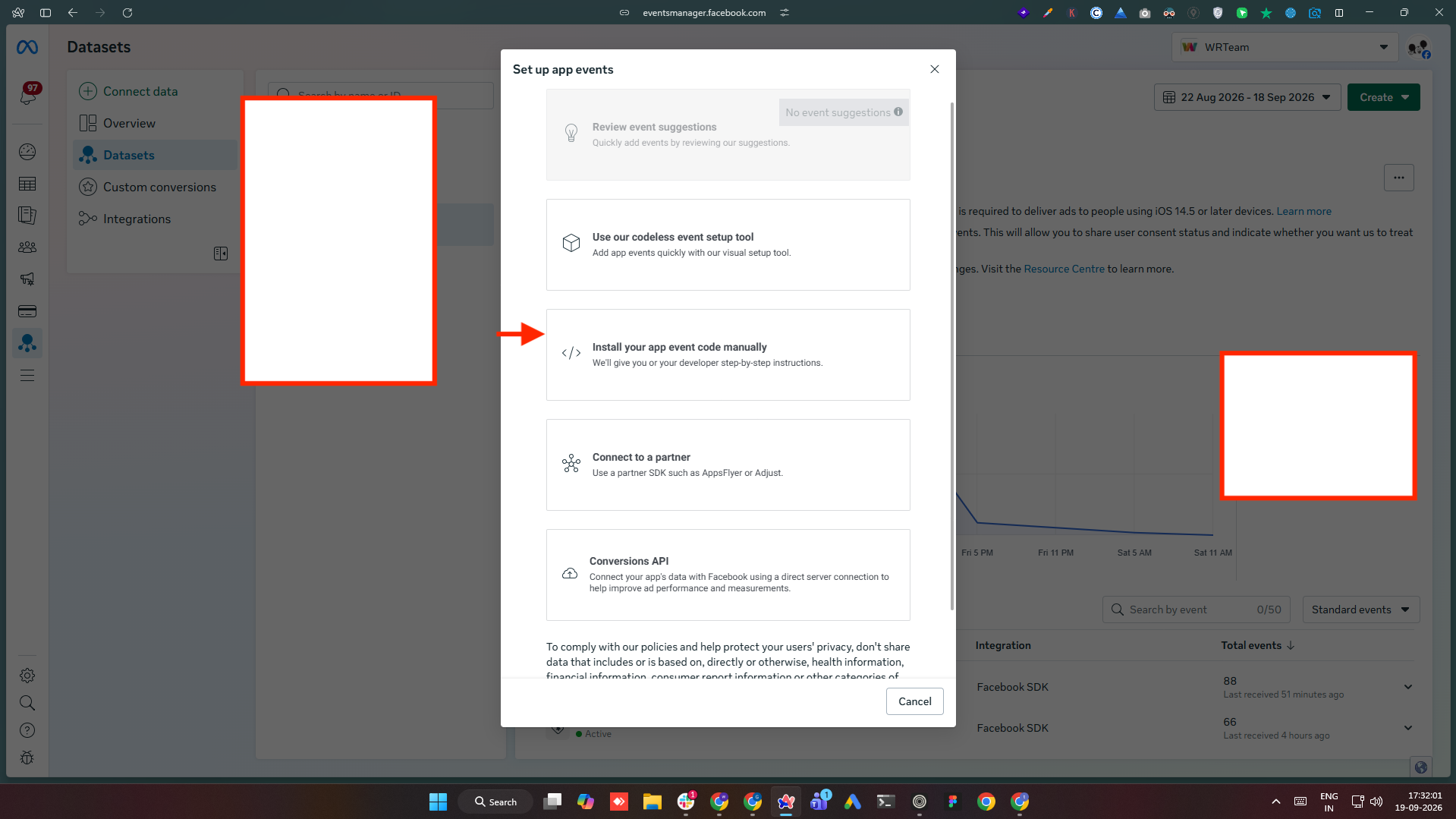
- On the Install app events screen, choose Install your app event code manually.
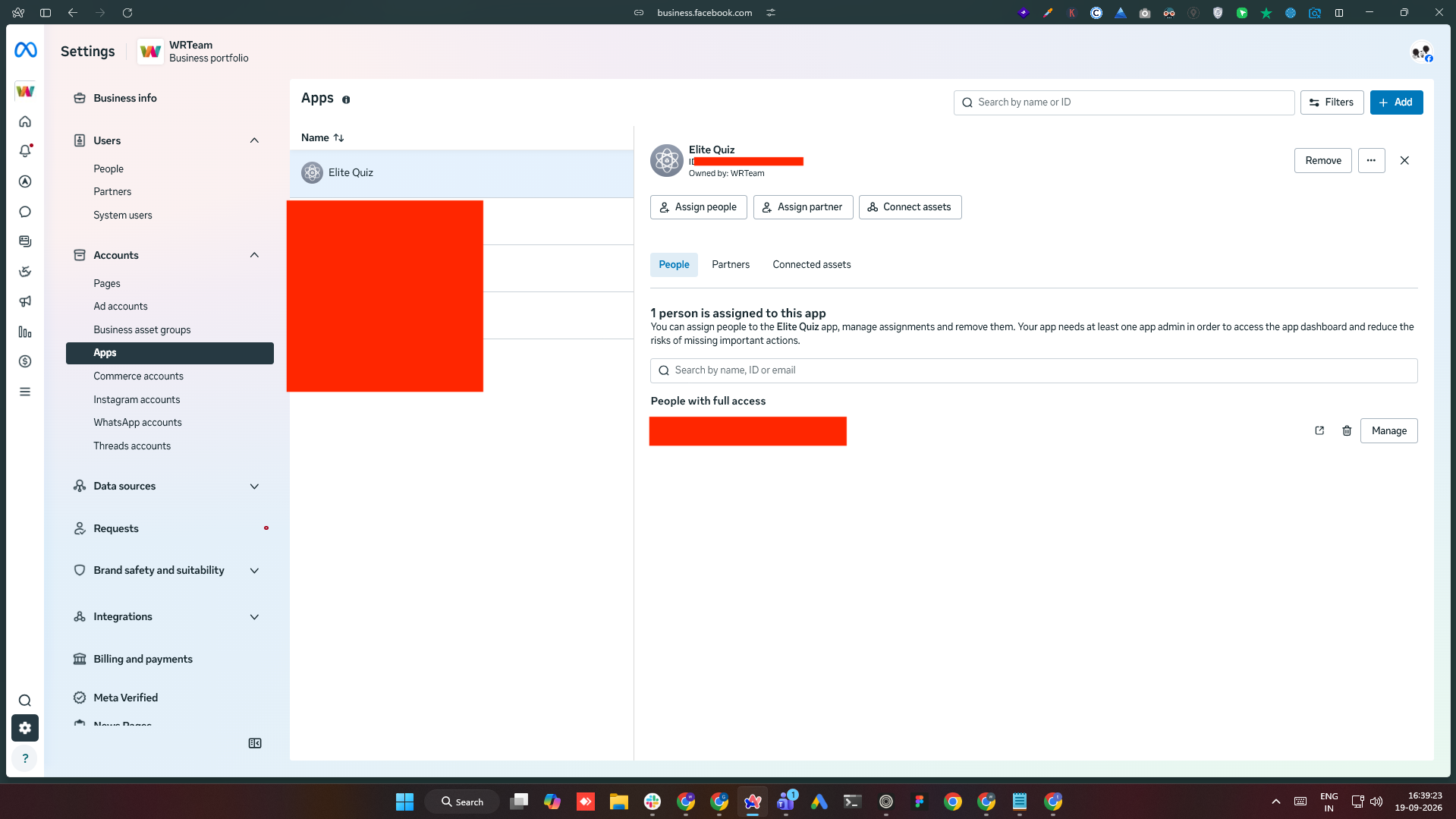
Your app must be linked to the same Meta Business account as the dataset. Check Business Settings → Accounts → Apps, confirm the app is listed, and that your account has access to it.
6. Verify Events Are Arriving
Facebook's SDK automatically logs standard events (app installed, app activated) as soon as it detects the App ID / Client Token above — no extra code is required for that part.
To confirm events are actually arriving:
- Go back to Meta Events Manager and select this app's dataset.
- Open the Test Events tab and run the app on a device/emulator — you should see events appear there in real time (within a few seconds).
Alternatively, Meta's App Ads Helper browser extension shows the same real-time event stream and can be used instead of Test Events.
Events Manager's aggregated dashboards (outside Test Events) are delayed and deduplicated — don't rely on them to verify a fresh setup.
7. Registering Custom Events
Standard install/open tracking is automatic (see step 6) — no code needed. For anything app-specific (a quiz completed, an exam submitted, a purchase), the app logs a custom event with whatever data is relevant.
The App ID / Client Token are not secrets — they're bundled into the compiled app binary and visible to anyone who inspects it. This is expected and matches how Meta's SDK is designed to work.