AI Setup
All AI features run on one provider of your choice: Gemini, OpenAI, Claude, Grok or DeepSeek.
| Feature | Where |
|---|---|
| Generate Description | Admin, App, Web |
| Generate SEO Details (meta title, description, keywords, all languages) | Admin, App, Web |
| Fill Listing With AI (whole form from one sentence, all languages) | App, Web |
Setup
-
Settings→AI Settings→ turn on Enable AI features. -
Select the AI Provider. Only its API key field is shown.
-
Paste the API Key:
Provider Get the key from Google Gemini https://aistudio.google.com/app/apikey(see below)OpenAI https://platform.openai.com/api-keysAnthropic Claude https://console.anthropic.com/settings/keysxAI Grok https://console.x.ai/DeepSeek https://platform.deepseek.com/api_keys -
Click Fetch Models, pick a Model (or leave Provider default).
-
Save Settings.
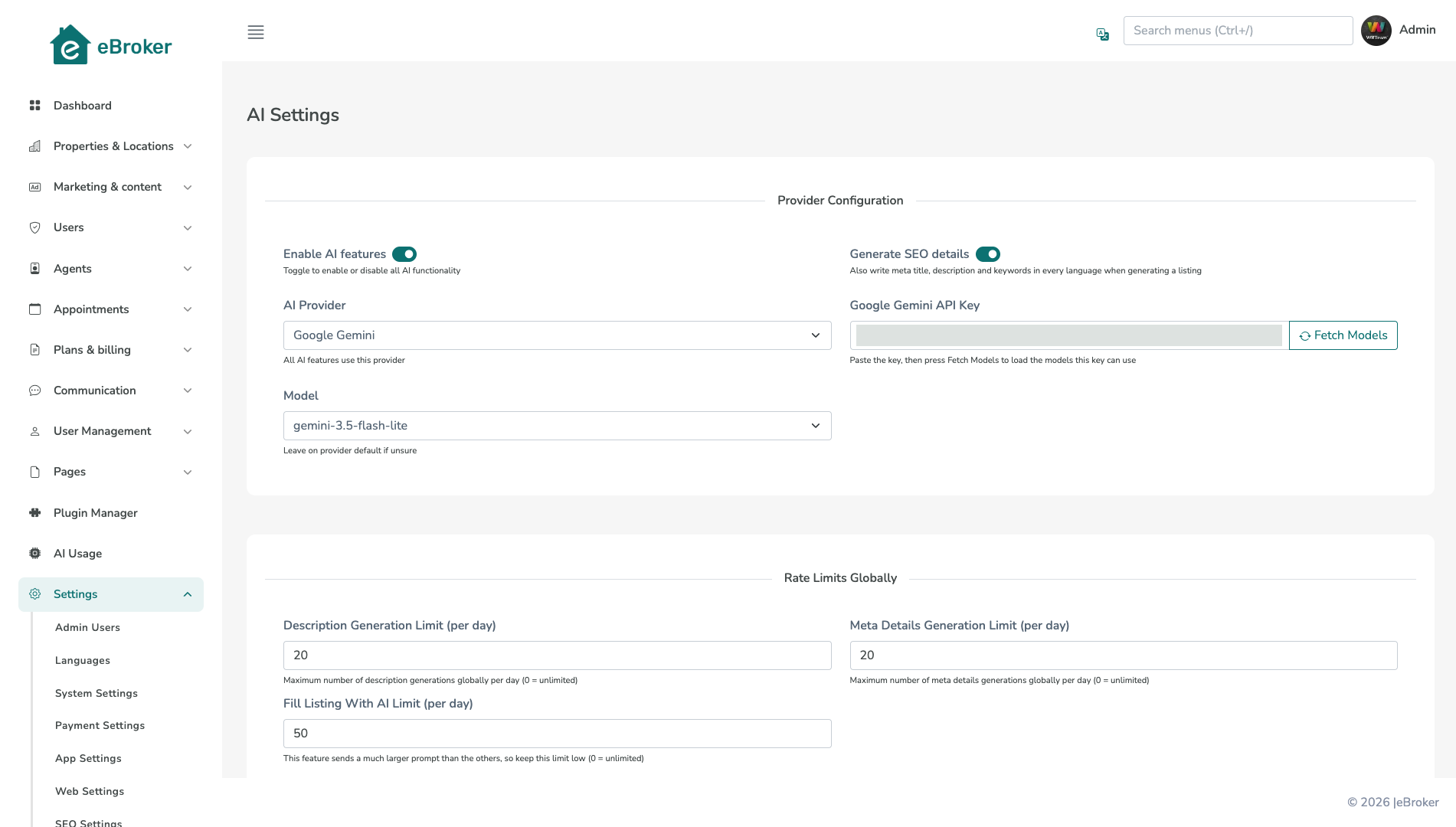
Models are listed live from the provider using the key you typed, so you can fetch before the first save. Text models only; a model not listed can still be typed in. Switching provider resets the model, so fetch and pick again. Other providers' saved keys are kept, so you can switch back freely.
Settings reference
| Setting | Default | Notes |
|---|---|---|
| Enable AI features | Off | Master switch for all AI |
| Generate SEO details | On | Off = listings are generated without meta fields, and Generate SEO Details is refused |
| Description / Meta limit (global, per user) | 10 / 10 | Per day, 0 = unlimited |
| Fill Listing With AI limit (global, per user) | 10 / 5 | Keep low. It sends your full category and parameter list (~1,280 tokens per property) |
- AI Usage (sidebar): read-only log of generations, tokens and accounts, filterable by account type and action, with optional Provider / Model / IP columns.
- Clear AI Cache: content is cached per provider and model, so switching already gives fresh output. Clear it only to rewrite earlier content on the same provider and model.
Gemini API keys
Free evaluation: create a key at https://aistudio.google.com/app/apikey and paste it in. Limited quota, no IP restriction.
Production: a restricted Google Cloud key:
-
Google Cloud Console →
APIs & Services→Library→ enable Generative Language API.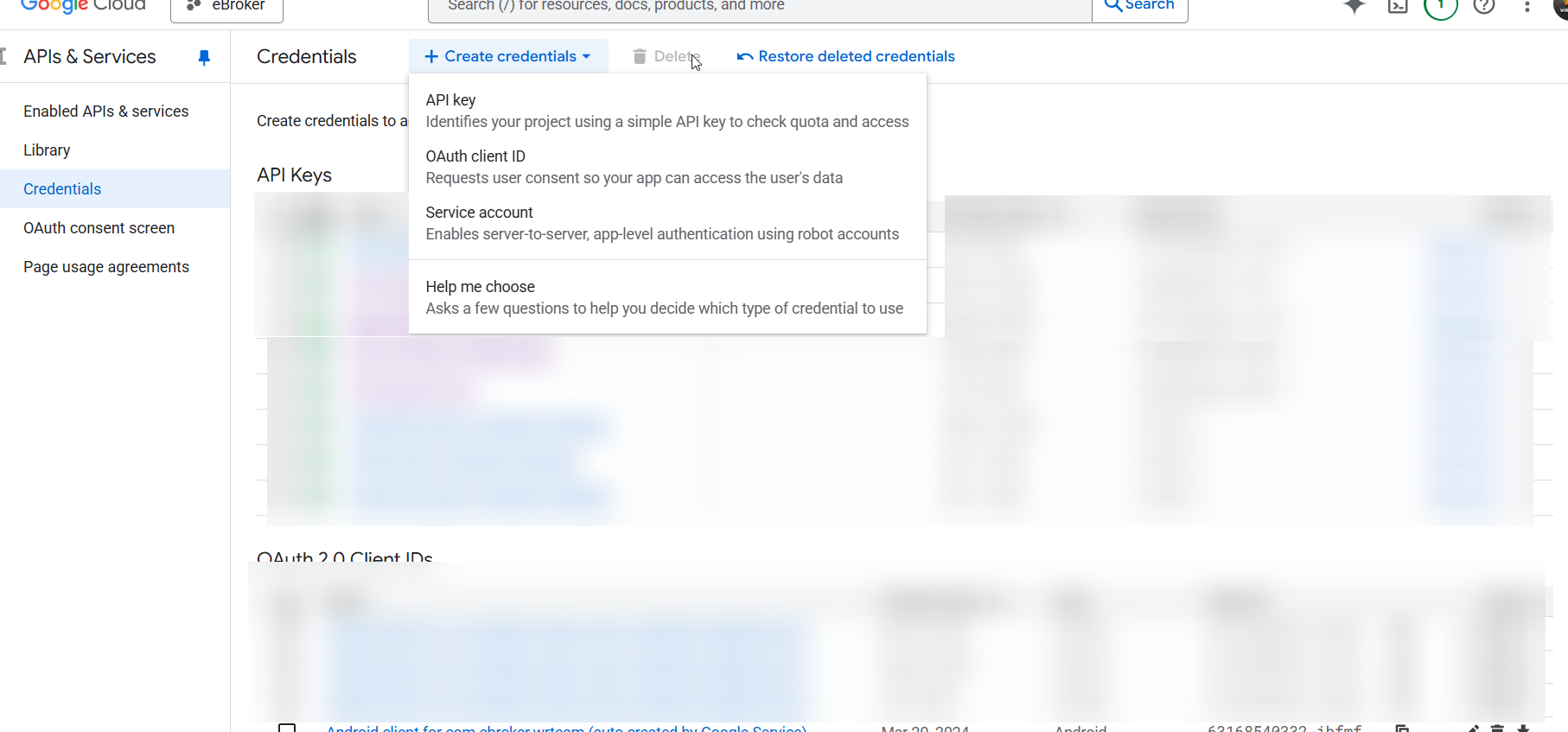
-
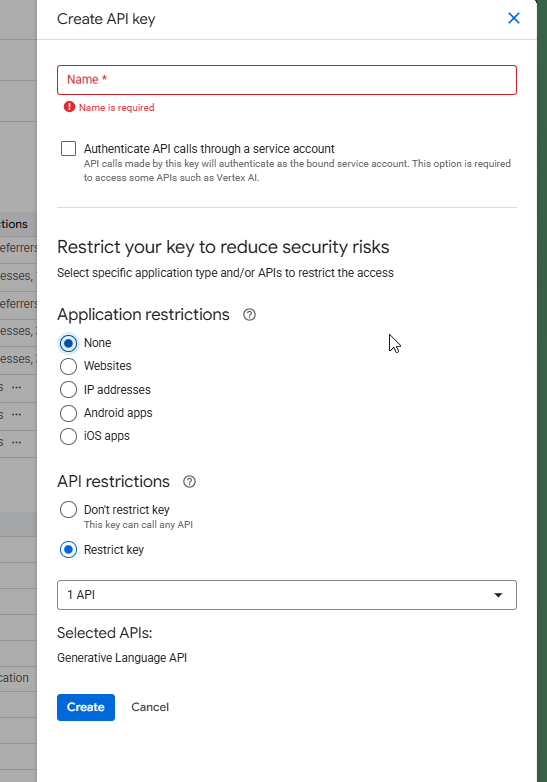
Credentials→ Create credentials → API key, then Restrict key:- API restrictions: Generative Language API only.
- Application restrictions: IP addresses, your server's public IPv4/IPv6.
-
Copy the key and paste it in the Admin Panel.
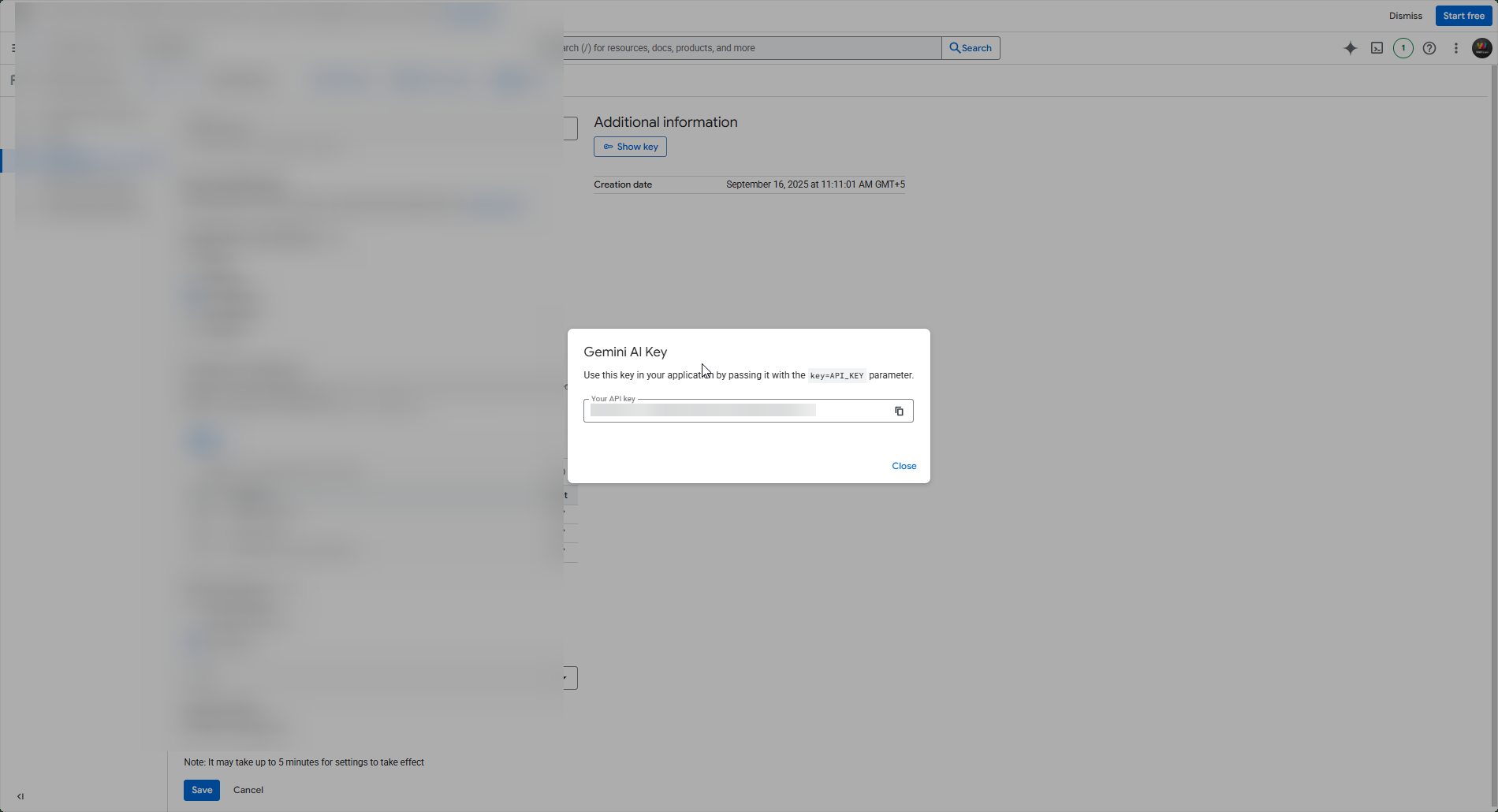
Keep keys server-side only. If your server's outgoing IP changes, update the key's allowed IPs or calls fail with
403.
Upgrading from v1.8.0 or earlier
Nothing to do. Your Gemini key and limits carry over, GEMINI_API_KEY in .env still works as a fallback (keys now live in the Admin Panel), and released apps keep working since the old gemini/* endpoints simply run on the provider you selected.
Troubleshooting
| Problem | Cause / fix |
|---|---|
| "Enter the API key first" | Paste the key before pressing Fetch Models. |
| Fetch Models fails | Wrong key for that provider, no billing on the account, or the key is IP-restricted to another server. |
| "Content Generation currently not available" | Key missing or rejected by the provider. Check the key, then AI Usage. |
| "The AI reply was cut short" | Use a larger model, or turn Generate SEO details off. |
| "Daily limit reached." | Raise the limit, or set 0 for unlimited. |
Gemini 403 | The restricted key's allowed IPs no longer include your server. |