Certificate Management
Create certificate templates for courses and specializations, and see every certificate that has been issued to learners.
Manage Certificate
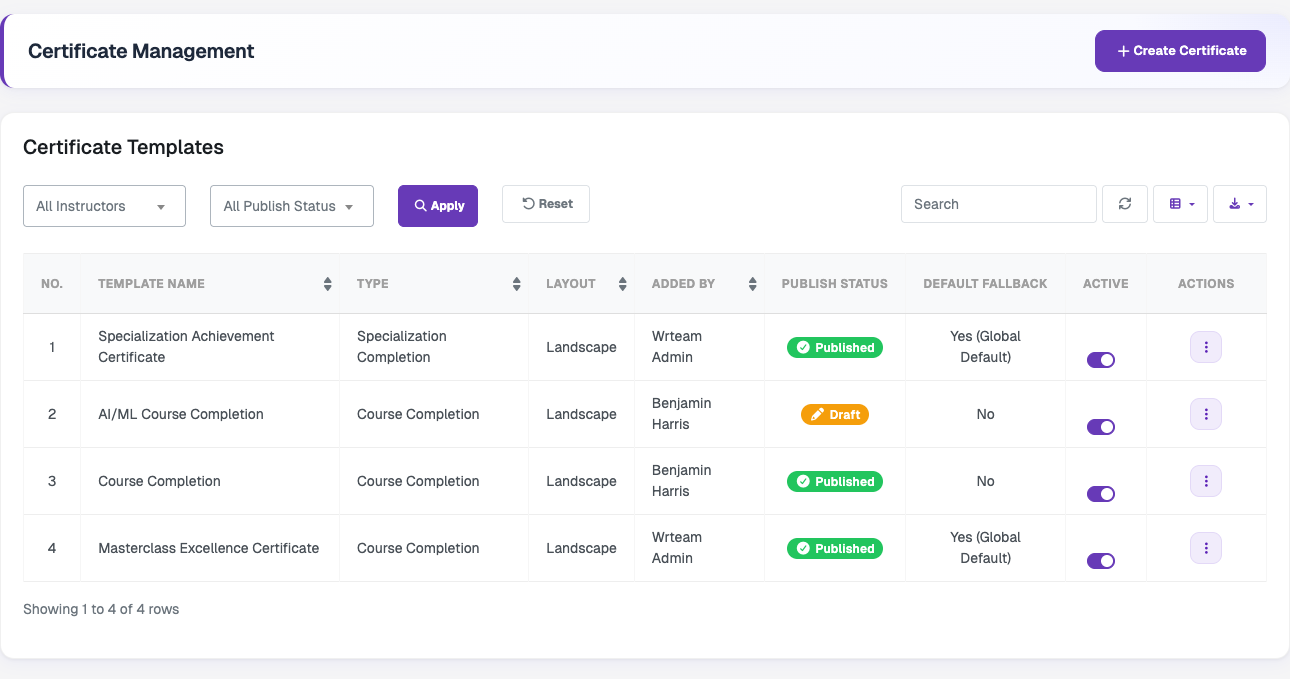
Lists each certificate template with its name, type (Course Completion or Specialization Completion), layout (landscape or portrait), the user who added it, publish status, default fallback and active status. The list can be filtered by instructor and publish status, searched, refreshed, have columns shown or hidden, and exported. The Active switch turns a template on or off, and the actions menu for each template has Designer, Preview and Delete.
Click Create Certificate to open the certificate designer.
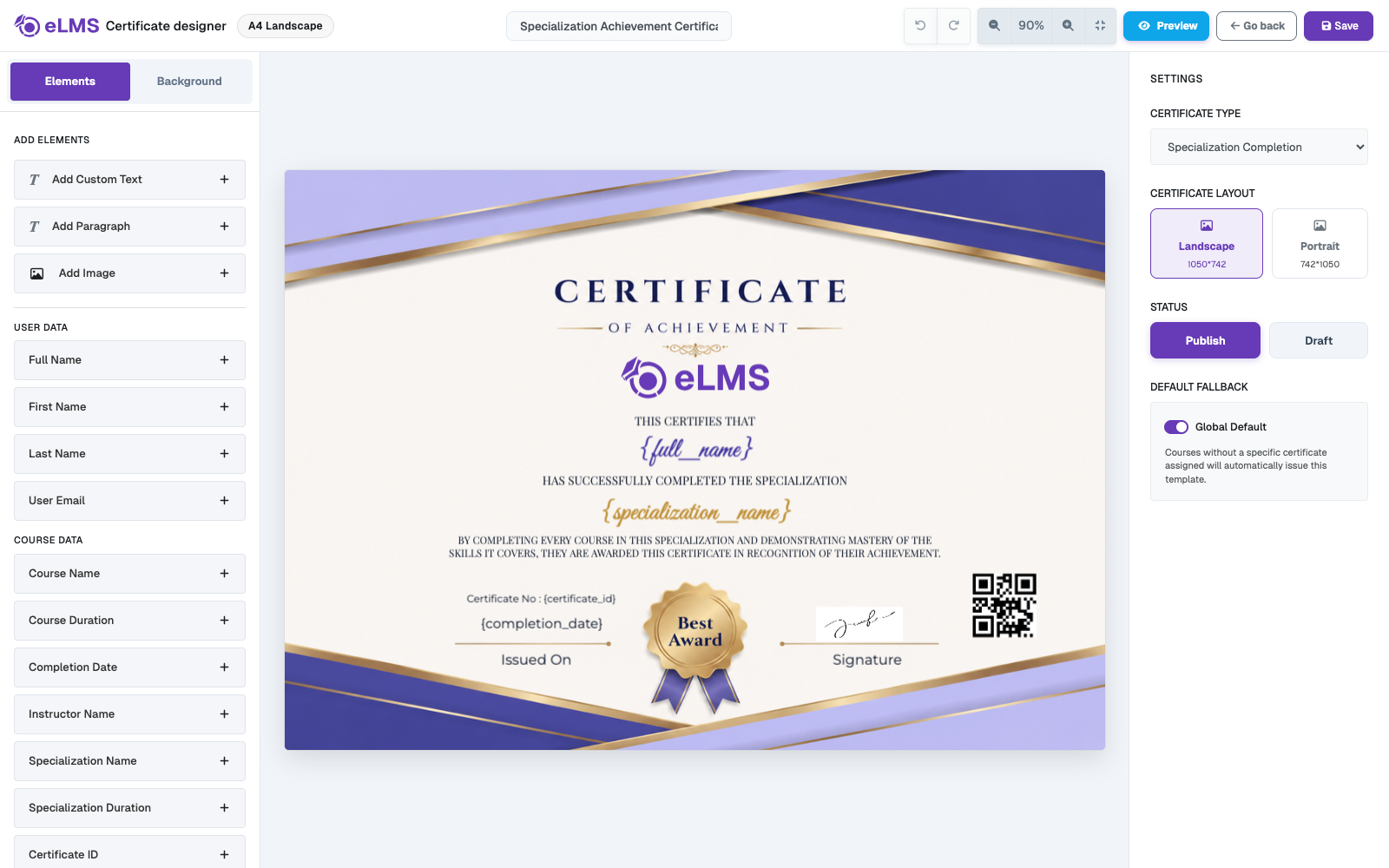
In the designer you can:
- Add elements – custom text, paragraphs and images, plus dynamic data that is replaced automatically when a certificate is issued: User data (Full Name, First Name, Last Name, User Email) and Course data (Course Name, Course Duration, Completion Date, Instructor Name, Specialization Name, Specialization Duration, Certificate ID).
- Add a Verification QR Code under Security & Verification, and re-add the platform logo with Re-add System Logo.
- Set the background from the Background tab.
- Choose the certificate type – Course Completion or Specialization Completion.
- Choose the layout – Landscape (1050×742) or Portrait (742×1050).
- Set the status – Publish or Draft.
- Set a Global Default – when a course or specialization has no specific certificate assigned, this template is issued automatically.
Enter a template name at the top and click Save. Use Preview to see the result before saving. Instructors can create their own certificates when Allow Instructor Certificate is enabled in System Settings.
Issued Certificates
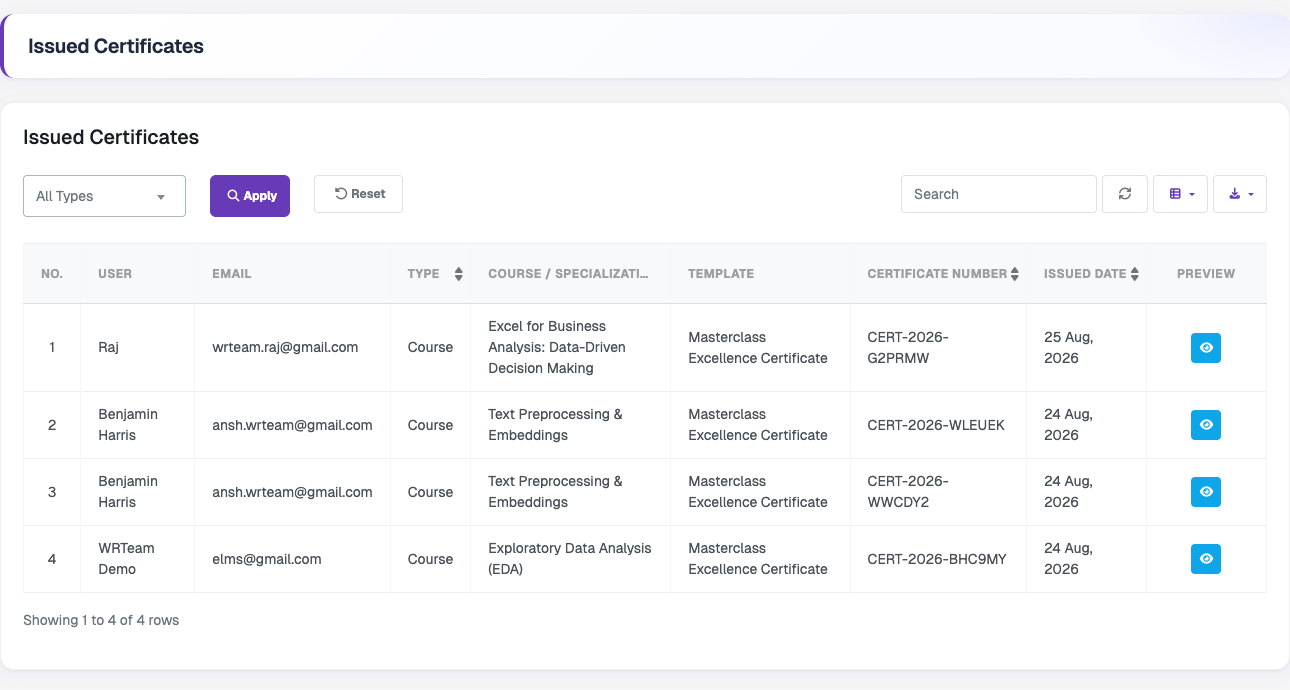
Shows every certificate issued to learners, with the user, email, type (Course or Specialization), the course or specialization, the template used, the certificate number, and the issued date. Filter by type with All Types, then Apply or Reset, and use search, refresh, column and export options as in the other lists. The eye icon in the Preview column opens the issued certificate.