Addons
Addons let customers customize an order item (e.g. extra cheese, dip, size) — available only in the Food Delivery module.
Admin Panel
Navigate to Products → Addons. Admin sees addons from all sellers — each row shows the addon's Owner (seller name and ID), so you can review what every seller has created.
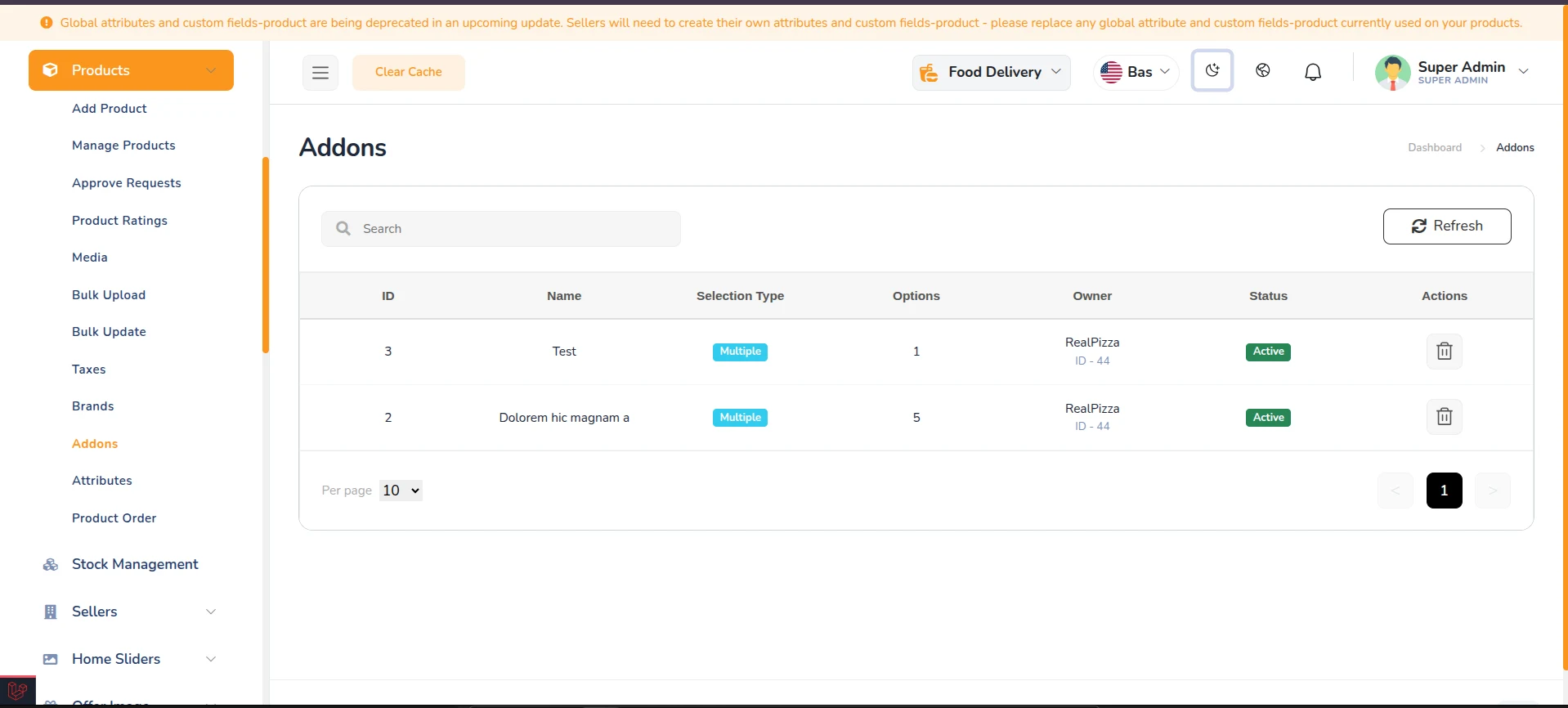
Admin can deactivate/delete any addon from here; admin is not restricted to a single seller's data.
Seller Panel
Sellers manage their own addons from Products → Addons in the seller panel: create, edit, and delete.
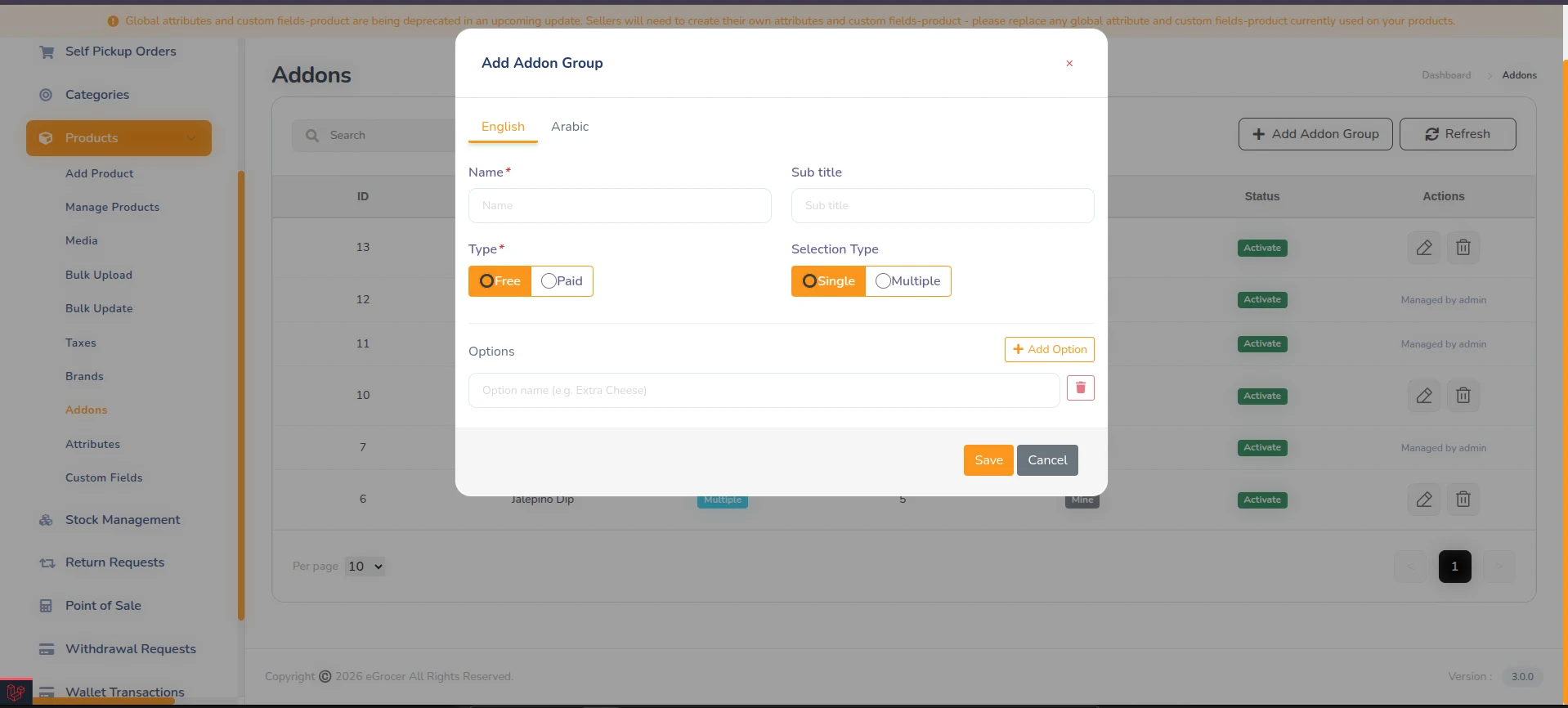
- Click Add Addon Group, set Name, optional Sub title, Type (Free/Paid), and Selection Type (Single/Multiple), then add one or more Options.
- Addons created by admin and shared with sellers show Managed by admin and cannot be edited or deleted by the seller.
Important Notes
- Addons menu appears only when the Food Delivery module is selected.
- Admin has read/visibility across all sellers' addons; sellers only see and manage their own (plus any admin-managed addons assigned to them, which are locked).