Deep Links
When someone opens your website on a phone, the website offers Open in app. Tapping it opens the same page in the customer app, if it is installed: a product, category, seller, brand, blog, order or the cart.
This works through your app's scheme, the name its links start with, such as emarket://. You set it in two places, and both must have the same value.
1. Set the scheme in the app
The scheme lives in one file, which both the Android and the iOS build read:
DEEP_LINK_SCHEME = emarket
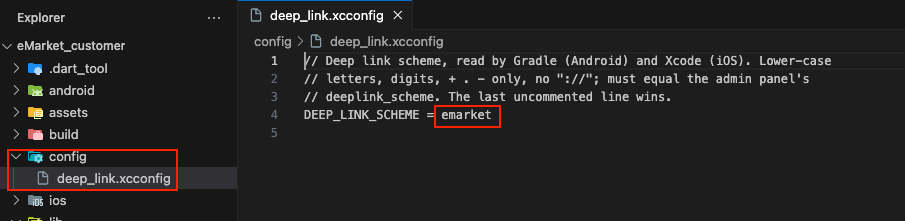
Replace emarket with your own name, for example mystore:
- Start with a lowercase letter, then use only lowercase letters, digits,
+,.or-. - No
://and no spaces. - Use a name that belongs to your brand. If two apps on one phone use the same scheme, the link can open the wrong app.
You do not need to edit AndroidManifest.xml or Info.plist. Both take the scheme from this file.
The phone learns the scheme when the app is installed, so a new scheme only works after you rebuild the app and install the new build. On Android, a value that breaks the rules above stops the build with an error that names this file.
2. Set the same scheme in the admin panel
Enter the same value in the admin panel's Deeplink Schema field. See Deeplink Settings.
| App file | Admin panel | Result |
|---|---|---|
mystore | mystore | Open in app opens the app |
mystore | empty | The website does not offer Open in app; links stay in the browser |
mystore | otherstore | Open in app does not open the app |
Sharing Products
When a customer shares a product, the app sends your website link, built from websiteUrl in lib > core > constants > constant.dart:
static String websiteUrl = "https://shop.example.com/";
If you do not have a website, leave websiteUrl empty or set it to your admin panel URL. The app then shares your Play Store or App Store link instead, taken from Play Store Url and App Store Url in the admin panel's Store Settings.