Blog Management
The Super Admin can publish a blog on the business website (the main domain). Posts, categories, tags and the blog page itself are managed from Blog Management in the Super Admin panel.
The blog only exists on the main website. School websites on their own domains do not have it (/blog returns 404 there).
1. Menu and permissions
Blog Management → Posts / Categories / Tags / Settings
| Permission | Allows |
|---|---|
blog-post-list, blog-post-create, blog-post-edit, blog-post-delete | Posts |
blog-category-list, blog-category-create, blog-category-edit, blog-category-delete | Categories |
blog-tag-list, blog-tag-create, blog-tag-edit, blog-tag-delete | Tags (blog-tag-create also allows adding new tags while writing a post) |
blog-settings | Blog page settings |
The Super Admin has all of them. They can also be given to other Super Admin staff roles through Role & Permission.
2. Posts
Blog Management → Posts
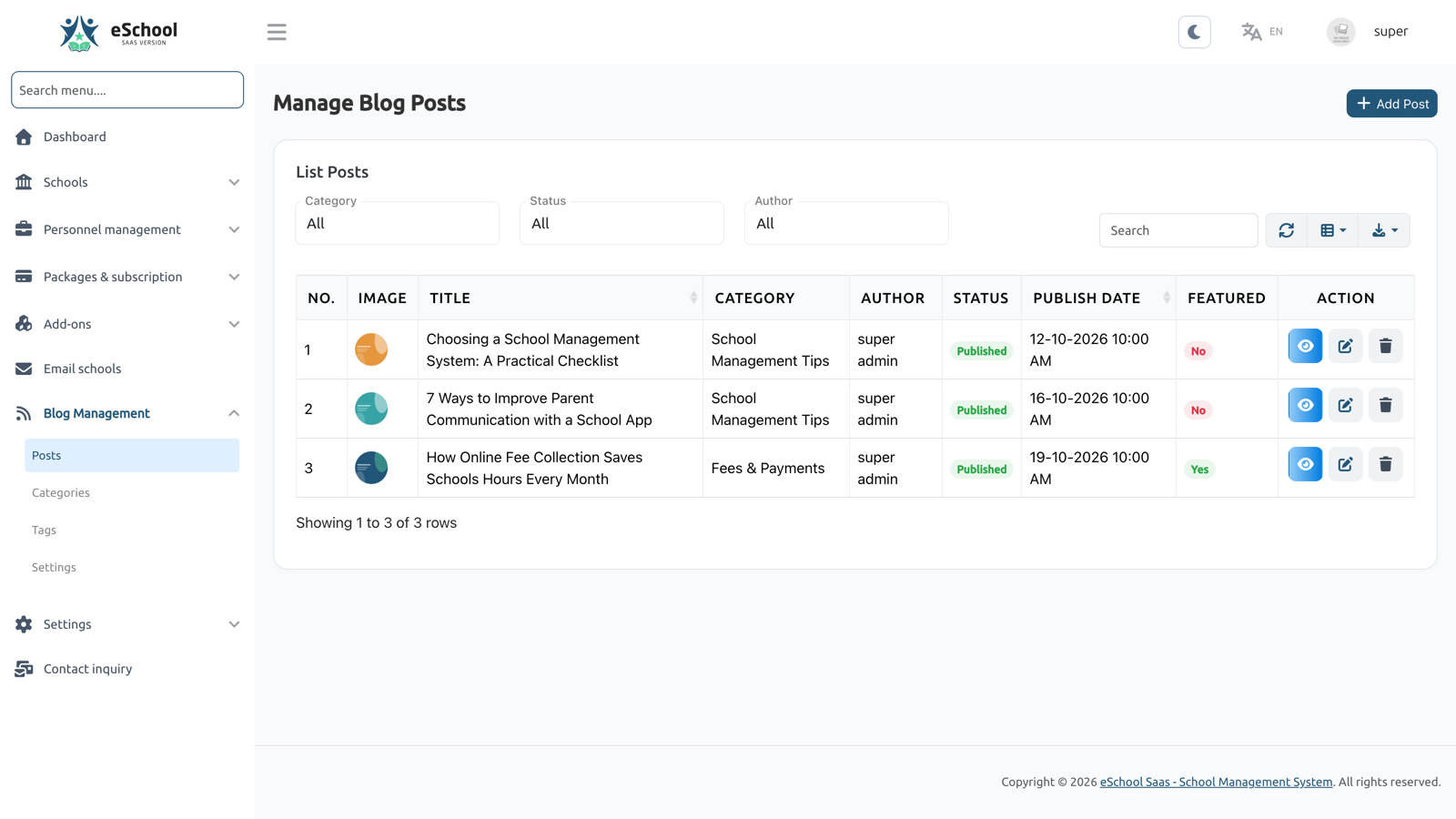
The list shows each post's cover image, title, URL, category, tags, author, status and publish date. You can filter by status (Draft / Scheduled / Published), category and author, and search by ID, title or URL.
Row actions:
| Action | What it does |
|---|---|
| View / Preview | Opens the post on the website. A draft or scheduled post opens as a preview that only signed-in staff with post permissions can see |
| Edit | Opens the post editor |
| Delete | Deletes the post, its cover image, and editor images that no other post uses |
Writing a post
Click Add Post.
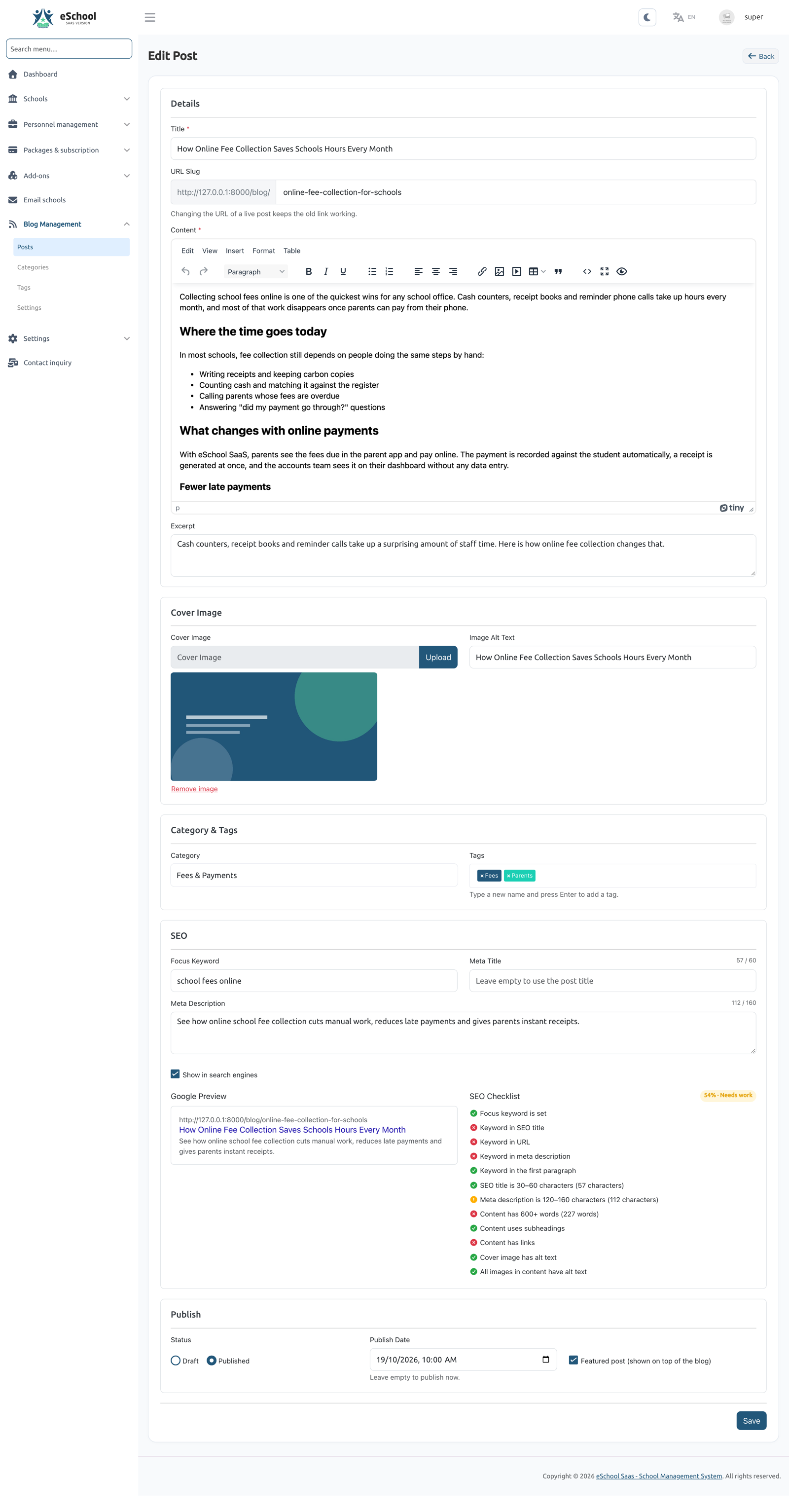
Details
| Field | Notes |
|---|---|
| Title | Required |
| URL slug | Optional. Created from the title if left empty, and made unique automatically (-2, -3, …). A slug you type must not already be used: "This URL is already used by another post." |
| Content | Required. Rich text editor with headings, lists, tables, links, images and YouTube / Vimeo embeds |
| Excerpt | Short summary shown on the blog list (up to 500 characters) |
| Category | Optional |
| Tags | Pick existing tags, or type a new name and press Enter (needs blog-tag-create) |
| Cover image | JPG, PNG or WEBP, up to the system upload size limit. Add Image alt text to describe it for Google and screen readers |
| Featured post | Shows the post on top of the blog's main page |
Publishing
| Status | Publish date | Result |
|---|---|---|
| Draft | Any | Not on the website. Preview only |
| Publish | Empty | Live now |
| Publish | In the past | Live, with that date |
| Publish | In the future | Scheduled: goes live automatically at that time (no cron needed) |
SEO
| Field | Notes |
|---|---|
| Meta title | Leave empty to use the post title |
| Meta description | Leave empty to use the excerpt |
| Focus keyword | The main phrase people search for |
| Show in search engines | On by default. Turn off to add noindex to the post and leave it out of the sitemap |
The editor shows a Google preview and a live SEO checklist (Good / Needs work / Poor):
- Focus keyword is set
- Keyword in SEO title, URL, meta description and the first paragraph
- SEO title is 30–60 characters
- Meta description is 120–160 characters
- Content has 600+ words, uses subheadings and has links
- Cover image has alt text, and all images in the content have alt text
The checklist is guidance only. It does not block saving.
Changing the URL of a live post
If you change the slug of a post that is already live, the old link keeps working: visitors and Google are sent to the new URL with a permanent (301) redirect. The old URL stays reserved, so no other post can take it.
Content safety
Because staff can write posts, the HTML is cleaned when a post is saved. Scripts, forms, event handlers, javascript: links and embeds other than YouTube and Vimeo are removed.
Images
- Images inserted from the editor are uploaded to the server at full quality.
- When an image is removed from a post, or the post is deleted, the file is deleted too, unless another post still uses it.
- For link previews (WhatsApp, Facebook, X), a large cover is shown through a smaller 1200 px copy that is made automatically. The original is never changed.
3. Categories
Blog Management → Categories
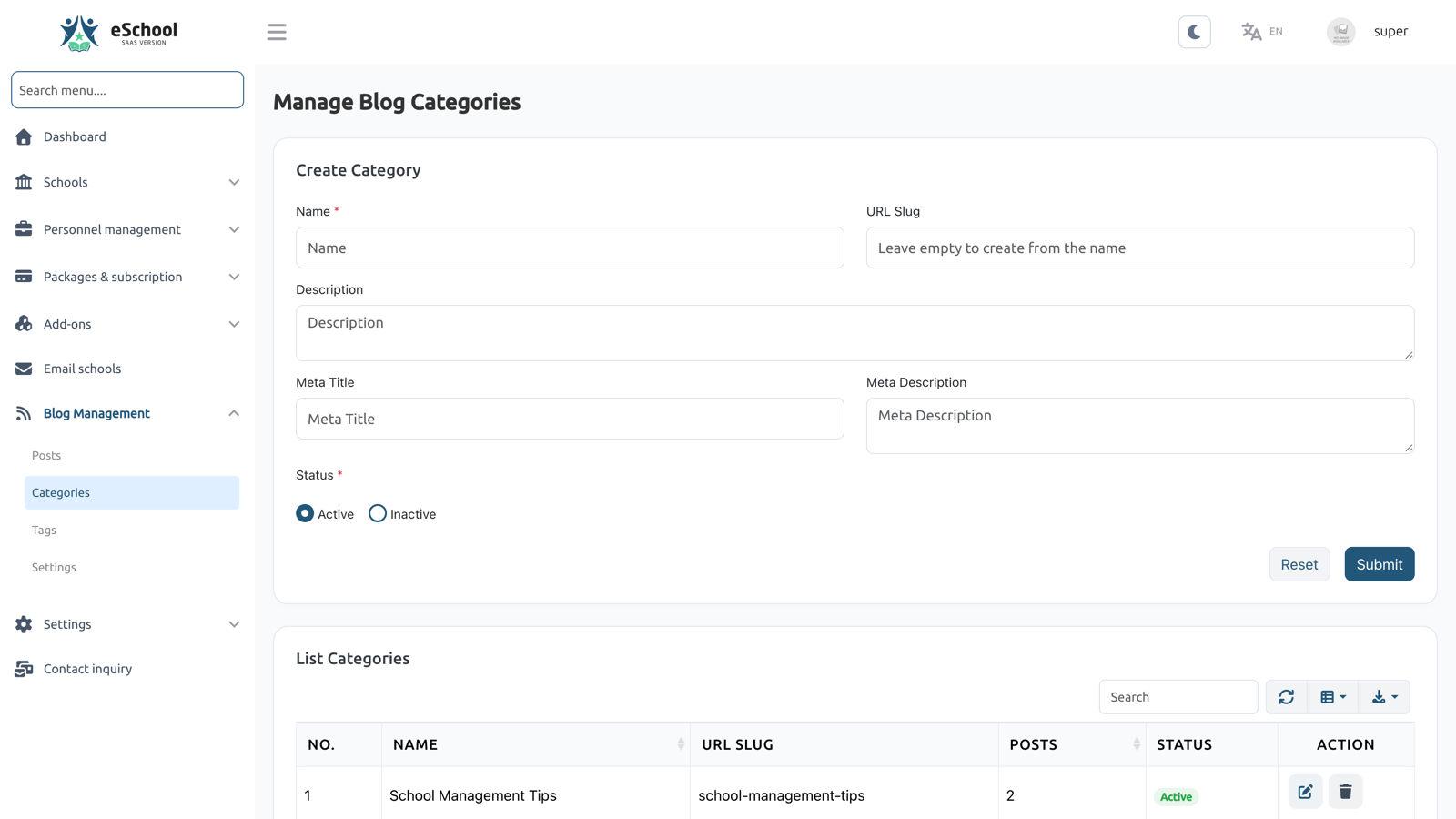
| Field | Notes |
|---|---|
| Name | Required |
| Slug | Optional, created from the name and kept unique |
| Description | Optional |
| Meta title / Meta description | SEO for the category page |
| Status | Active or Inactive. An inactive category's page is not shown on the website |
A category that still has posts cannot be deleted: "This category has posts. Move them to another category first."
4. Tags
Blog Management → Tags
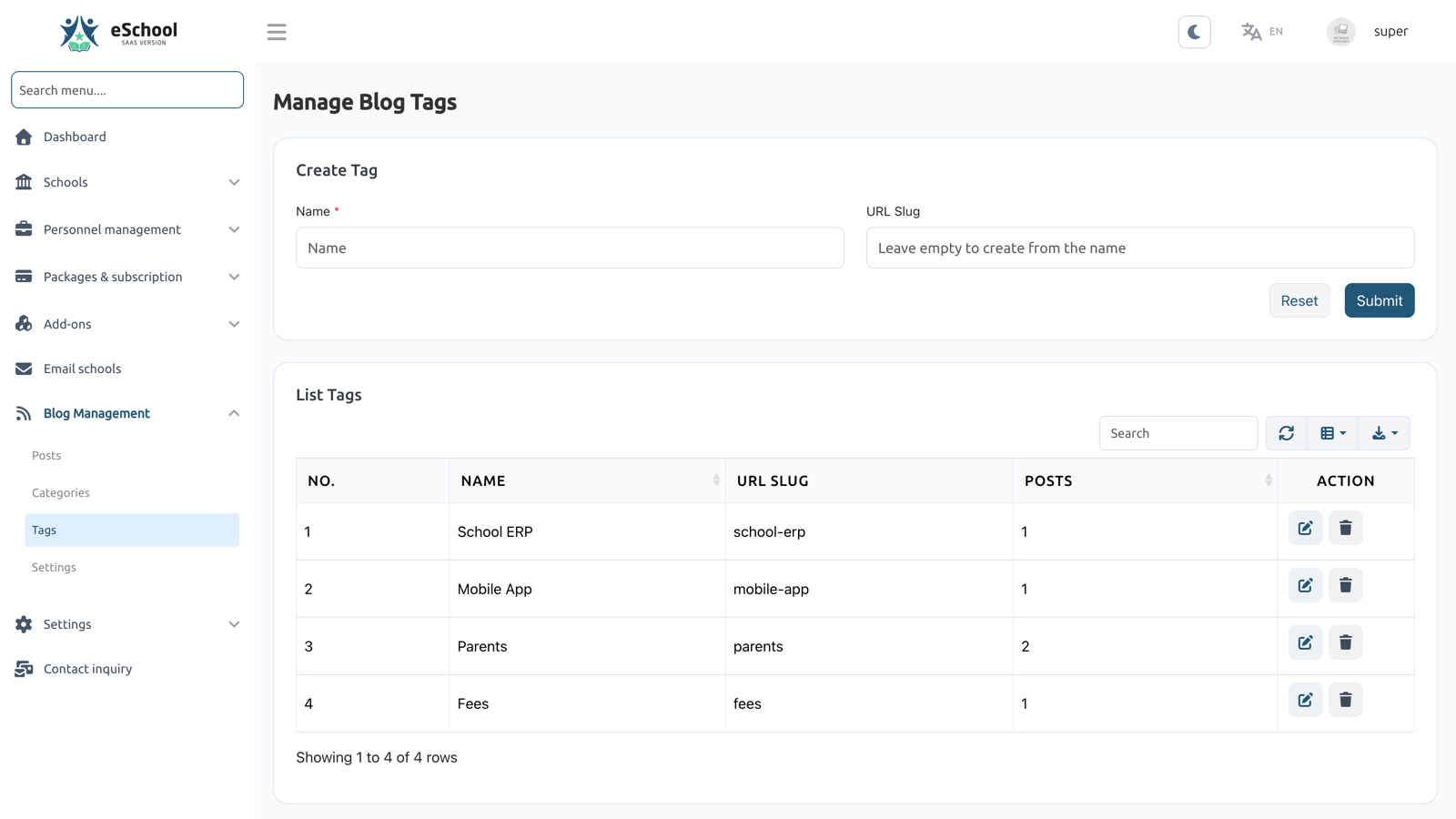
Tags have a name and a slug. Each tag gets its own page on the website listing its posts. Tags can also be created while writing a post.
5. Blog page settings
Blog Management → Settings
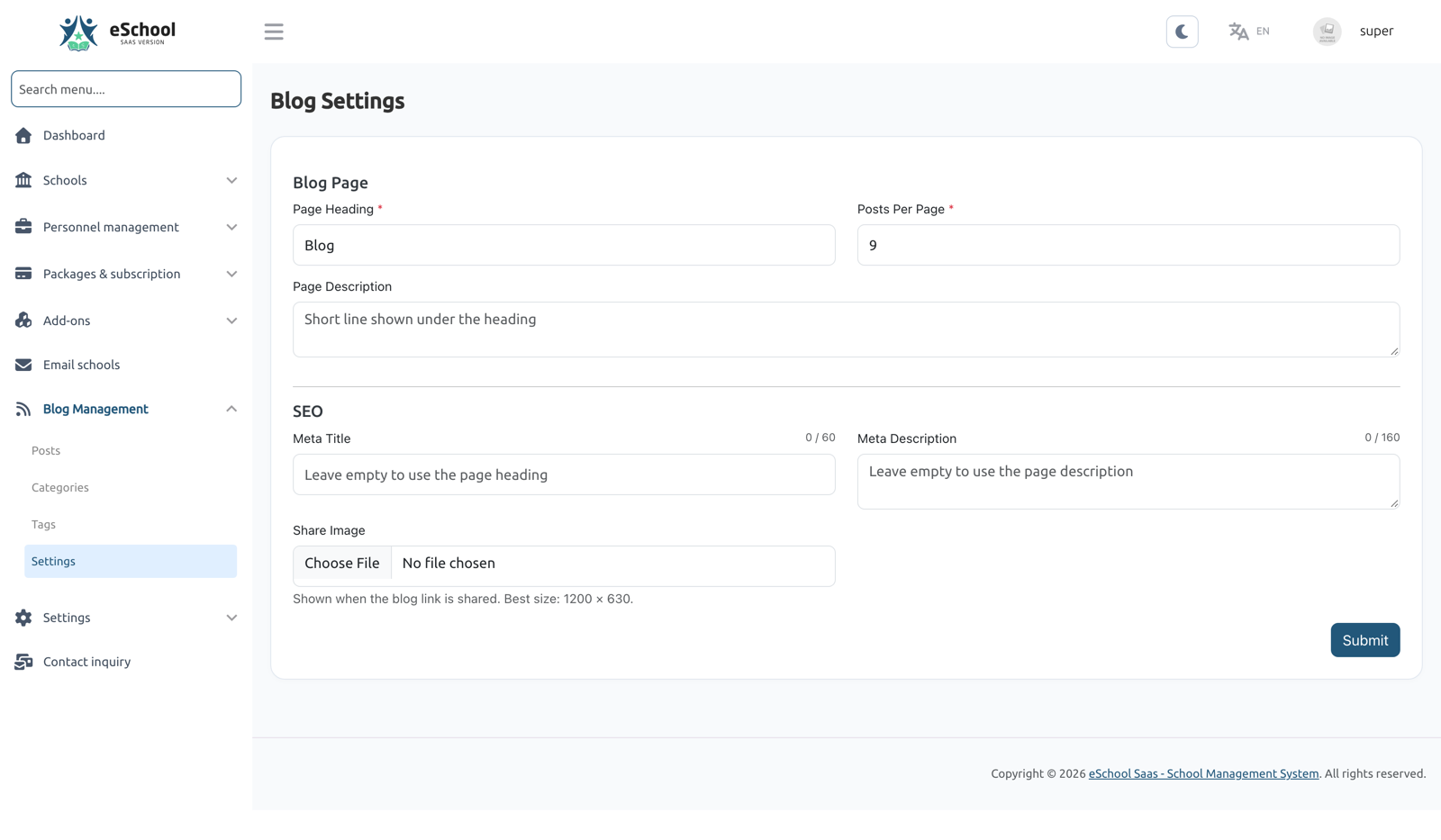
| Field | Notes |
|---|---|
| Page heading | Required. Heading of the /blog page (defaults to "Blog") |
| Page description | Optional text under the heading |
| Meta title / Meta description | SEO for the blog's main page |
| Posts per page | 3–48, default 9 |
| Share image | Optional, best size 1200 × 630. Preview image for links to the blog pages, and for posts without a cover image. If empty, the website logo is used (SVG logos are skipped, because social networks don't show them) |
6. On the website
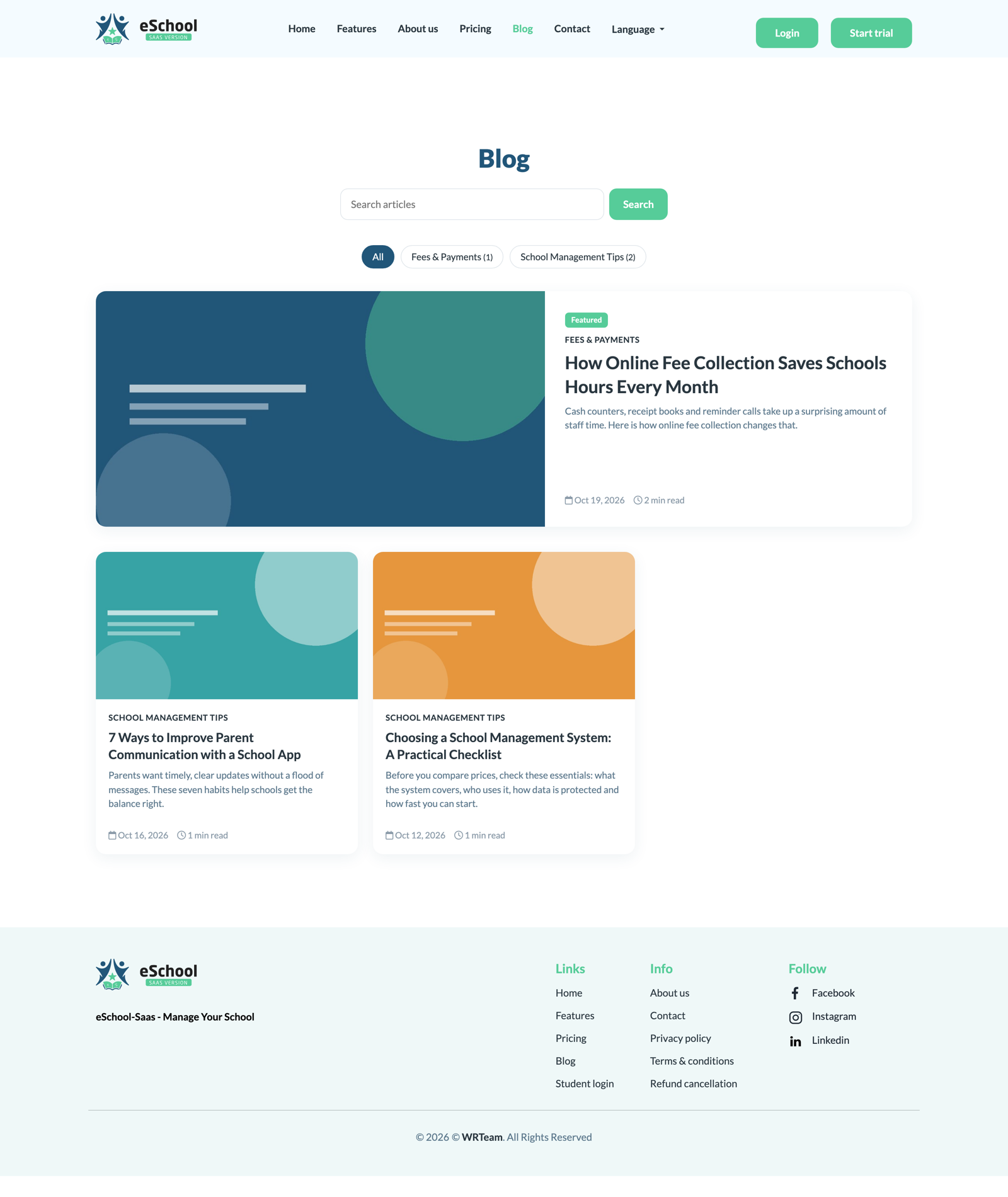
| URL | Shows |
|---|---|
/blog | All live posts, newest first, with search, categories and pagination. The latest featured post sits on top of page 1 |
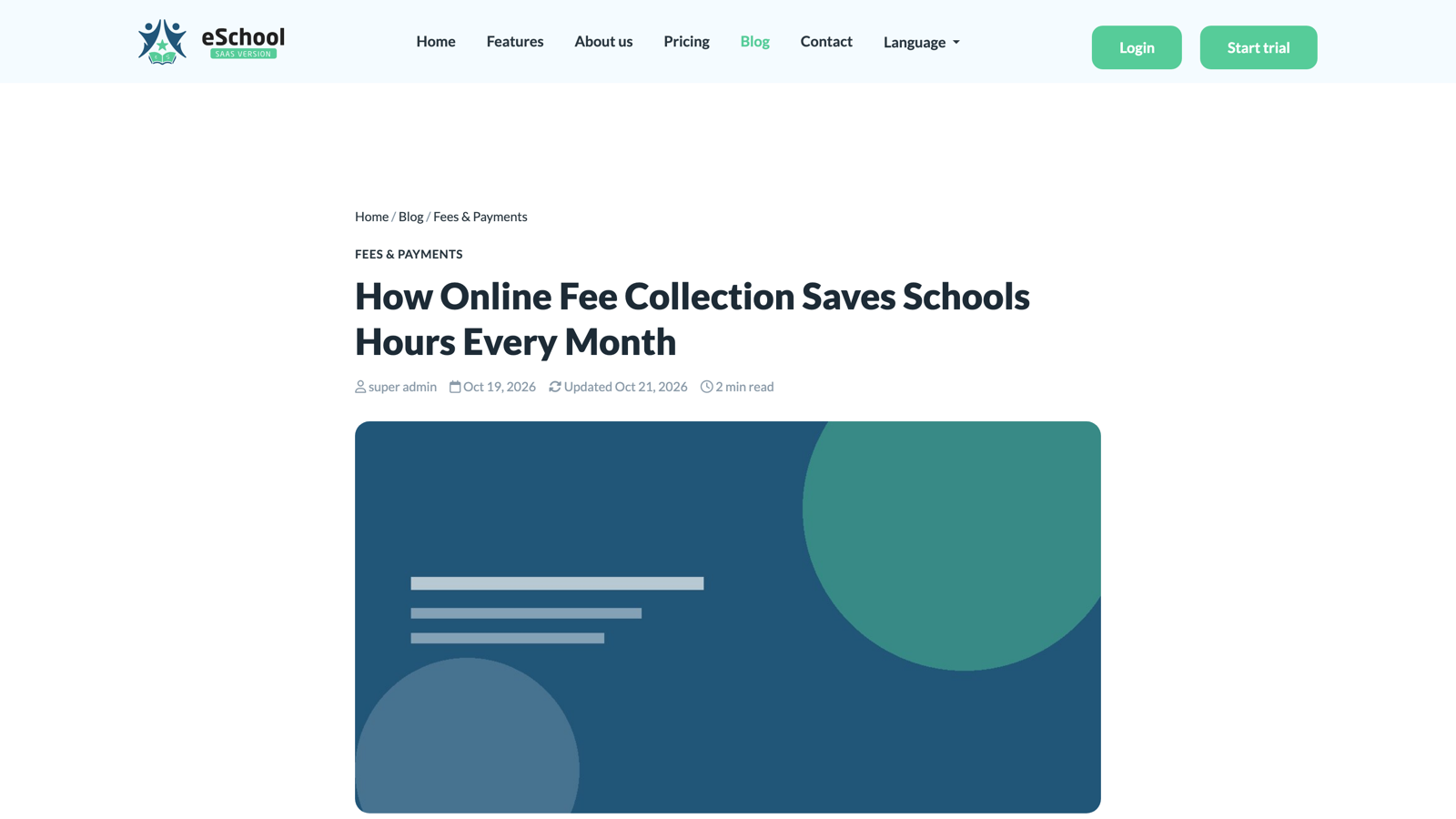
/blog/{slug} | A post, with reading time, share buttons and up to 3 related posts (same category, then same tags, then newest) |
/blog/category/{slug} | Posts in an active category |
/blog/tag/{slug} | Posts with a tag |
- The home page shows a "Latest From Our Blog" section with the 3 newest posts.
- A Blog link appears in the website menu and footer only once at least one post is live.
SEO built in
- Meta description, canonical URL, Open Graph and X (Twitter) cards on every blog page.
- Structured data (JSON-LD): BlogPosting, Blog and BreadcrumbList.
/sitemap.xmllists the live posts (except those hidden from search engines), and/robots.txtpoints to it.
Updates do not delete files. If your install still has an old public/robots.txt, delete it so the new dynamic /robots.txt (which points to the sitemap) is served.