Earnings
Overview
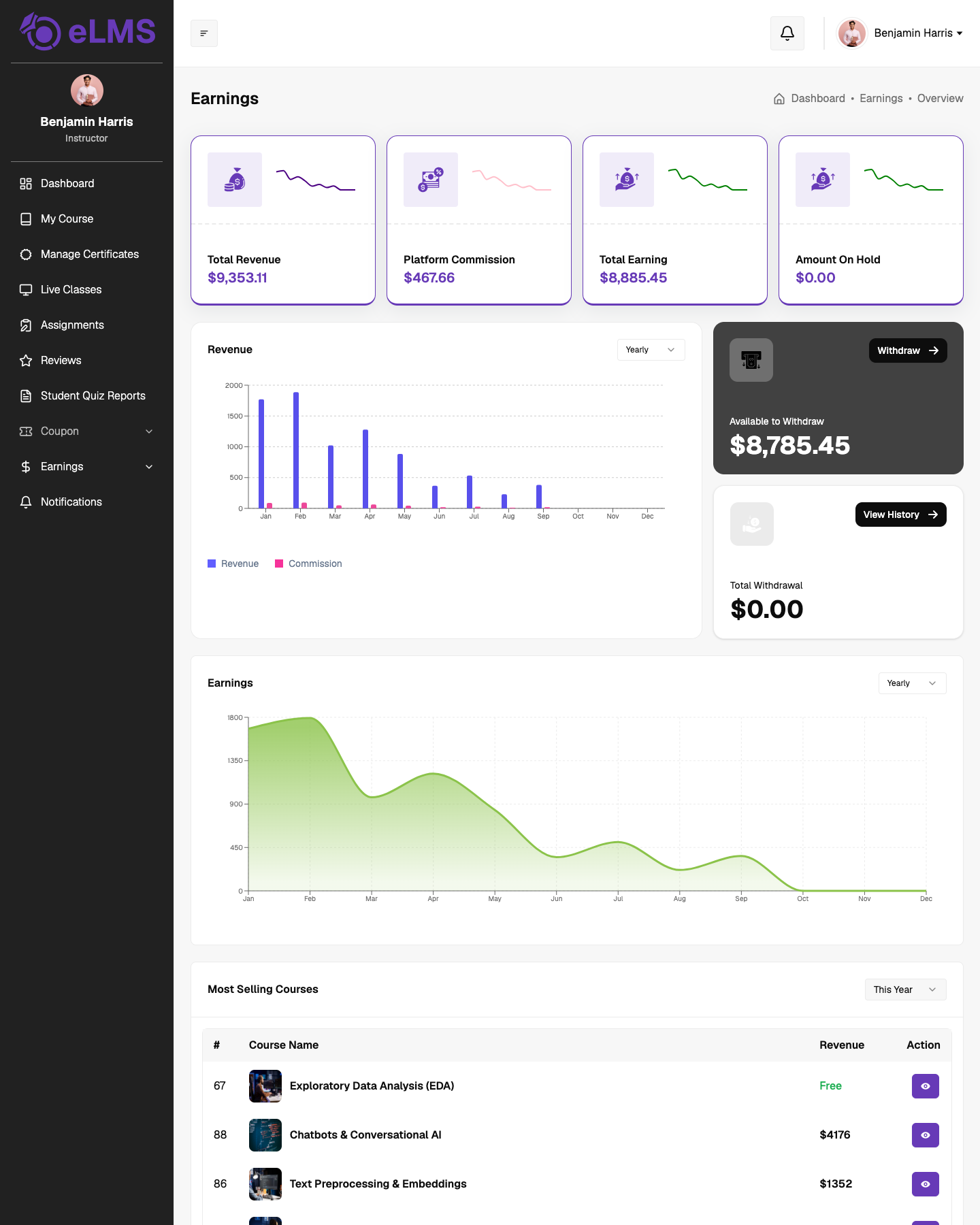
The earnings dashboard displays the following at the top: Total Revenue, Platform Commission, Total Earnings, and Amount on Hold. A revenue graph for the current year is shown below, with options to filter by this month and this week.
Two withdrawal-related cards are available, each with their own detailed pages:
- Available to Withdraw – Displays the total amount currently eligible for withdrawal.
- Total Withdrawn – Displays the cumulative amount withdrawn to date.
Both cards include a Withdraw button that opens the withdrawal screen, where the instructor can enter an amount and submit a withdrawal request to their registered bank account. A table showing past withdrawal transactions and their statuses is also available.
An earnings graph, a most-selling courses list with total revenue and view details actions, and a course revenue table showing pending amounts and total enrollment counts are also present. The view details action on each course takes the instructor to that course's earnings page, and the table action opens the course's enrollment or orders page showing individual student purchases.
Refund Requests
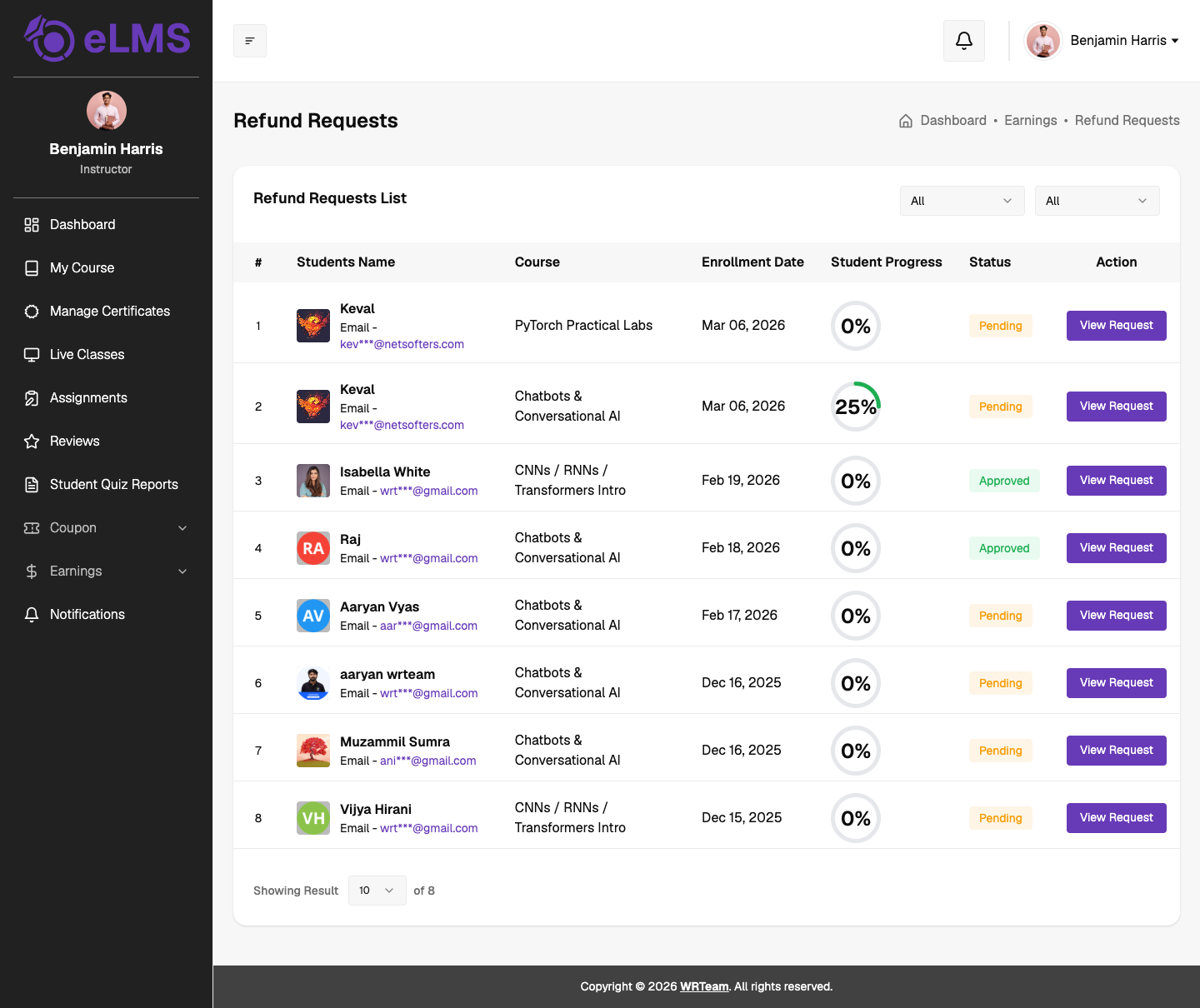
Displays the refund request list with user details, course, enrollment date, student progress (percentage and graph), status, and an action button. The View Details action allows the instructor to review the reason for the refund (including text and attached files) and add a note along with an approve or reject decision. This response and note are visible to the admin, who makes the final call on whether to process the refund.
Specialization Earnings
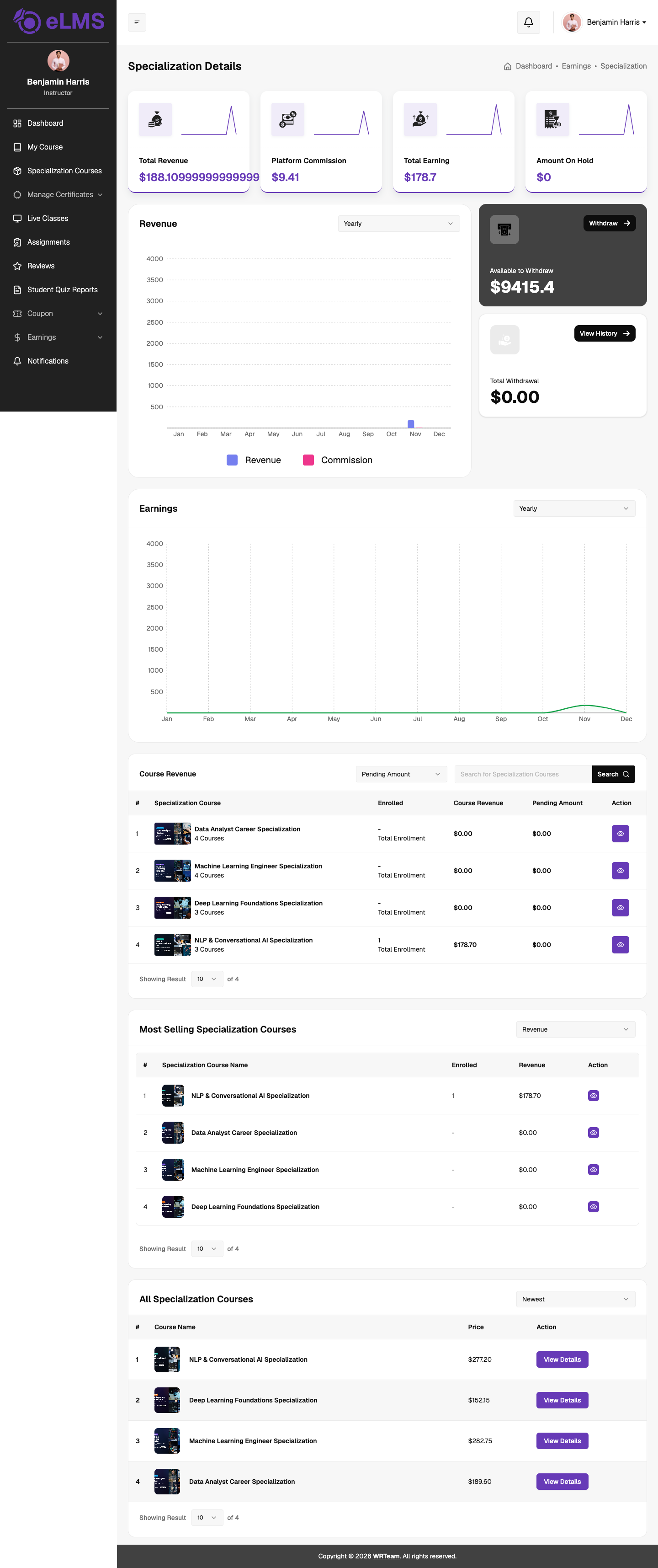
Found under Earnings → Specialization, this page shows earnings from specialization courses only. The top cards show Total Revenue, Platform Commission, Total Earning and Amount On Hold. Below them:
- Revenue and Earnings charts for the year, with period filters.
- Available to Withdraw and Total Withdrawal cards, with the Withdraw and View History buttons.
- Course Revenue table listing each specialization with its number of courses, total enrollments, revenue and pending amount. It can be searched and sorted, and the eye icon opens that specialization's statistics.
- Most Selling Specialization Courses ranked by revenue or enrollments.
- All Specialization Courses with their prices and a View Details button.