Manage Certificates
Instructors can design their own certificates and see which certificates have been issued to learners. This is available when Allow Instructor Certificate is enabled by the admin in System Settings. Both options are under Manage Certificates in the sidebar.
All Certificate Templates
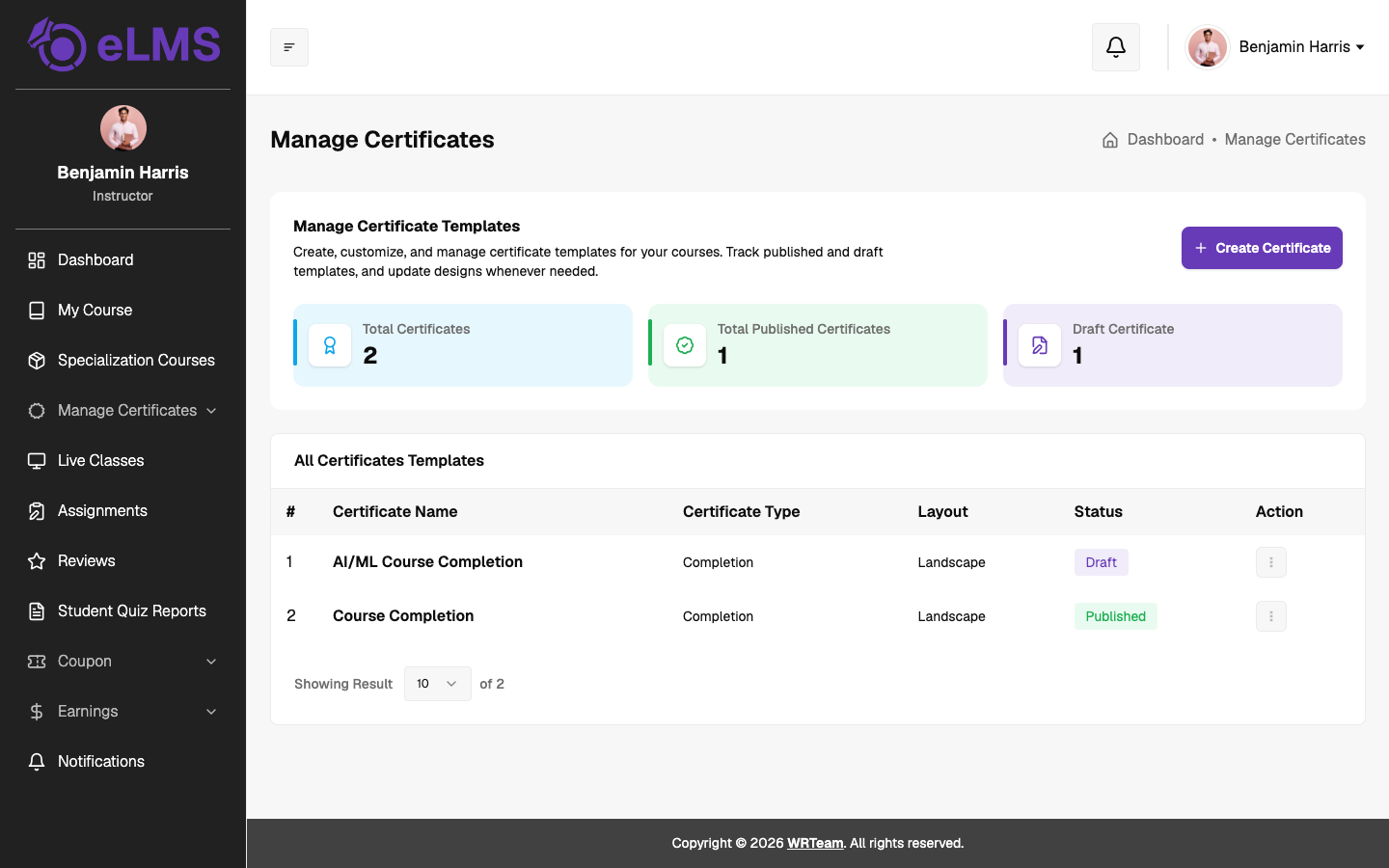
Shows the instructor's certificate templates with summary cards for Total Certificates, Total Published Certificates and Draft Certificate. The table lists each template's name, type, layout (landscape or portrait) and status (Published or Draft). The Action menu for each template has:
- Edit – opens the template in the certificate designer.
- Preview – shows how the certificate will look.
- Delete – removes the template.
Create Certificate
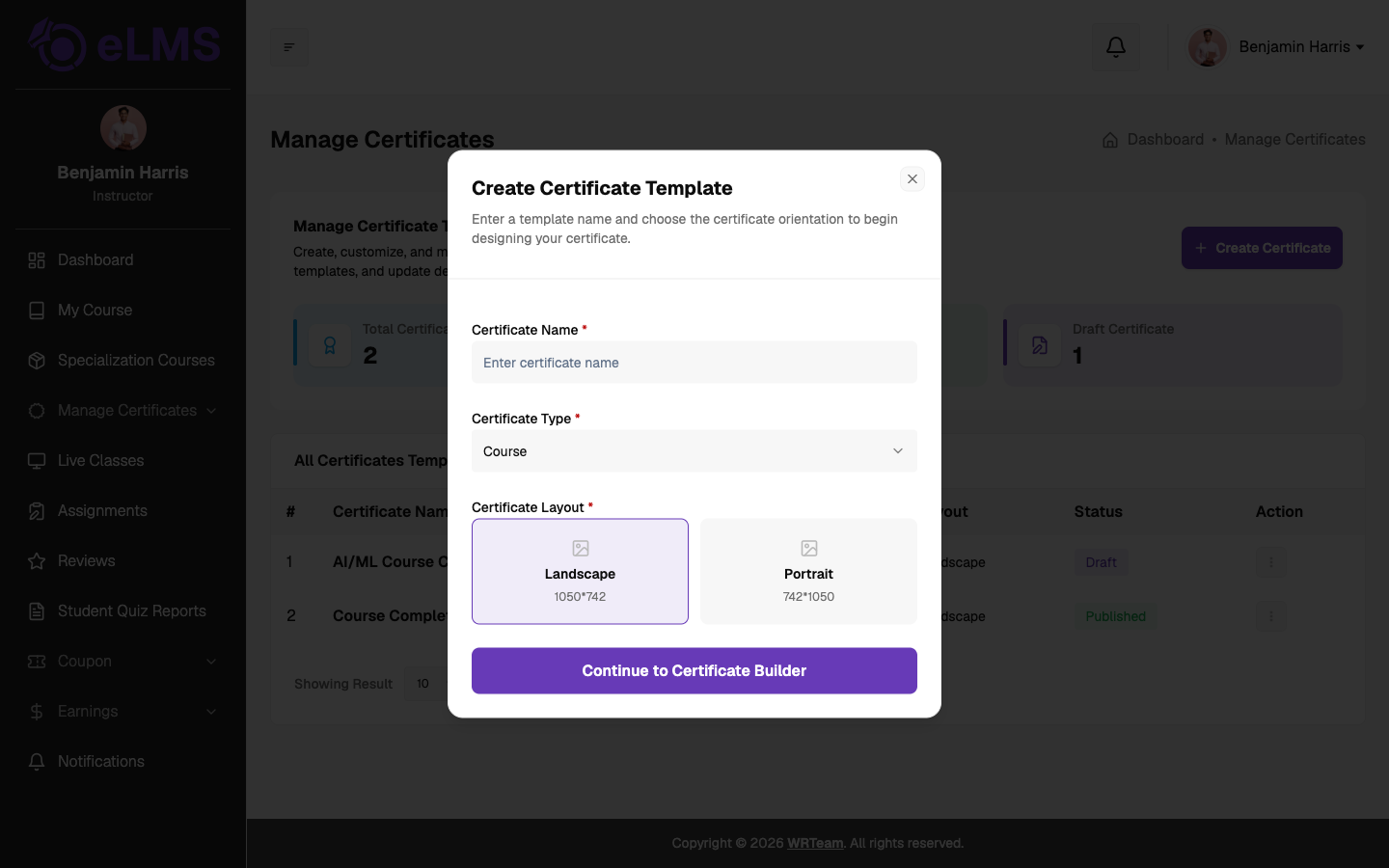
Click Create Certificate and fill in:
- Certificate Name (Required)
- Certificate Type (Required): Course or Specialization, depending on where the certificate will be used.
- Certificate Layout (Required): Landscape (1050×742) or Portrait (742×1050).
Click Continue to Certificate Builder to open the designer, where text, images and dynamic learner and course data can be placed on the certificate. Published templates can be selected when creating or editing a course or specialization.
Issued Certificate
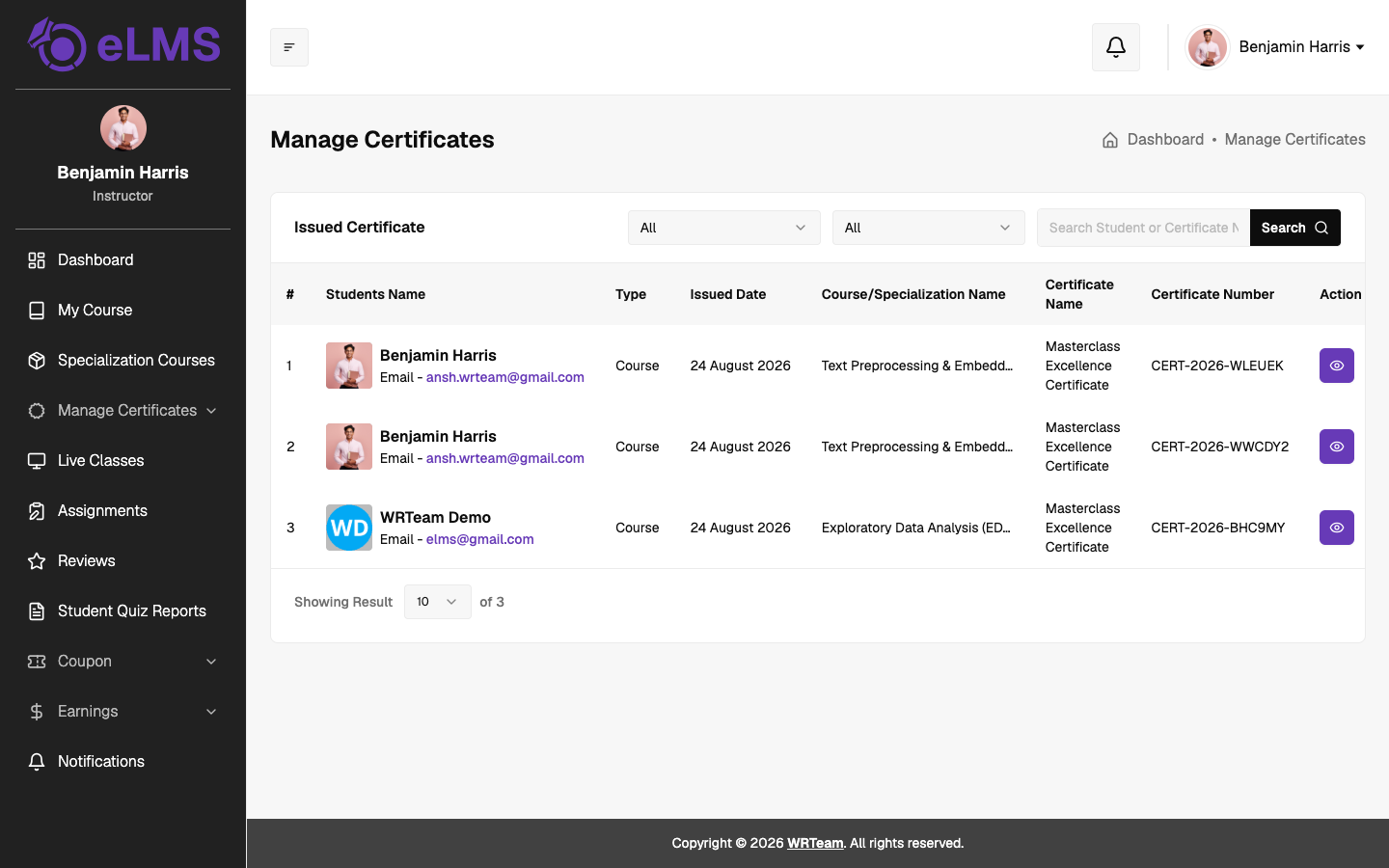
Lists every certificate issued to learners for the instructor's courses and specializations: the student name and email, type (Course or Specialization), issued date, course or specialization name, certificate name and certificate number. The list can be filtered, searched, and each row has a View Certificate button to open the issued certificate.