Subject Rules
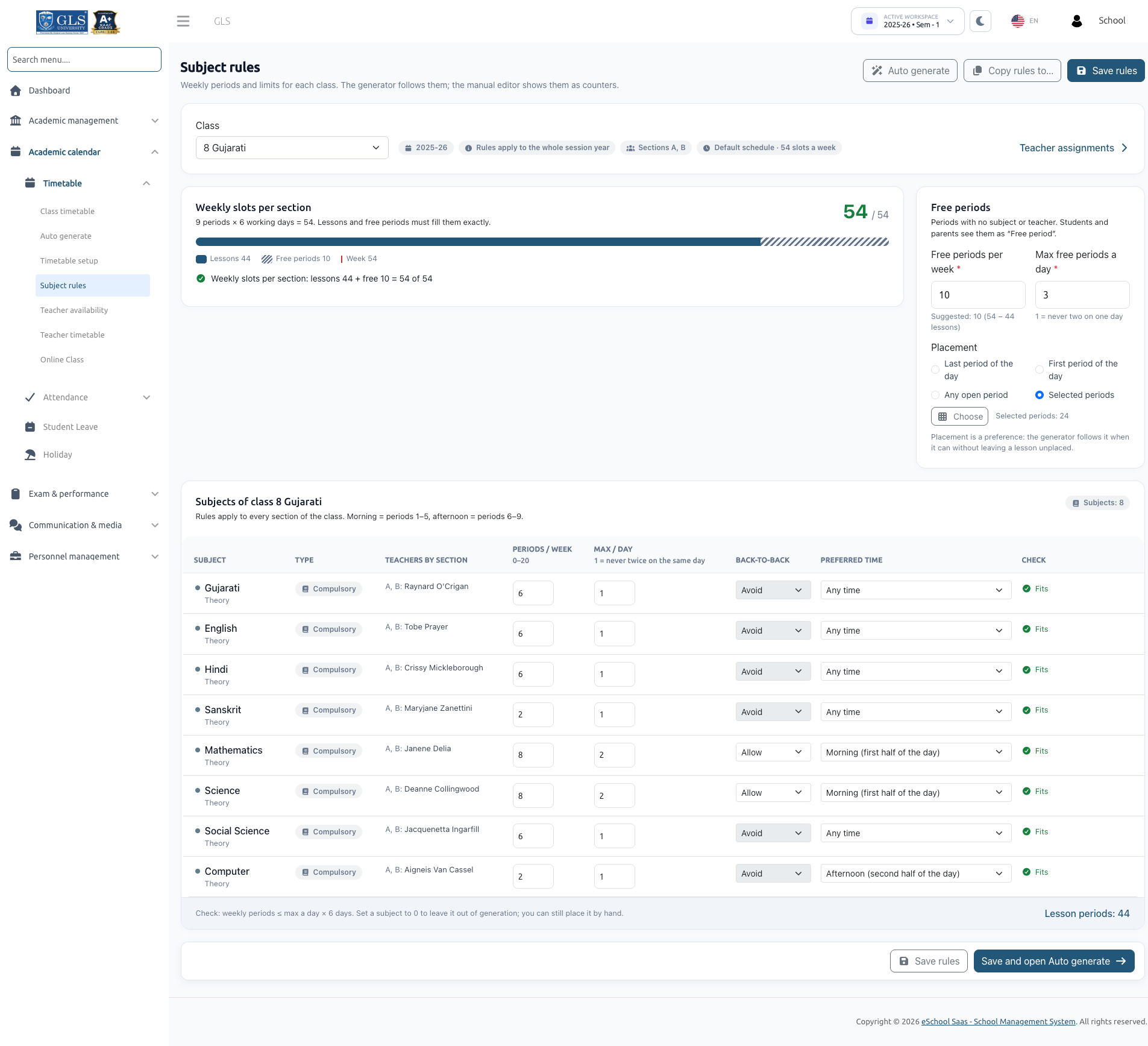
Subject Rules specify how many periods per week each subject needs, the maximum times a subject can be taught per day, preference for consecutive or spread-out periods, and the allocation of free periods. The auto generator strictly follows these rules, while the manual timetable editor reflects them as live counters.
To access and save Subject Rules, your role must have the timetable-generate permission. Rules are defined per Class and automatically apply across all sections of that class for the selected session year and semester.
1. Selecting a Class
Open Academic calendar → Timetable → Subject rules.
- Select a Class from the dropdown menu (e.g., Class 8).
- If the class has no subjects mapped for the active semester, the system prompts:
"Class 8 has no subjects for 2026-27 · Sem - 1"alongside an Assign subjects button to navigate to the class subject assignment page.
2. The Subject Rules Table
The subject table lists all subjects associated with the selected class:
| Column | Description & Input Limits |
|---|---|
| Subject | Name of the subject (e.g., Mathematics, Science, English). |
| Type | Displays whether the subject is Compulsory or Elective (e.g., "Elective · choose 1 of 3" or "Elective group · same period" for parallel electives). |
| Teachers by section | Displays the assigned teacher for each section. If a teacher is unassigned, it indicates "No teacher". |
| Periods / week | Number of lessons required each week (0 to 20). Setting 0 marks the subject as "0 periods: left out of generation, place it by hand". |
| Max / day | Maximum occurrences allowed in a single day (1 to 4). E.g., 1 ensures the subject is never scheduled twice on the same day. |
| Back-to-back | Choose Avoid or Allow. This setting takes effect only when Max / day is set to 2 or more. |
| Preferred time | Placement preference for the subject: Any time, Morning (first half of the day), or Afternoon (second half of the day). |
| Check | Real-time validation indicator. Displays Fits if the weekly periods fit within the working days, or warns if the count is impossible (e.g., "6 > 1 a day × 5 days"). |
Newly assigned subjects default to 0 periods / week, Max / day = 1, Avoid back-to-back, and Any time.
3. Teacher Splits for Shared Subjects
When a subject is taught by multiple teachers within the same section (e.g., Section 8-A has two Science teachers):
- A Split button appears in the Teachers column.
- Clicking it opens the Split between teachers modal.
- Distribute the periods among the assigned teachers. The allocated values must add up exactly to the subject's weekly periods (e.g., if total weekly periods is 6, Teacher A = 4 and Teacher B = 2).
- Click Remove split to revert back to a single teacher taking all periods.
If multiple teachers are assigned to a section without a split, the readiness checks will assign all periods to one teacher and issue a warning:
"Several teachers in 8-A and no split: Asha Nair takes all 6 periods."
Note that parallel elective groups cannot be split because each subject in the elective group has its own distinct teacher.
4. Configuring Free Periods
Free periods represent scheduled periods during which students have no active lecture or assigned teacher.
- Free periods per week: Total number of free periods for each section in the week. The system calculates the remaining slots and displays a suggestion (e.g., "Suggested: 6 (42 − 36 lessons)"); click Use 6 to apply it instantly.
- Max free periods a day: Maximum free periods permitted on any single day (e.g.,
1prevents multiple free periods on the same day). - Placement: Defines when free periods are ideally positioned:
- Last period of the day: Recommended for early dismissal or study halls.
- First period of the day: Suitable for staggered arrival schedules.
- Any open period: Allows flexible placement anywhere in the bell schedule.
- Selected periods: Click Choose to open an interactive period grid, tick the exact period slots that can be kept free, and click Use these periods.
5. Weekly Slots Balance: The Exact-Fit Rule
Lessons per week + Free periods per week = Total weekly periods in the bell schedule
- Too many periods:
"Each section of class 8 needs 44 periods (38 lessons + 6 free) but a week has 42, 2 too many. Remove lesson periods or free periods." - Too few periods:
"Each section of class 8 fills only 40 of the 42 periods in a week (34 lessons + 6 free), 2 short. Add lesson periods or free periods."
While you can save work-in-progress rules that do not balance yet, timetable generation will not start until every section adds up exactly to the total weekly slots. When a discrepancy occurs, quick-action buttons such as Set free periods to 8 help automatically rebalance the slots.
6. Saving & Copying Rules
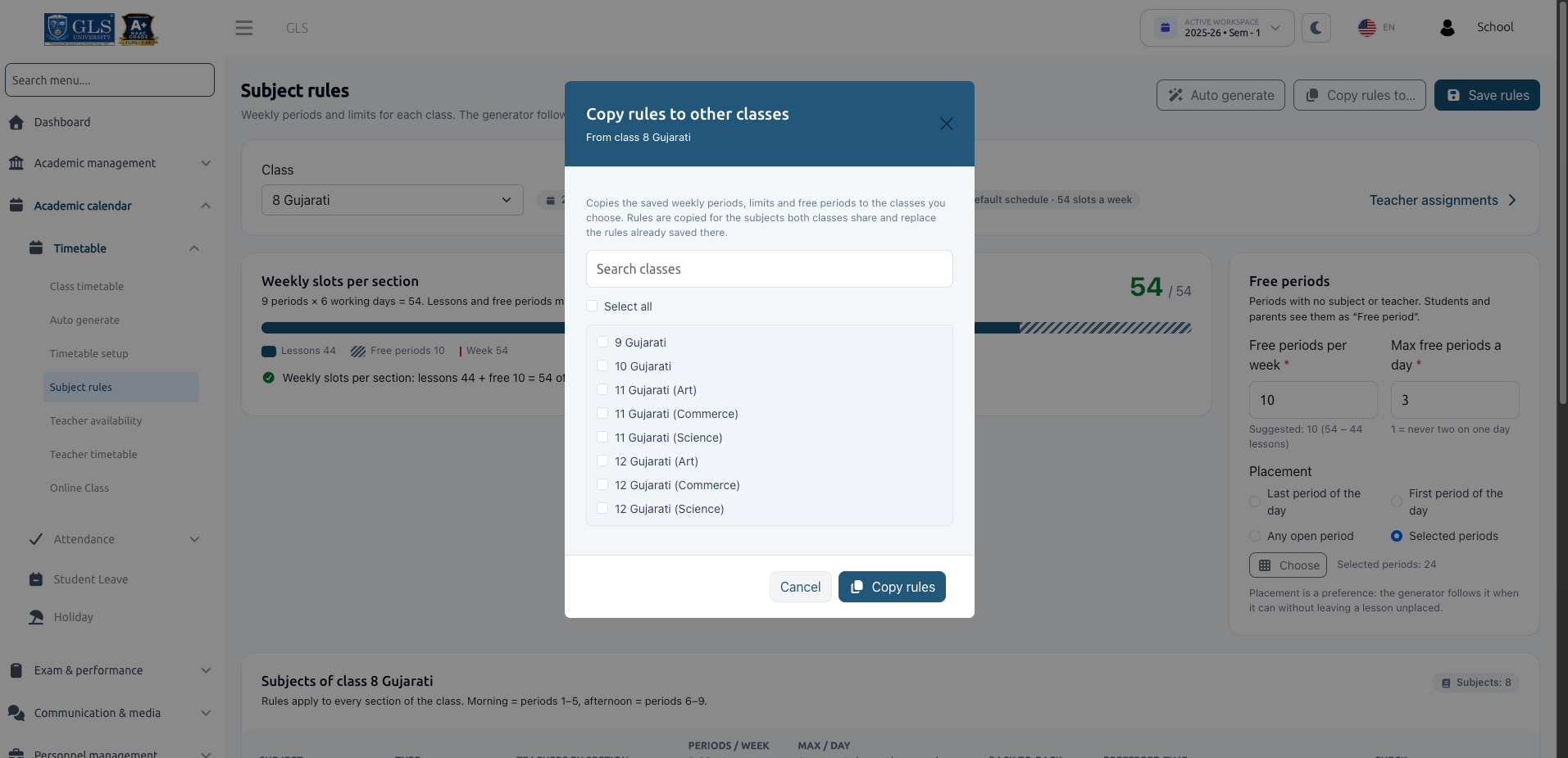
Action Buttons
- Save rules: Saves rules for the current class.
- Save and open Auto generate: Saves rules and navigates directly to the generation screen.
- Copy rules to...: Opens the Copy rules to other classes modal:
- Search and select the destination classes that share the same academic structure.
- Click Copy rules.
- The system copies the weekly periods, daily limits, preferences, and free period settings for all matching subjects shared between the classes.
- Discard changes: If you attempt to switch classes with unsaved edits, a confirmation dialog prompts you to either Discard changes or Save and continue.
Next Steps
After configuring subject rules, configure teacher schedules and restrictions in Teacher Availability.