Tax Settings (Country-wise Subscription Tax)
Settings → Tax Settings (needs the tax-settings permission)
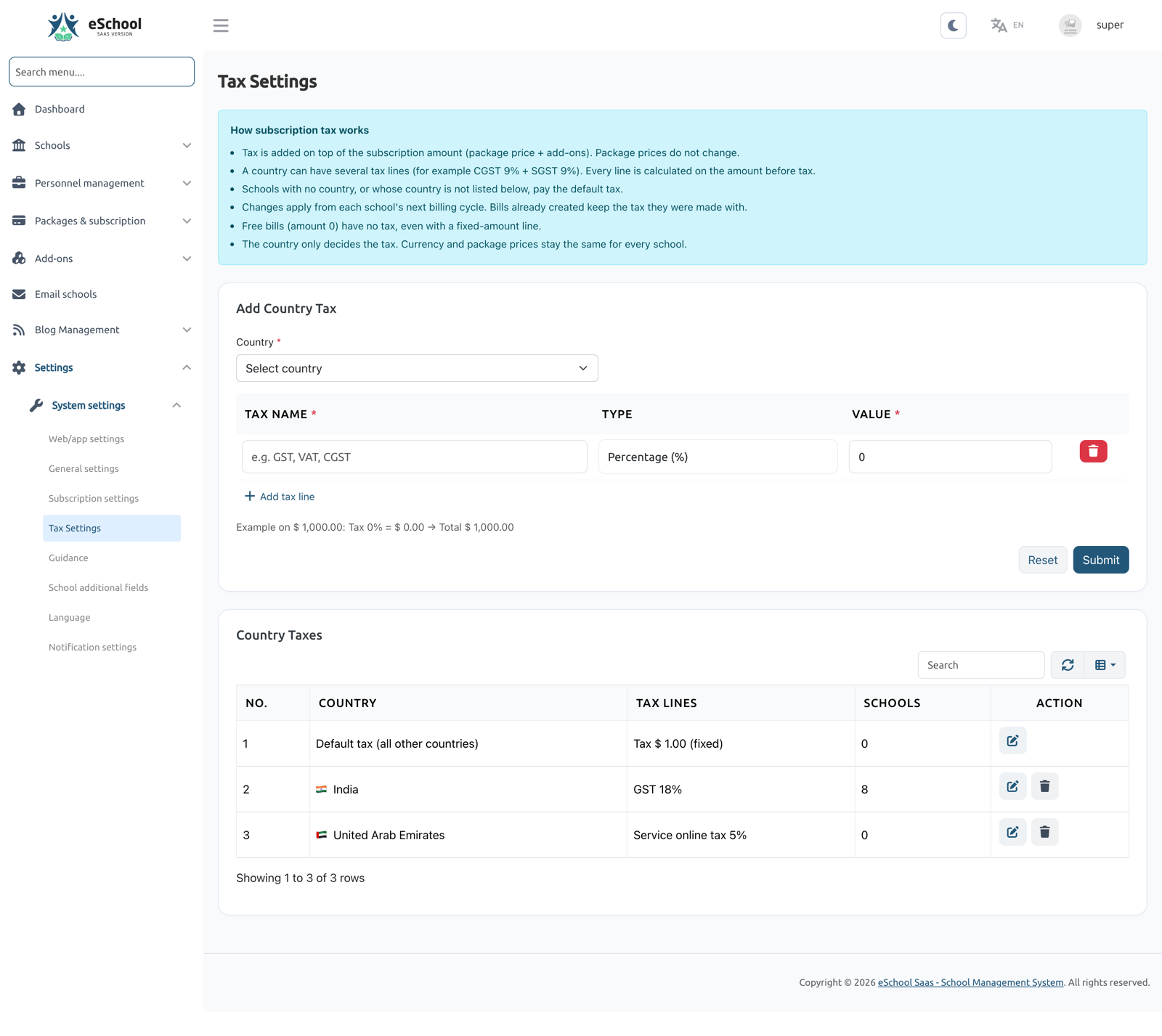
The Super Admin can charge tax on school subscription payments based on each school's billing country. A country can have one or more tax lines (for example CGST 9% + SGST 9%), and a default tax covers every other school.
The tax is added on top of the subscription amount. Package prices and the currency stay the same for every school; the country only decides the tax.
1. How it works
| Rule | Detail |
|---|---|
| Tax per country | Each country can have several tax lines. Each line is either a percentage or a fixed amount |
| Default tax | Schools with no country, or whose country has no tax set, pay the default tax. It starts at 0% and cannot be deleted |
| No tax on tax | Every line is calculated on the amount before tax |
| Added on top | Tax is added to the subscription amount (package price + add-ons). Package prices do not change |
| Free bills | A bill of amount 0 has no tax, even if a fixed-amount line exists |
| Next cycle | Changes apply from each school's next billing cycle. Bills already created keep the tax they were made with |
Example. India has CGST 9% and SGST 9%. A school in India with a bill of 1,000 pays 1,000 + 90 + 90 = 1,180. A school in any country without its own tax pays the default tax.
2. Add a country tax
- Open Settings → Tax Settings.
- In Add country tax, select the Country.
- Add one or more Tax lines. For each line enter:
- Tax name, for example GST, VAT or CGST (up to 50 characters);
- Type: Percentage (%) or Fixed amount;
- Value: a percentage cannot be more than 100.
- The form shows a live example of the tax on a sample amount.
- Click Submit.
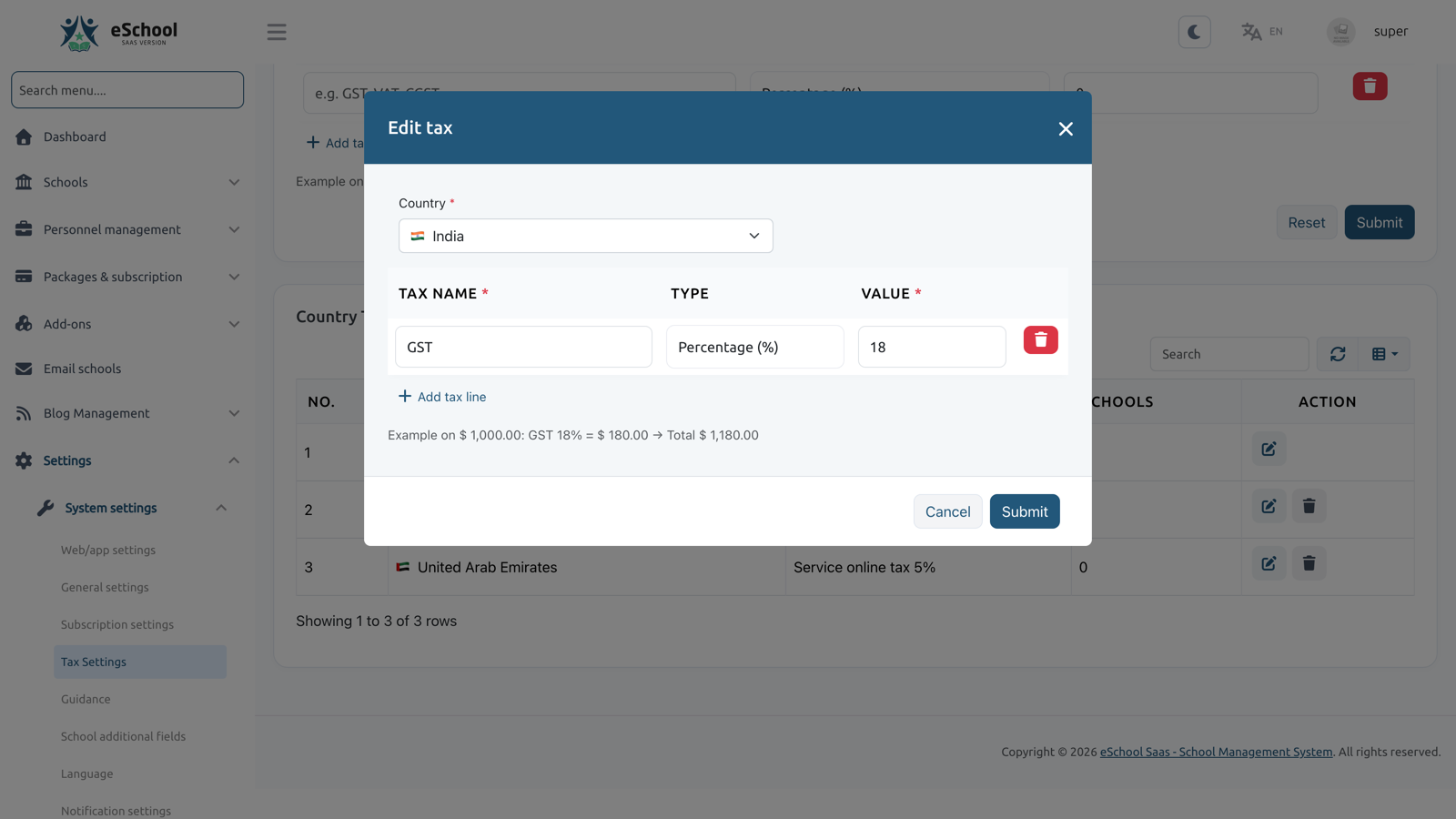
Each country can be added only once. To change it later, edit it in the list.
Validation
| Message | Cause |
|---|---|
| "Select a country for each country tax." | No country, or an unknown one, was selected |
| "This country already has a tax. Edit it in the list below." | The country is already in the list |
| "Keep at least one tax line. Set its value to 0 for no tax." | All lines were removed |
| "A percentage tax cannot be more than 100%." | A percentage line is above 100 |
3. The country taxes list
The list shows the Default tax (all other countries) first, then every country by name. For each row you see:
- the tax lines, for example CGST 9% + SGST 9% or Service fee $ 50.00 (fixed);
- the number of Schools that pay this tax right now. For the default row, this counts schools with no country plus schools whose country has no tax of its own.
Actions:
| Action | What it does |
|---|---|
| Edit | Change the tax lines. A country row can also be moved to another country that has no tax yet |
| Delete | Removes a country's tax; its schools then pay the default tax from their next cycle. The default tax cannot be deleted: set it to 0% for no tax |
4. The school's billing country
The tax depends on the school's billing country. It is optional and can be set in several places:
| Where | Who |
|---|---|
| Schools → Create / Edit school (Country field; the school list also has a country column and filter) | Super Admin |
| Public school registration form, and school inquiry approval | School / Super Admin |
| General Settings → Country (for billing) in the school panel | School Admin |
When the country changes, the other side is emailed:
- changed by the Super Admin: the school gets "Your billing country was updated", with the old and new country and the tax for the new country;
- changed by the school: the Super Admin gets "Billing country changed by [school]".
The new tax applies from the school's next billing cycle.
Until a school sets its country, the School Admin dashboard shows a reminder to set it. The Email Schools page has a ready-made "Set your country" email and an option to select the schools that have no country.
5. Where the tax is applied
When a school's subscription cycle starts, its tax lines are copied onto that cycle. Bills and add-ons of that cycle use this copy, so later changes to the country or to Tax Settings do not change them.
| Payment | Tax |
|---|---|
| Bill (postpaid cycle bill) | All tax lines of the cycle, on the bill amount |
| Prepaid plan (new plan, plan change, renewal) | All tax lines, on the package price |
| Prepaid add-on bought separately | Percentage lines only. Fixed lines are charged once per cycle, on the plan payment |
| Postpaid add-on | Part of the cycle bill, taxed there |
| Free bill (amount 0) | No tax |
Every way of paying charges the total including tax: Stripe, Razorpay, Paystack, Flutterwave, Manual Payment, cheque or cash recorded by the Super Admin, and plans assigned by the Super Admin.
What schools see:
- Plans and Add-ons pages show price + tax = you pay. Public pricing and plan amounts are marked excl. tax.
- The bill popup and the payment form list each tax line.
- The receipt shows the amount before tax, each tax line, the total including tax, the payment date and the tax country.
- Bills from before this feature have no tax and show Tax (0%).
6. After updating
Existing installs get a default tax of 0%, so nothing changes until you add taxes. To check subscription tax data after the update, run this read-only command:
php artisan subscription-tax:check