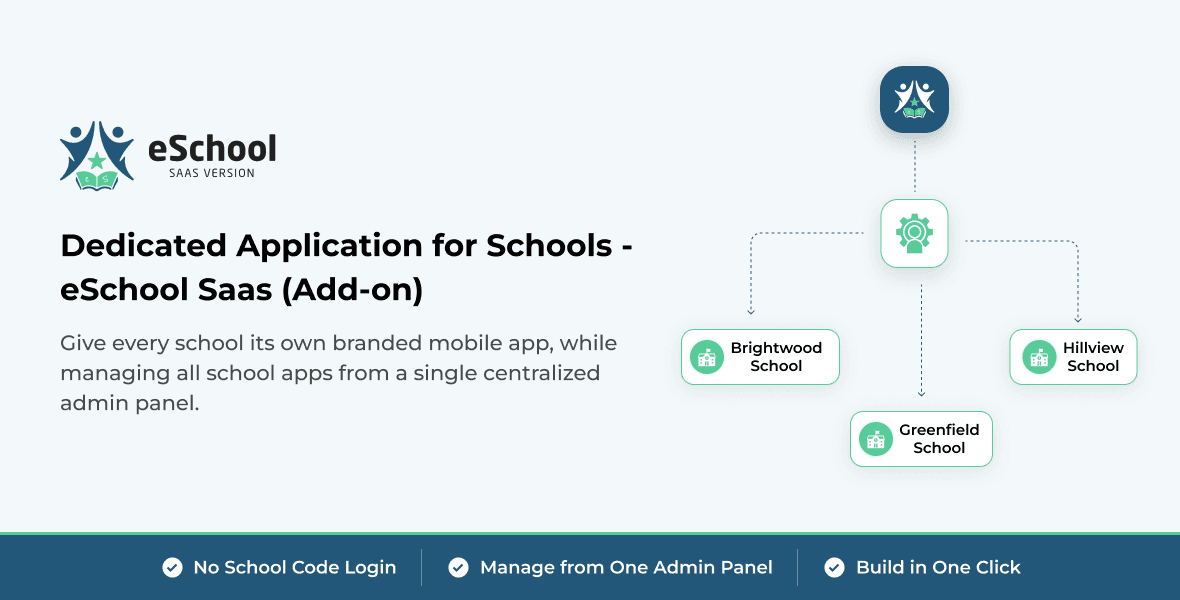
Dedicated Application for Schools
Give every school on your platform its own branded Student/Parent and Staff/Teacher apps on Google Play and the App Store, all built from one codebase with this add-on for eSchool SaaS.
A Branded App for Every School
Schools want an app with their own name and logo, not a shared one. Dedicated Application for Schools lets you offer exactly that. Each school gets its own app name, package ID, launcher icon, logo, splash screen, colours and Firebase project, and you build every school's app from your single eSchool SaaS project, with no duplicate code and no files to edit by hand.
You also manage the whole journey from your Super Admin panel: sell branded apps as part of your subscription plans, see which schools are eligible, track each app until it is published, and email the store links to the school's admin.
Important Note
This add-on requires an active installation of eSchool SaaS v1.12.0 or later, including its admin panel and both mobile apps. It cannot operate on its own.
If you haven't purchased eSchool SaaS yet, click here to purchase eSchool SaaS.
This add-on has its own purchase code and licence, separate from the core eSchool SaaS licence.
Set up the add-on in the Super Admin panel first. Start the mobile app setup only after that setup is complete.
Two Parts, One Add-on
The add-on works in two places. Set them up in this order.
Super Admin Panel
Installed from the Add-ons page of your Super Admin panel. Adds the School Mobile App feature to your subscription plans, and a dashboard to track every school's apps and send their store links.
School Builder
Added to your Student/Parent and Staff/Teacher app projects. Opens in your browser, where you add each school and build its Android and iOS apps.
Key Features
In the School Builder
Branded per School
Its own app name, package ID and bundle ID, launcher and adaptive icon, in-app logo, splash screen, notification icon, theme colours and Firebase project.
One Codebase
Every school's app is built from your single eSchool SaaS project, so there are no copies of the code to keep up to date.
Point-and-Click Builder
One command opens the builder in your browser. Add, edit and duplicate schools, then build each app with one click.
Android and iOS
Build APK and AAB files on Windows or macOS, and IPA files on a Mac with Xcode.
Build Every School at Once
Queue every ready school and they build one after another, with a live log and a download for each finished app.
Checked Before It Builds
Each school is checked before it builds, including that its Firebase files match its package IDs, so problems show up in the form, not in a failed build.
In the Super Admin Panel
Sell It in Your Plans
Add the School Mobile App feature to any subscription package, or sell it as a separate feature add-on.
Eligible Schools, Automatically
Schools whose plan includes the feature appear on the dashboard by themselves, and leave it when their plan ends.
Track Every App
Follow each school's Student/Parent and Staff/Teacher apps through Pending, In Progress, In Review and Published, with a full activity log.
Store Links in One Place
Save each app's Google Play and App Store links. Publish on Android first and add the iOS link later if Apple's review takes longer.
Email the Links to Schools
Send the store links to the school's admin using an email template you can edit and preview. Links to apps not yet published are left out.
Protected School Logins
A school-specific app checks the school's plan when users log in. Access stops if the plan expires or no longer includes the feature, and returns when the school renews.
Two Kinds of App
Choose the type for each school in the builder.
School-Specific App
Made for one school. Its school code is built in, so users never type it, and logins are checked against the school's plan.
General App
Shared by several schools, like your default app. Users enter their own school code when they log in.
What Is Built Into Each App
Built into each school's app
Change it, then rebuild the app.
- App name, package ID and bundle ID
- Launcher icon, splash screen and in-app logo
- Theme colours
- Firebase project for push notifications
- Admin panel URL, school code and app type
- Version name and build number
Managed from your admin panel
Changes reach the app without a rebuild.
- School settings and details
- Enabled features and modules
- Languages and labels
- Payment gateways
- Everything else configured in the panel
How It Works
01. Purchase the Add-on
Purchase Dedicated Application for School from the WRTeam Marketplace and download the add-on files with your purchase code.
02. Install It in the Super Admin Panel
Open Add-ons, enter your purchase code, upload the add-on ZIP file and install it, then switch the add-on to Active.
03. Add It to Your Plans
Add the School Mobile App feature to a subscription package or a feature add-on. Schools that subscribe appear under Eligible Schools.
04. Install the School Builder
Copy the add-on into your Student/Parent and Staff/Teacher app projects, then open the builder with one command.
05. Add Schools and Build
Enter each school's details, branding, Firebase files and signing key, then build its APK, AAB or IPA file.
06. Publish and Share the Links
Upload each app to Google Play and the App Store, save the store links in the Super Admin panel and email them to the school's admin.
Setup order: complete steps 02 and 03 in the Super Admin panel before you start the mobile app setup in step 04.
Requirements
Admin Panel
- eSchool SaaS v1.12.0 or later
- PHP 8.3 or higher
- SMTP email set up in the Super Admin panel
- The add-on's purchase code
Building the Apps
- eSchool SaaS app code v1.12.0 or later
- Windows 10/11 or macOS for Android builds
- A Mac with Xcode for iOS builds
- Flutter 3.47.6 with the Android SDK
- Python 3.8 or later
For Each School
- A Firebase project
- An Android signing key, or one key shared by all schools
- Google Play and Apple developer accounts to publish the apps
Frequently Asked Questions
Does building a school's app change my project?
No. A school's build never edits your Dart code or your project's Android and iOS files. Each school's settings apply only to its own build, so a normal Flutter build always produces your own default app.
Does it work with the Staff/Teacher app?
Yes. The same add-on works with both the Student/Parent and the Staff/Teacher apps. Install it in each project.
Do I need a separate Firebase project for every school?
Yes. Each school's app has its own package ID, so it needs its own Firebase project for push notifications.
Can I build on Windows?
Yes, for Android. APK and AAB files build on Windows 10 or 11. iOS builds need a Mac with Xcode, so a team can build Android on Windows and iOS on a Mac from the same project.
Can all schools share one signing key?
Yes. Use one key for every school, or give a school its own. Once a school's app is published, always sign its updates with the same key.
Will updating the add-on remove my schools?
No. Updates contain only the builder, so your school list, images, Firebase files and signing keys stay as they are.
Version 1.0.0
Initial release. Works with eSchool SaaS v1.12.0 and later.