Website Content & Sections
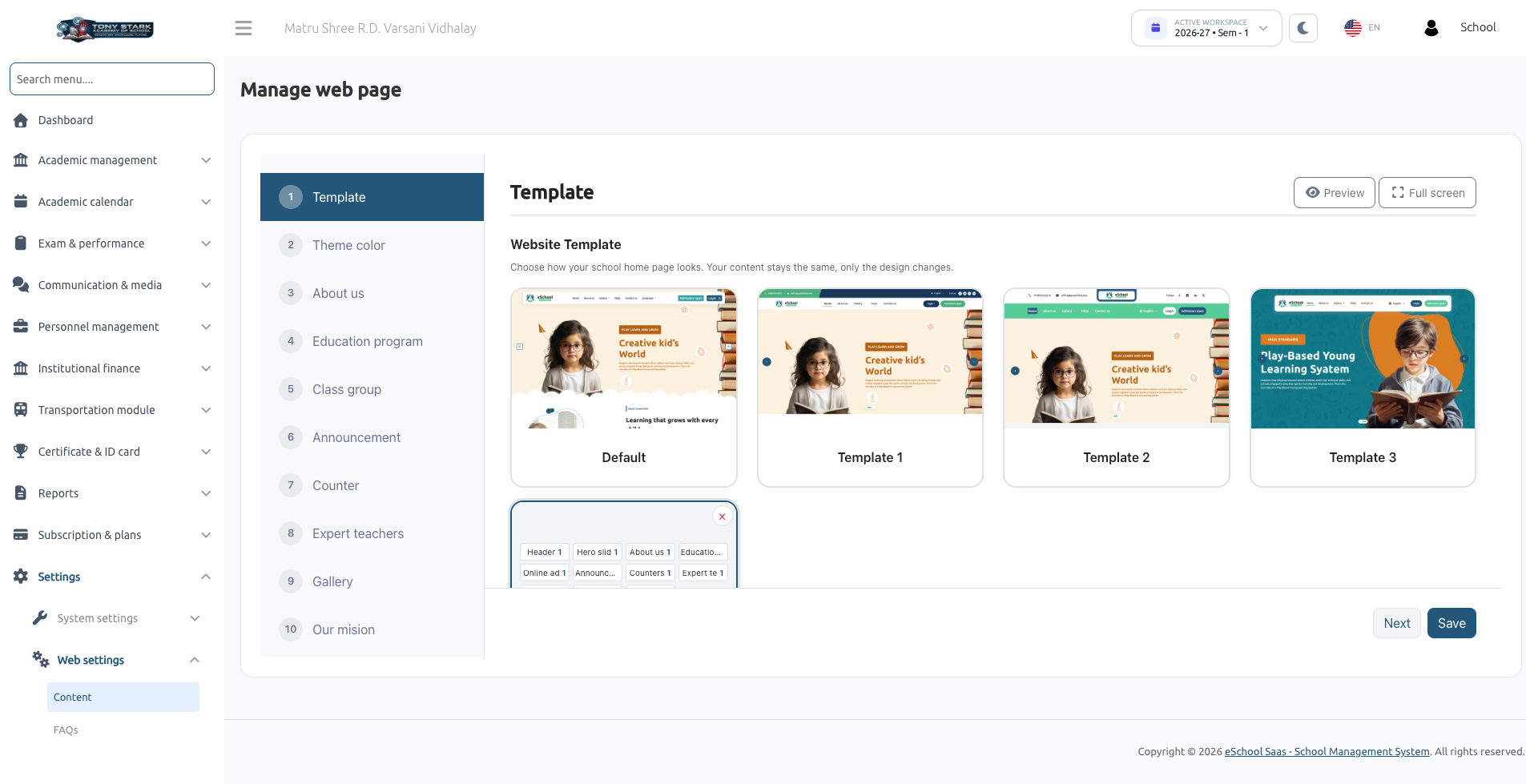
The Content section of Web Settings (accessed via Settings → Web settings → Content) allows school administrators to write the text, upload images, configure educational programs, and control section visibility for the public school website.
The interface presents a sequence of 14 configuration steps on the left sidebar. Use the Previous and Next buttons to navigate through steps. Click Save at the bottom of a step to apply changes to that specific section.
1. Overview of Content Steps (Steps 3–14)
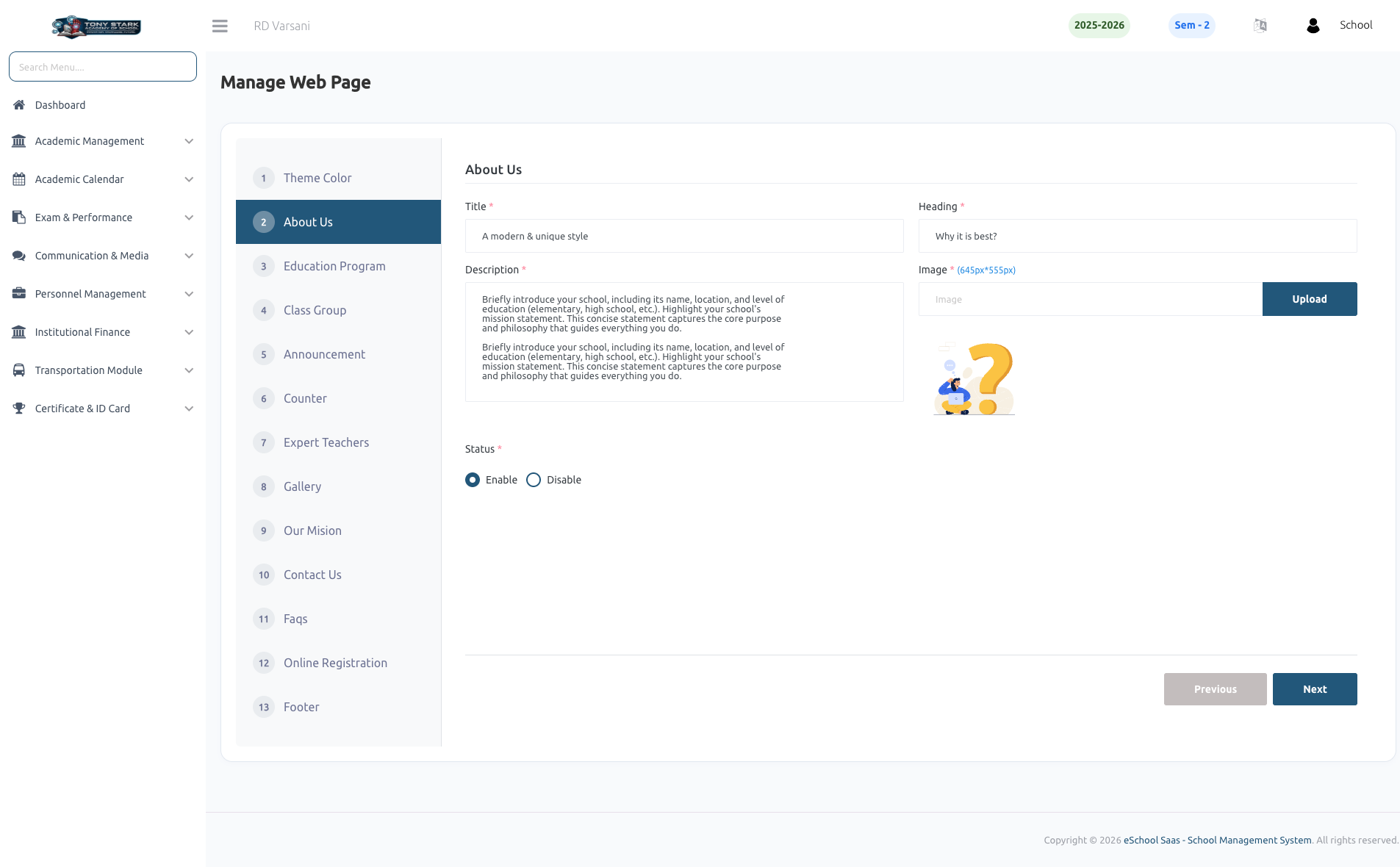
While Step 1 (Template) and Step 2 (Theme color) dictate presentation and brand colors (detailed in Website Templates & Designer), Steps 3 through 14 govern website content:
| Step # | Section Name | Content & Output Location | Recommended Image Dimensions |
|---|---|---|---|
| 3 | About us | Introduction text, historical background, and main campus picture. Displayed on the home page and About Us page. | 645px × 555px |
| 4 | Education program | Introductory title, headline, and description introducing the school's academic streams. Programs themselves are managed in Step 5. | None |
| 5 | Class group | The educational programs/curricula offered by the school (e.g., Primary School, Secondary School). | 308px × 397px |
| 6 | Announcement | Banner headline, description, and feature image for the home page noticeboard. Real announcements pull from the Announcement module. | 595px × 496px |
| 7 | Counter | Metric statistics headline, description, and four category icons used by Template 2 (Teachers, Students, Classes, Streams). | 248px × 210px |
| 8 | Expert teachers | Headline and description for the faculty showcase. Qualified teachers are populated automatically from staff records. | None |
| 9 | Gallery | Showcase headline and introductory text. Photo and video albums are managed in the main Gallery module. | None |
| 10 | Our mision | School mission statement, key pillar points, and feature illustration. Displayed on the public About Us page. | Standard image |
| 11 | Contact us | Custom headline and greeting text displayed above the inquiry form and campus map on the Contact Us page. | None |
| 12 | FAQs | Introductory headline and description for the frequently asked questions accordion. Specific Q&A items are managed under FAQs. | None |
| 13 | Online registration | Call-to-action banner, promotional copy, and feature image encouraging prospective student enrollment. | 595px × 496px |
| 14 | Footer | School brief summary, footer logo, copyright text, and social media profile URLs. | Footer Logo |
2. Standard Field Requirements
Most content steps share a standardized form structure:
- Title: A concise category tag displayed above the main headline (e.g., About Greenfield, Admissions Open).
- Heading: The prominent bold headline of the section (e.g., Nurturing Excellence in Every Learner).
- Description: A descriptive introductory paragraph providing context for visitors.
- Image: Supported formats include JPEG, PNG, SVG, and WebP. Recommended pixel dimensions are noted beside upload fields. Uploading images close to the recommended resolution prevents stretching or unwanted cropping.
- Status: Toggle between Enable (display on website) and Disable (hide from website).
The Title, Heading, and Description fields marked with a red asterisk are strictly required to proceed, even if the section is disabled. If left empty, clicking Next or Save prompts:
"Please fill all required fields."
3. Specialized Section Walkthroughs
Class Group Step (Educational Programs)
The Class group step features a dedicated management table:
- Click Create class group.
- Enter the program Name (e.g., Pre-Primary, Middle School, Senior Secondary).
- Provide a brief Description summarizing the curriculum focus.
- Upload a thumbnail Image (recommended
308px × 397px). - Select the Classes that belong to this academic division.
- Click Submit.
In Template 2, class group cards display the program name and image by default, and reveal the description in an animated overlay when hovered over with a mouse pointer.
Counters Step (Automated Tallies)
The statistical numbers displayed in the Counters section (Total Teachers, Active Students, Classes, and Streams) are calculated automatically by the system in real time from your active school database. Administrators only configure the section text and the four optional category graphics used in Template 2.
Our Mission Step (Bulleted Pillars)
In Step 10 (Our mision), enter your school's core institutional values under Points:
- Type a key pillar (e.g., Academic Rigour, Holistic Development, Character Building).
- Press Enter or type a comma to add the point to the pill list.
- These points display as an itemized checklist beside your mission statement on the public About Us page.
Footer Step (Social Media & Copyright)
- Short Description: Explanatory paragraph positioned beneath the school crest in the website footer.
- Footer Logo: Optional alternative logo (e.g., white-monochrome variant) for dark footer backgrounds. If omitted, the primary school logo is used.
- Footer Text: Copyright attribution line (e.g., © 2026 Greenfield Public School. All Rights Reserved).
- Social Media Links: Paste full URLs for your school's official Facebook, Instagram, LinkedIn, and Twitter profiles. Social icons only render for URLs that are filled in.
4. Content Managed on Other System Screens
To keep administration streamlined, dynamic modules populate the public website automatically from their respective administrative sections:
| Feature | Managed Location | Integration Behavior |
|---|---|---|
| Hero Slider Banners | Main Menu → Sliders | Upload slider images with type set to School website or Both. Supports optional target web links. |
| Frequently Asked Questions | Settings → Web settings → FAQs | Questions and detailed answers render dynamically in the FAQ accordion on the home page. |
| Announcements & Notices | Main Menu → Announcement | The home page automatically displays up to the 10 most recent general announcements not restricted to a single class subject. |
| Photo & Video Albums | Main Menu → Gallery | Published albums appear on the home page and on the dedicated public Gallery page with full-resolution photo viewers. |
| Faculty Showcase | Personnel → Staff | The Expert Teachers section lists active teachers and their academic qualifications automatically. |
| Legal Pages | Settings → Terms & Conditions, Privacy Policy, Refund Cancellation | Full legal text renders on matching public website pages. |
5. Public Website Navigation Menu
The header navigation menu of your public website automatically adapts based on your section status toggles:
| Navigation Item | Display Condition |
|---|---|
| Home | Always visible. |
| About Us | Displayed if either About us or Our mision is enabled. |
| Gallery | Displayed if the Gallery section is enabled. |
| FAQs | Displayed if FAQs is enabled and at least one FAQ has been added. |
| Contact Us | Displayed if the Contact us section is enabled. |
| Login | Always visible. Opens a dropdown with Login with Staff and Login with Student. |
| Admission Open | Rendered as a prominent call-to-action button when Online registration is enabled. |
6. Troubleshooting Common Issues
| Issue | Likely Cause | Solution |
|---|---|---|
| "Please fill all required fields" | A required text field (Title, Heading, or Description) is empty in the current step. | Fill in all asterisked text boxes, even if the section status is disabled. |
| Changes saved but website looks unchanged | The browser is displaying a cached version, or a different step was saved. | Click Save on the specific step you edited, then perform a hard refresh (Ctrl + F5 or Cmd + Shift + R) on the public website. |
| A section is missing on the home page | The section switch is disabled, or content is missing at the source. | Verify the section switch is On. Ensure class groups exist for Programs, announcements exist for Announcements, and albums exist for Gallery. |
| Hero slider is missing | Slider Management is absent from your plan, or no banners are assigned to the website. | Check your subscription package and ensure sliders in the Sliders module have type set to School website or Both. |
| Images look cropped or distorted | Image resolution does not match the recommended aspect ratio. | Resize and upload images matching the pixel dimensions indicated beside each field. |
Related Documentation
- Website Templates & Designer: Select templates, mix section variations, and configure brand colors.
- FAQs: Create questions and answers for the website FAQ section.