FAQs
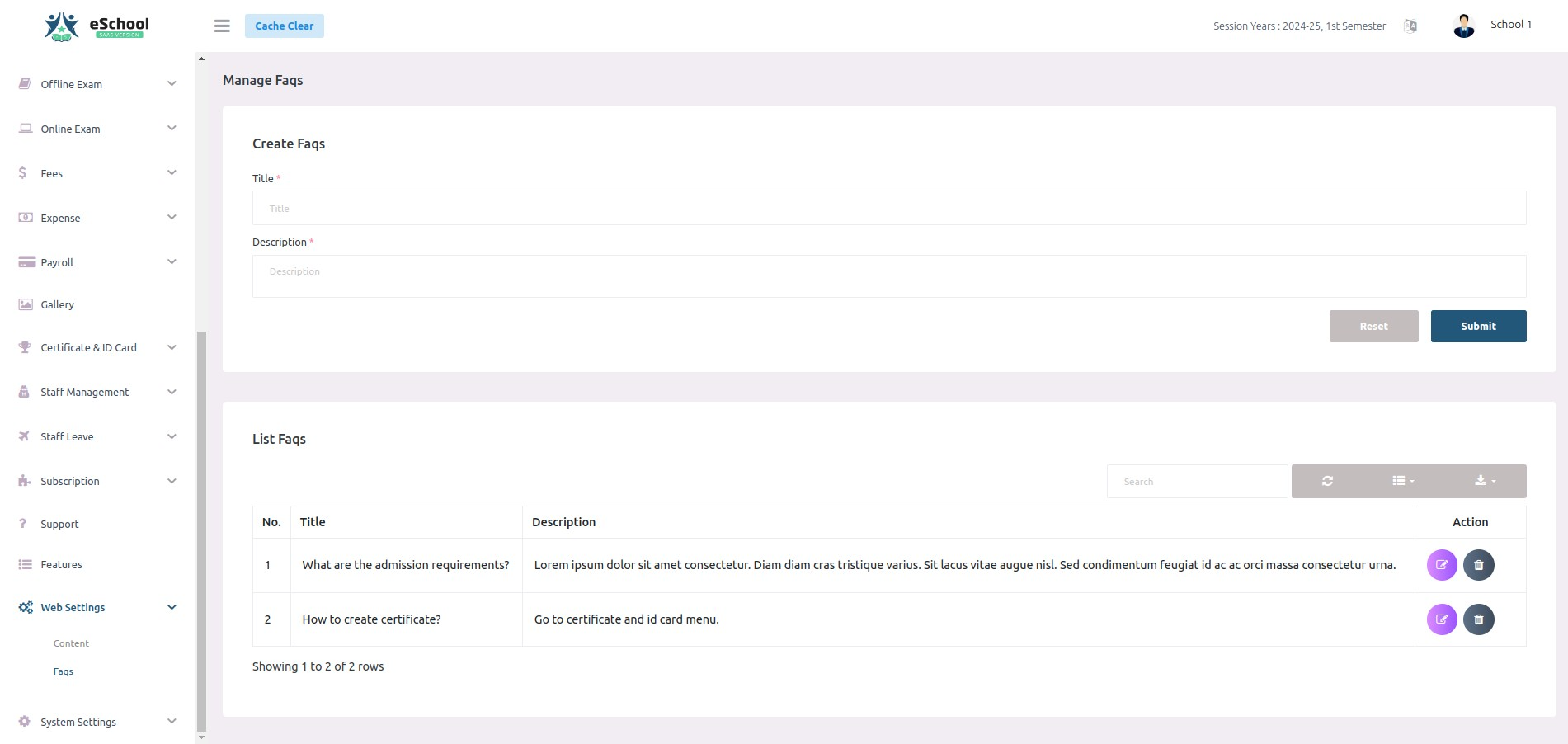
The FAQs module (located under Settings → Web settings → FAQs) allows school administrators to manage frequently asked questions and answers displayed in the interactive FAQ accordion on the public school website.
1. Managing FAQs
- Navigate to Settings → Web settings → FAQs.
- Adding an FAQ:
- Click + Add FAQ or fill in the creation form.
- Title: Enter the question (e.g., What is the admission procedure for the upcoming academic year?).
- Description: Provide the detailed answer with full instructions or links.
- Click Submit.
- Editing or Deleting:
- Use the Edit (pencil icon) to update existing questions or answers.
- Use the Delete (trash icon) to remove questions no longer relevant.
2. Public Website Display & Navigation Rules
- Home Page Accordion: Published FAQs render in a clean, expandable accordion within the FAQs section on the home page.
- Header Menu Integration: The FAQs item appears in the website header navigation menu only when the FAQs section is Enabled in Website Content and at least one FAQ item has been created.
- Section Introduction: To customize the headline and descriptive subtitle shown above the FAQ accordion, navigate to Step 12 (FAQs) in Website Content & Sections.
Related Documentation
- Website Templates & Designer: Select home page templates and customize brand colors.
- Website Content & Sections: Configure website text, images, and section visibility.