Report Cards
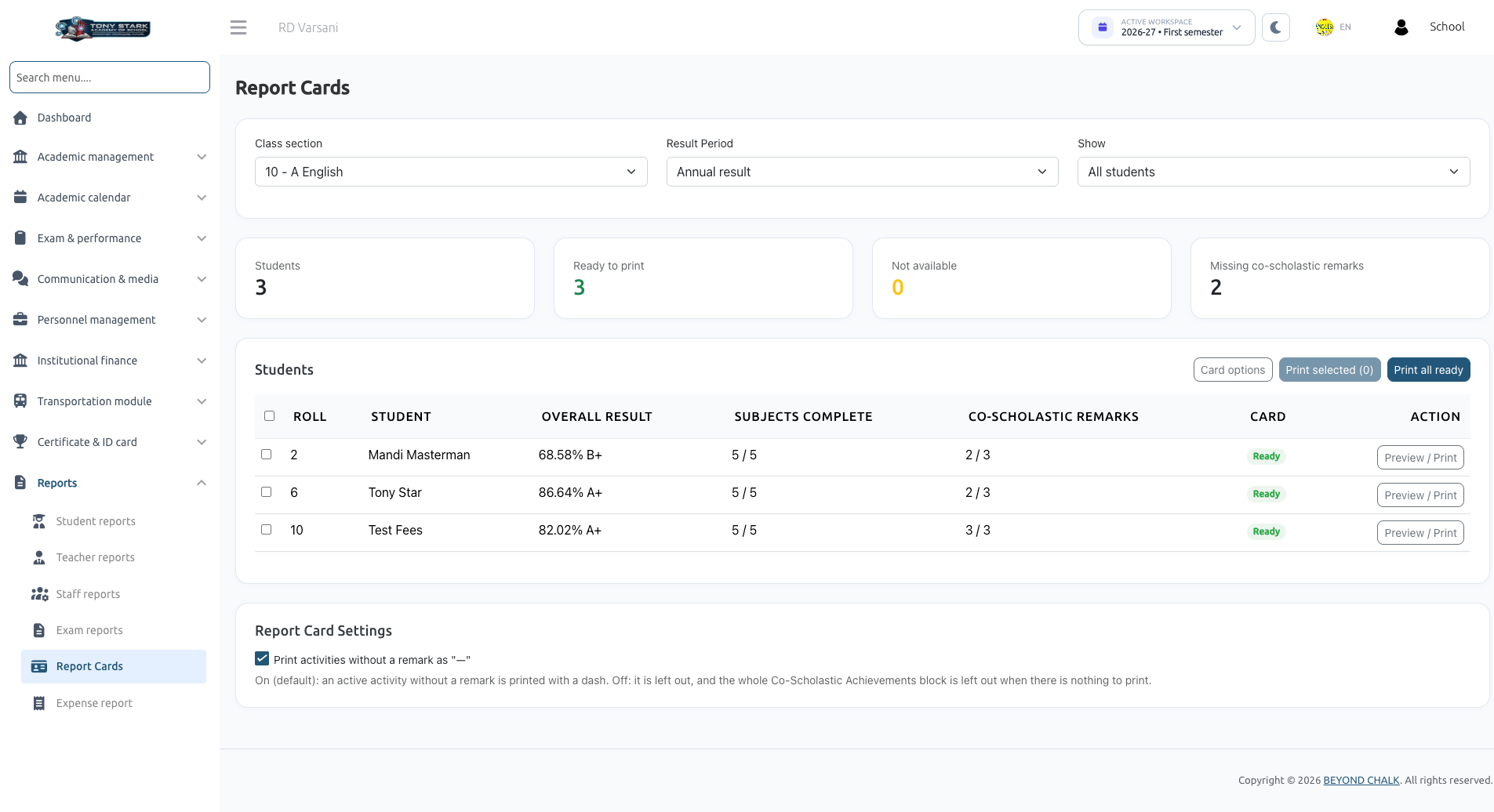
The Report Cards module (located under Reports → Report Cards) compiles students' weighted academic scores, subject evaluations, attendance records, and teacher remarks into standardized, printable report cards.
Report cards are generated in clean, high-resolution A4 landscape format suitable for official school distribution, parent-teacher conferences, and digital PDF downloads.
Access & Visibility
- School Admin: Can generate and print report cards for any class section across the school.
- Class Teacher: Can generate and print report cards for students enrolled in their assigned section(s).
- Report Card Requirement: A report card is only produced when a student's result is complete. Final report cards require that both the Final result and all constituent semester results are complete. Cards are never printed partially filled.
1. Generating & Filtering Report Cards
Navigate to Reports → Report Cards.
- Select your target Class section and Result Period (e.g., Annual Result, First Semester, Second Semester, or Final Result).
- Use the Show filter to segment students:
- All students: Lists every enrolled student in the section.
- Ready to print: Displays students with complete results ready for printing.
- Not available: Displays students whose results cannot be printed yet (along with the specific blocker, e.g., result incomplete).
- Missing co-scholastic remarks: Identifies students lacking co-scholastic evaluations.
Table Columns & Indicators
- Student Information: Name, Admission number, and Roll number.
- Overall Result: Cumulative percentage and letter grade.
- Subjects Complete: Counter showing completed versus total subjects (e.g., 5 / 5).
- Co-Scholastic Remarks: Tally of completed activity remarks (e.g., 3 / 4).
- Card Status: Indicates if the card is Ready, Published, or why it is blocked.
- Actions: Preview single card, or select multiple rows for batch printing.
2. Card Customization Options
Click Card options to toggle specific sections of the report card on or off:
- Component-wise Marks Table: Detailed breakdown of marks obtained per subject under each component.
- Attendance Summary: Days present, total working days, and attendance percentage.
- Co-Scholastic Achievements: Extracurricular activities and written remarks.
- Class Teacher's Remark: Written qualitative evaluations.
- Print Empty Activities as "—":
- On (Default): An active assigned activity with no written remark prints with a standard dash ("—").
- Off: Unremarked activities are omitted entirely; if no activities have remarks, the entire Co-Scholastic Achievements section is omitted from the card.
3. Printing Workflow & PDF Generation
- Single Student Print: Click the Preview / Print button on any student's row.
- Batch Printing: Tick specific student checkboxes and click Print selected, or click Print all ready to generate cards for the entire section.
- Pre-Flight Summary: A Before you print dialog confirms:
- Total cards to be rendered.
- Number of skipped students and exact reasons (e.g., pending marks).
- Count of students missing co-scholastic remarks.
- Browser Print Dialog: Click Print / Save as PDF. The document renders in a new browser tab formatted for A4 Landscape. Use your browser's print utility to send to a physical printer or save as a digital PDF.
4. Report Card Anatomical Breakdown
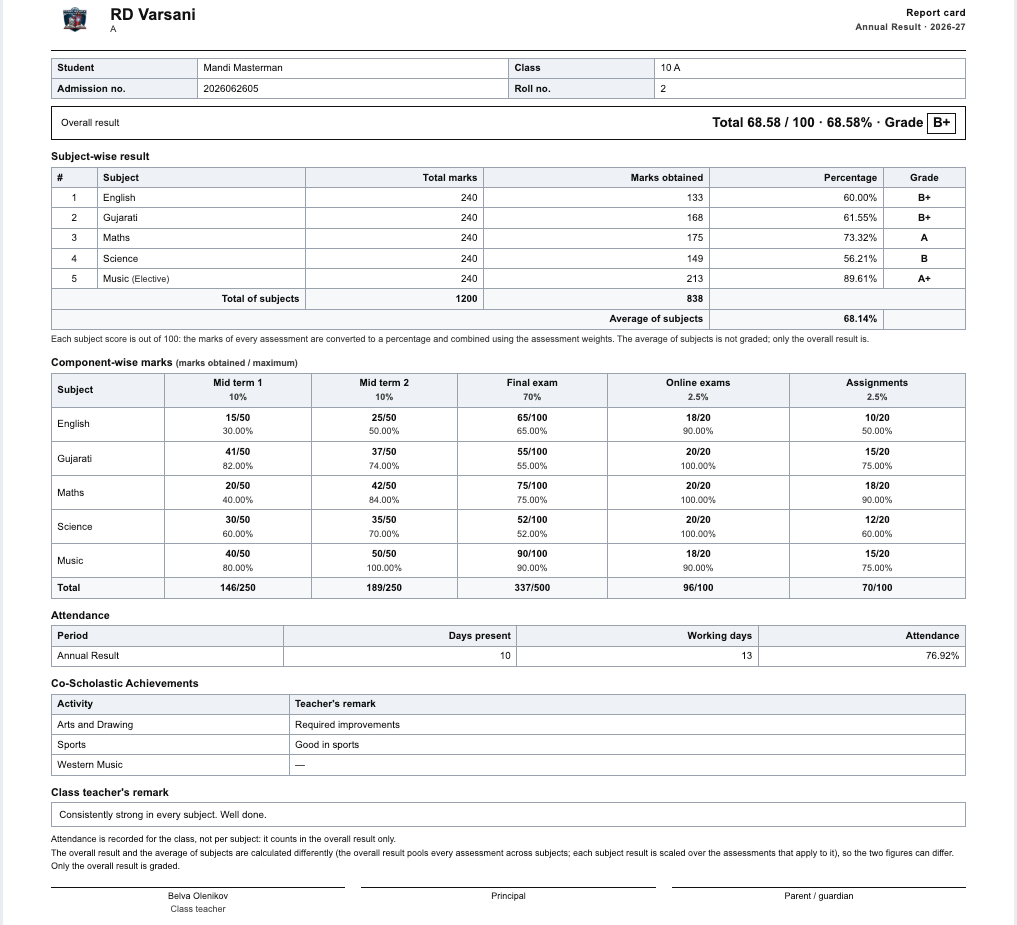
Annual Report Card Layout
Semester / Final Report Card Layout
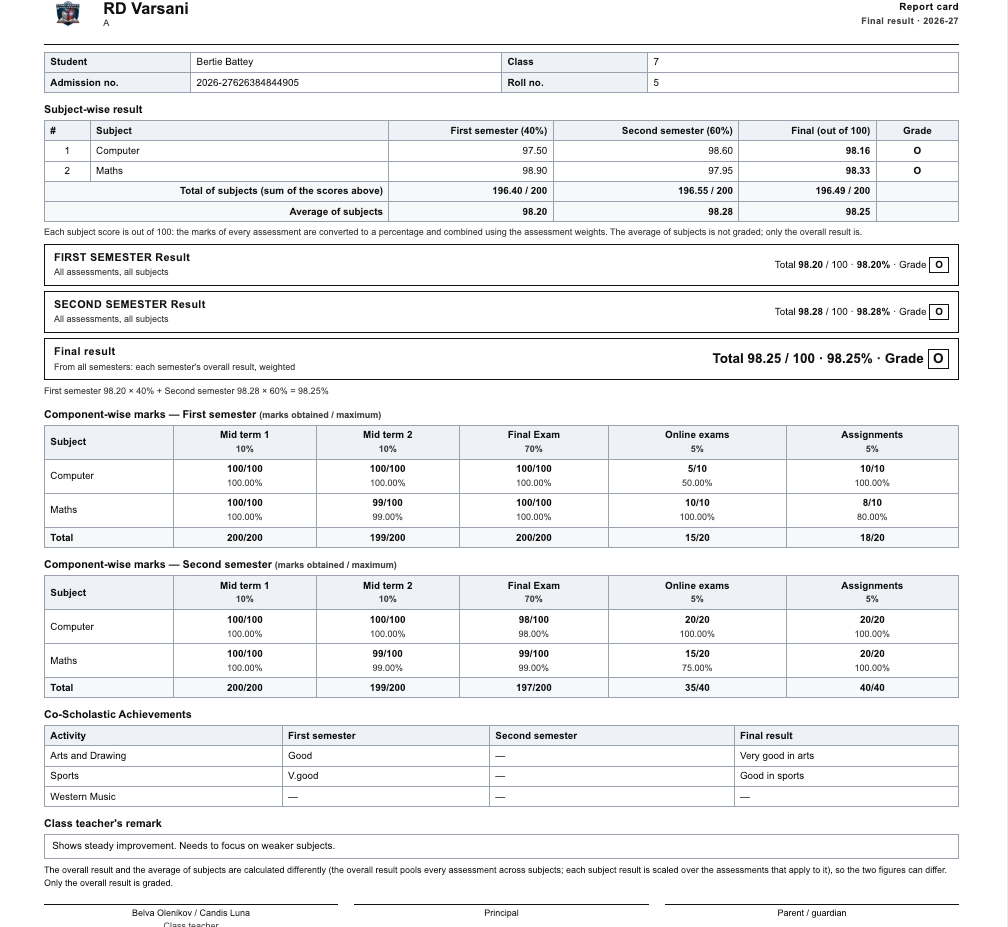
A fully rendered report card contains the following standard sections:
| Section | Content & Structure |
|---|---|
| School Header | School crest/logo, institution name, address, REPORT CARD header, academic session, and result period. |
| Student Metadata | Student full name, Class & Section, Admission number, and Roll number. |
| Overall Result Box | Displays total obtained marks over maximum marks, overall percentage, and letter grade (e.g., Total 68.58 / 100 · 68.58% · Grade B+). On Final cards, displays separate summary boxes for each semester alongside the cumulative FINAL RESULT. |
| Subject-Wise Results | Tabular summary listing Subject, Total marks, Marks obtained, Percentage, and Grade per subject, concluded with Total of subjects and Average of subjects. On Final cards, displays semester columns with weightages (e.g., Sem 1 (40%), Sem 2 (60%)) leading to the Final (out of 100) column. |
| Component-Wise Marks | Comprehensive matrix detailing marks obtained versus maximum for every offline exam, online exam, and assignment group. |
| Attendance Record | Displays days present, total school working days, and calculated attendance percentage. |
| Co-Scholastic Achievements | Extracurricular disciplines (Sports, Art, Music, Leadership) accompanied by teacher remarks. |
| Class Teacher's Remark | Qualitative assessment and encouragement written by the class teacher. |
| Signatures & Footnotes | Official signature lines for the Class Teacher, Principal, and Parent / Guardian. |
Footnote Markers
- * (Asterisk): Some assessment components do not evaluate this subject; weights have been proportionally rescaled to 100%.
- † (Dagger): Student was marked absent and scored zero according to assessment rules.
- ‡ (Double Dagger): Student was granted an administrative exemption with a documented reason.
- § (Section Sign): Subject was offered in only one semester; its Final score reflects that semester alone.
5. Mobile App PDF Downloads
Once results are published by the School Admin:
- Students and parents can view their results on the mobile application.
- The app includes a direct download link to save the exact same official Report Card PDF to their smartphones.
- Class Teachers using the Teacher App can also view consolidated results, record student remarks, and preview report card PDFs on mobile devices.
Related Documentation
- Result Assessments Overview: Comprehensive feature guide and permissions.
- Assessments Setup: Define components, exams, and weightages.
- Consolidated Results: Review student scores and manage overrides.
- Student Remarks: Record teacher feedback and co-scholastic observations.