Result Assessments Overview & Guide
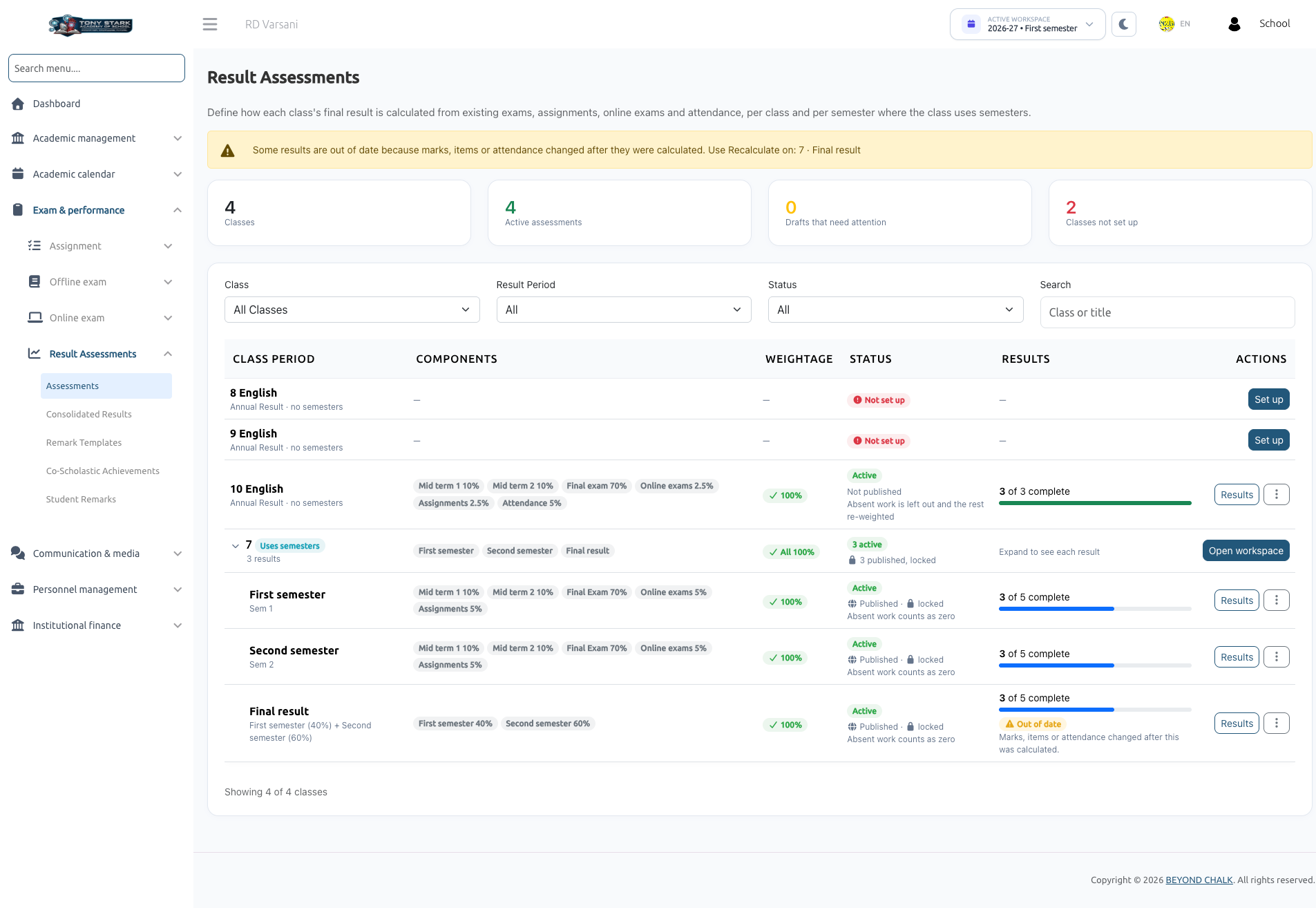
Result Assessments compiles the marks, assignments, online exams, and attendance you already manage in the school system into a single weighted result per student, and outputs professional, print-ready Report Cards.
Administrators decide which offline exams, online exams, assignments, and attendance records count towards a class's result, and assign a percentage weightage to each (for example, Mid term 10%, Final exam 70%, Assignments 10%, Attendance 10%).
The system then:
- Calculates every student's result automatically, both overall and subject-by-subject.
- Displays the outcomes on Consolidated Results, highlighting pending items whenever a result cannot be finalized yet.
- Enables Class Teachers to add written remarks (an overall evaluation and specific Co-Scholastic Achievements remarks like Sports: Very Good).
- Allows School Admins to publish results for parents and students to view in mobile apps.
- Generates comprehensive Report Cards in standard A4 landscape format for individual students or entire sections.
Result Assessments reads directly from existing exams, marks, assignments, online tests, and attendance registers. It never alters or duplicates underlying academic records.
1. Roles & Permissions: Who Does What
| Role | Menu Access | Capabilities & Limitations |
|---|---|---|
| School Admin | Exam & Performance → Result Assessments → Assessments, Consolidated Results, Remark Templates, Co-Scholastic Achievements, Student Remarks; Reports → Report Cards | Full Access: Set up assessments, define weightages, recalculate, publish/unpublish, grant absent/exempt overrides, manage remark templates and co-scholastic activities, write remarks for any section, and print all report cards. |
| Class Teacher (Teacher assigned to a section) | Consolidated Results, Remark Templates (read-only), Student Remarks; Reports → Report Cards | View results of their assigned section(s), enter overall and co-scholastic remarks, and print section report cards. A Class Teacher cannot configure assessments, publish, recalculate, or alter weighting rules. |
| Subject Teacher (Not class teacher for that section) | Student Remarks | Can view section remarks in read-only mode. Cannot view students' overall consolidated results. |
| Students & Parents | Mobile Applications | Can view published results and download Report Card PDFs once released by administrators. |
- Teachers only have access to sections where they are assigned as Class Teacher for the session. Accessing other sections displays "Outside your section".
- All operations apply to the Academic Session and Semester selected in the top workspace bar. Past sessions are archived as read-only.
2. Before You Start Checklist
Before setting up assessments, verify the following prerequisites:
| Item | Requirement & Purpose |
|---|---|
| Exam Management Add-on | The school's subscription package must include Exam Management. Without it, pages prompt "Purchase Exam Management to Continue using this functionality". |
| Classes, Sections & Semesters | Classes, sections, and (for semester-based classes) semesters must be created. If a class uses semesters but none are created, the system alerts you. |
| Class Teacher Assignments | Every class section must have assigned Class Teachers in Academic Management → Academics → Class Section and Teachers. |
| Published Exams & Marks | Offline exams must have an established timetable, and their marks must be uploaded with status Published, with the exam itself published. Draft marks keep students in a Pending status. |
| Gradable Assignments | Assignments must have maximum points defined. Assignments without points cannot be graded ("No points set: not gradable"). |
| Attendance Records | Attendance must be recorded for working days within the selected date range. |
| Exam Grade Scale | Ensure your grading bands are configured under Exam & Performance → Offline exam → Exam grade. Grades on result sheets and report cards derive directly from this scale. |
3. Key Terminology
| Term | Definition |
|---|---|
| Assessment | The blueprint defining how results are computed for a class: its components and their respective weightages. |
| Result Period | The scope of the evaluation: Annual Result (for non-semester classes), Semester Result (e.g., First Semester), or Final Result (combines semester results). |
| Component | A constituent part of a result appearing as a row/column, such as Mid Term Exam, Online Exams, Assignments, or Attendance. In a Final Result, the components are the semesters. |
| Weightage | The percentage value of a component towards the total score. Component weightages must add up to exactly 100%. |
| Overall Result | The cumulative weighted percentage across all subjects and class-level components, paired with an overall Grade. |
| Subject Result | The student's percentage in an individual subject, calculated solely from the components covering that specific subject. |
| Draft / Active / Published | Draft: Under configuration; no calculations performed. Active: Results are calculated and visible to authorized staff. Published: Results are locked and made visible to parents and students. |
| Pending | Required marks that have not yet been finalized (e.g., unpublished marks, pending assignment reviews). Pending is never treated as zero; it pauses calculation for that student until resolved. |
| Absent | A missed exam or unsubmitted assignment after the due date. Evaluated based on missing-result rules (Count as zero or Leave out and re-weight). |
| Exempt | An administrative override excusing a student from a component with a documented reason. The component is omitted and remaining weights are scaled back to 100%. |
| Class-Level Component | A non-subject component (specifically Attendance) that factors into the overall percentage but not individual subject results. |
| Co-Scholastic Achievements | Non-academic activities (e.g., Sports, Music, Art, Conduct). Evaluated through descriptive teacher remarks without numerical marks. |
4. End-to-End Workflow
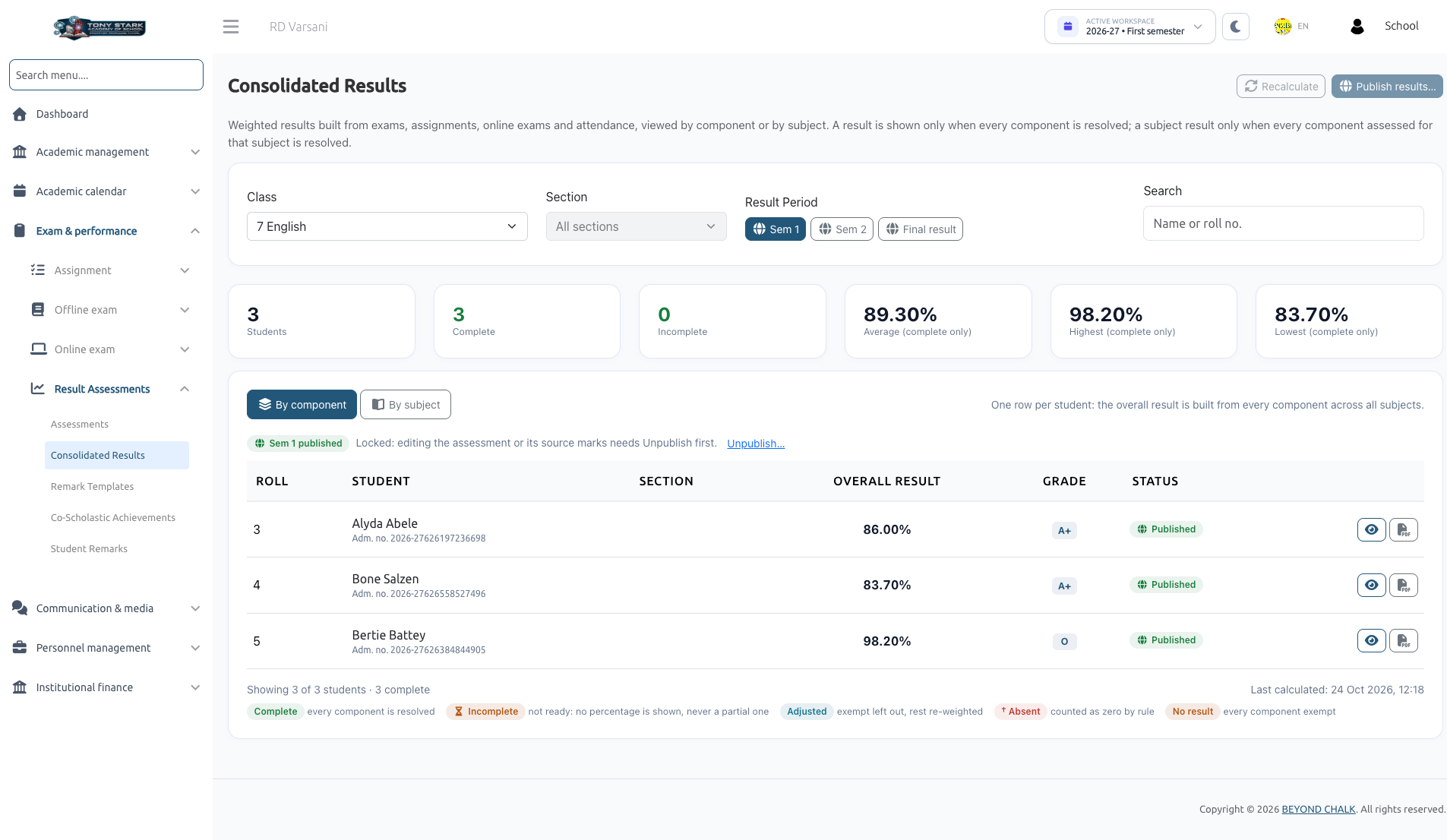
The complete lifecycle of Result Assessments flows through five dedicated modules:
graph TD
    A["1. Assessments Setup\n(Define components & 100% weightages)"] --> B["2. Consolidated Results\n(Recalculate & verify student results)"]
    B --> C["3. Remarks & Activities\n(Enter overall & co-scholastic remarks)"]
    C --> D["4. Publish Results\n(Lock results & expose to parents/students)"]
    D --> E["5. Report Cards\n(Print complete A4 landscape cards)"]
- Assessments: School Admin configures components, selects exams/assignments/attendance, sets weightages to 100%, and activates the assessment.
- Consolidated Results: System computes marks. Admins and Class Teachers review scores by component or by subject, resolve pending items, or grant absent/exempt overrides.
- Remark Templates & Co-Scholastic Achievements: School Admin manages ready-made comment banks and assigns extracurricular activities to classes.
- Student Remarks: Class Teachers submit overall evaluations and co-scholastic performance remarks.
- Report Cards: Admins and teachers generate, preview, and print unified report cards.
5. How Results Are Calculated
Overall Weighted Calculation
- Component Percentage: All marks inside a component across its covered subjects are totaled:
(Higher-mark papers naturally carry proportional weight inside the component).
Component Percentage = (Total Marks Obtained ÷ Total Maximum Marks) × 100 - Weighted Points: Each component percentage is multiplied by its assigned weightage percentage.
- Cumulative Sum & Rounding: The weighted points are summed and rounded once, to 2 decimal places using standard half-up rounding. The final percentage maps to the school's Exam Grade scale.
Example Calculation
| Component | Obtained / Max | Percentage | Weightage | Weighted Points |
|---|---|---|---|---|
| Mid Term 1 | 200 / 200 | 100.00% | 10% | 10.00 |
| Mid Term 2 | 199 / 200 | 99.50% | 10% | 9.95 |
| Final Exam | 500 / 500 | 100.00% | 70% | 70.00 |
| Online Exams | 75 / 100 | 75.00% | 5% | 3.75 |
| Assignments | 90 / 100 | 90.00% | 5% | 4.50 |
| Overall Result | — | — | 100% | 98.20% (Grade O) |
Overall Result vs. Average of Subjects
On student breakdowns and report cards, two numbers may appear:
- Overall Result: Calculated component-by-component across all marks and class-level attendance. This is the official, graded, published figure.
- Average of Subjects: The simple arithmetic mean of individual subject percentages. This is not graded and displays only when every subject has a complete result.
- Why they may differ: Larger examination papers have greater impact in overall component aggregation, attendance is excluded from subject marks, and subject weightings may be rescaled if certain exams do not cover all subjects.
6. What Students & Parents See
- Publish Gate: Students and parents only see results once the School Admin explicitly clicks Publish results. Incomplete results are withheld until fully resolved.
- Mobile Access: Results are visible in the school's mobile applications, categorized by semester or as an annual result.
- Report Card PDF: Parents and students can download the official Report Card PDF directly to their mobile devices.
7. Troubleshooting & Common Questions
| Issue | Root Cause | Resolution |
|---|---|---|
| Student status is "Incomplete" | A component is Pending (e.g., draft exam marks, unreviewed assignments, open online exams). | Check the student breakdown to identify the pending item. Finalize marks at the source, then click Recalculate. |
| Student stuck on Offline Exam | The student was absent or marks were left blank. | Offline exams cannot natively store "absent". The School Admin must open the student breakdown and set the status to Absent or Exempt. |
| "Weightages must total exactly 100%" | Component percentages do not equal 100%. | Adjust component weights or click Distribute equally in the assessment builder. |
| "Outside your section" | A teacher attempted to open a class they do not manage as Class Teacher. | Teachers must select their assigned class section from the dropdown. |
| Results marked "Out of date" | Source marks, assignments, or attendance changed after calculation. | School Admin must click Recalculate now (if published, unpublish first). |
| Report card shows "Not available" | The result is incomplete, all components are exempt, or the period is not set up. | Complete all pending items and recalculate the assessment. |
Navigation Links
- Assessments Setup: Configure components, items, and weightages.
- Consolidated Results: Analyze student scores, handle overrides, and publish results.
- Remark Templates: Create reusable evaluation remarks.
- Co-Scholastic Achievements: Manage non-academic activities.
- Student Remarks: Enter teacher remarks for students.
- Report Cards: Print official student report cards.