Student Remarks
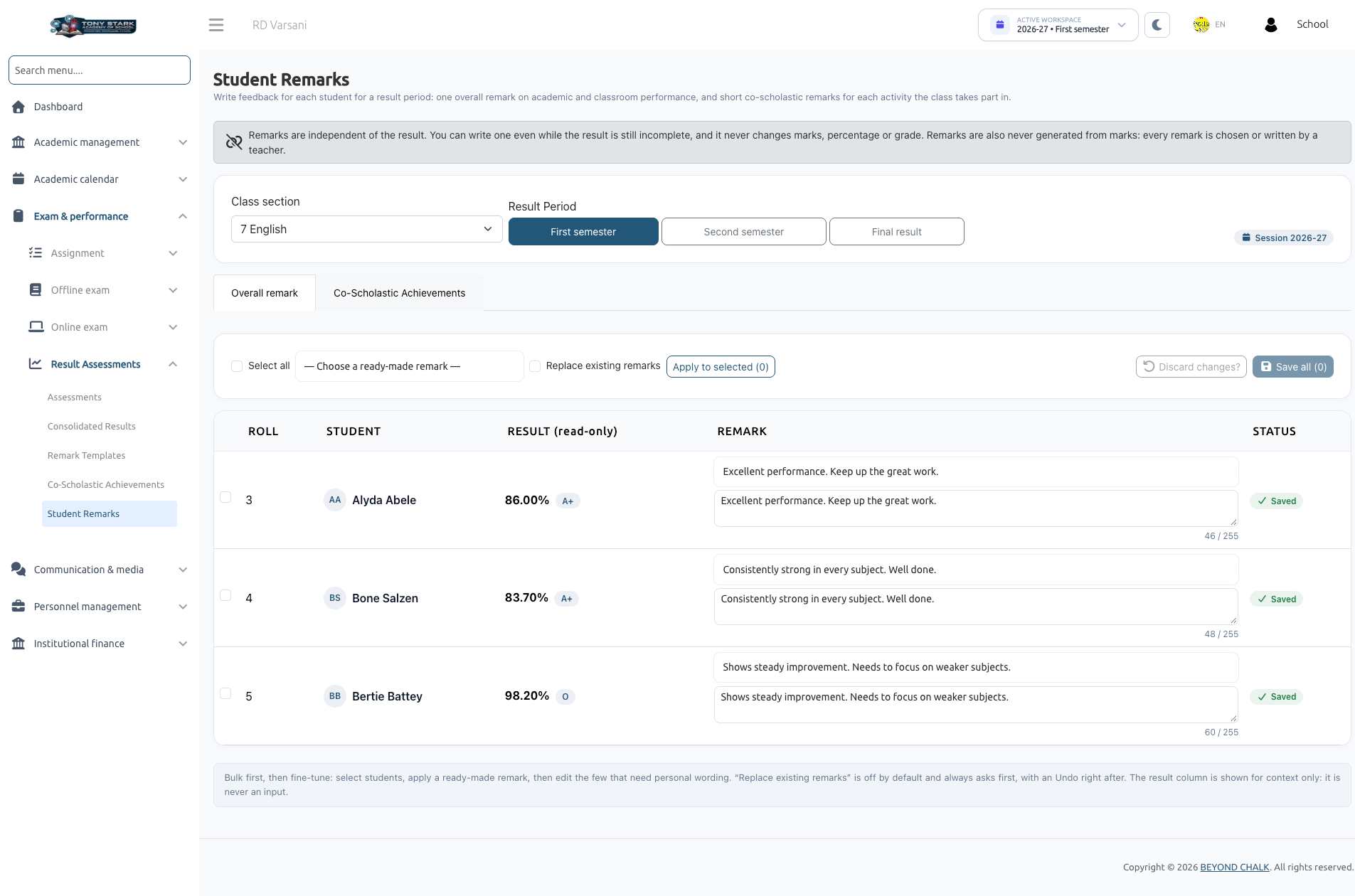
The Student Remarks module allows Class Teachers and School Administrators to record holistic student evaluations and extracurricular feedback. Remarks are categorized into Overall remarks (general evaluation) and Co-Scholastic Achievements remarks (performance in specific activities like Sports, Music, or Art).
- Class Teachers: Can write and update remarks for students enrolled in their assigned sections.
- Subject Teachers: Can open section remarks in read-only mode.
- Period Scoping: Remarks are stored independently per Result Period (e.g., First Semester, Second Semester, and Final Result each maintain their own independent remarks).
- Remarks never alter calculated marks, percentages, or grades. They can be drafted even while academic results are still incomplete.
1. Overall Remark Tab
Navigate to Exam & Performance → Result Assessments → Student Remarks.
- Select your assigned Class section and the target Result Period.
- For each student, enter an evaluation in the Overall remark field:
- Custom Typing: Write custom personalized feedback (up to 255 characters). The field tags custom text as ✎ Custom (written by me).
- Template Selection: Click the — Choose a ready-made remark — dropdown to pick a pre-configured statement from Remark Templates. The text copies into the field and can be edited further.
Bulk Applying Remarks
To assign identical comments to multiple students simultaneously:
- Select students using the checkboxes (or click Select all).
- Choose a template from the bulk dropdown.
- Click Apply to selected.
- If Replace existing remarks is enabled, confirm the replacement prompt. An Undo button is offered immediately if you need to revert.
Saving Changes
Changes are held in the browser until saved:
- Rows indicate current state: Unsaved, Saved, or Too long (if exceeding 255 characters).
- Click Save all to commit evaluations.
(Note: Each row saves independently. If a single student's remark exceeds character limits, valid rows save successfully while the invalid row remains highlighted for correction). - Click Discard unsaved changes to revert to the last saved state.
2. Co-Scholastic Achievements Tab
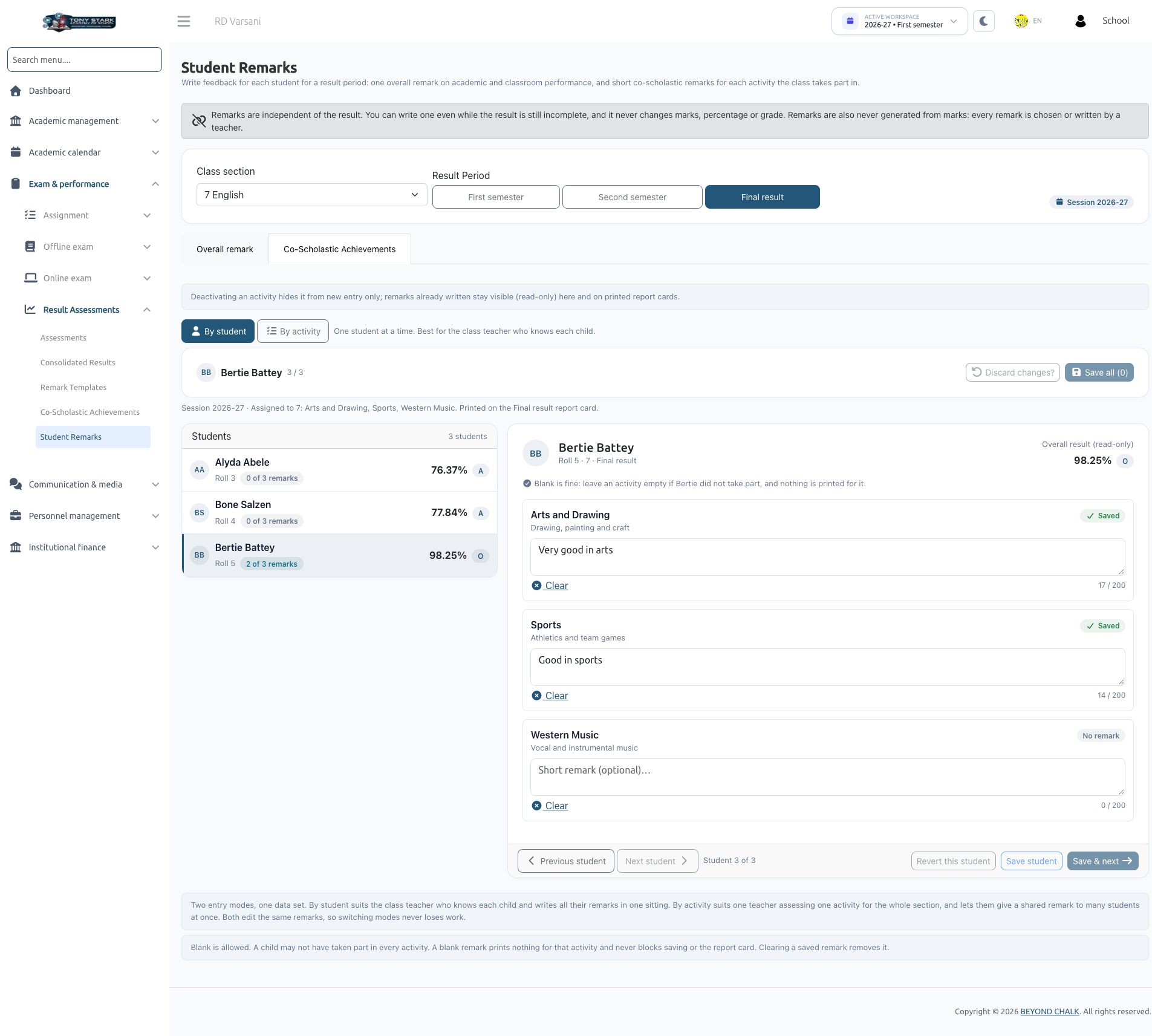
Switch to the Co-Scholastic Achievements tab to enter feedback for non-academic activities assigned to the class.
Entry Modes
Choose between two efficient input modes:
- By Student:
- Focus on one student at a time.
- View all assigned activities for that student in a vertical list.
- Use Save & next or the Previous student / Next student navigation arrows to step through the roster.
- By Activity:
- Focus on one activity (e.g., Sports) for the entire section at once.
- Ideal for specialized instructors entering observations across all students in a single table, with batch-apply tools available.
Guidelines for Co-Scholastic Remarks
- Character Limit: Up to 200 characters per activity per student.
- Optional / Blank: If a student did not participate in a specific activity, leave the field blank. Blank entries print nothing (or a standard dash "—" depending on report card settings).
- Inactive Activities: If an administrator deactivates an activity after remarks were recorded, the entries display as "Inactive · remark kept" in read-only mode and continue to print on report cards.
- Missing Activities Alert: If no activities appear, the page displays:
"No Co-scholastic Achievements are assigned to [class] for 2026-27."
Contact the School Admin to map activities in Co-Scholastic Achievements.
3. Read-Only Scenarios
You may encounter read-only locks under the following circumstances:
- Subject Teacher Assignment: You teach a subject in the section but are not assigned as its official Class Teacher.
- Closed Academic Sessions: Past academic sessions are archived and locked to preserve historical record integrity.
Next Steps
Once marks and remarks are entered, print official student copies in Report Cards.