Consolidated Results
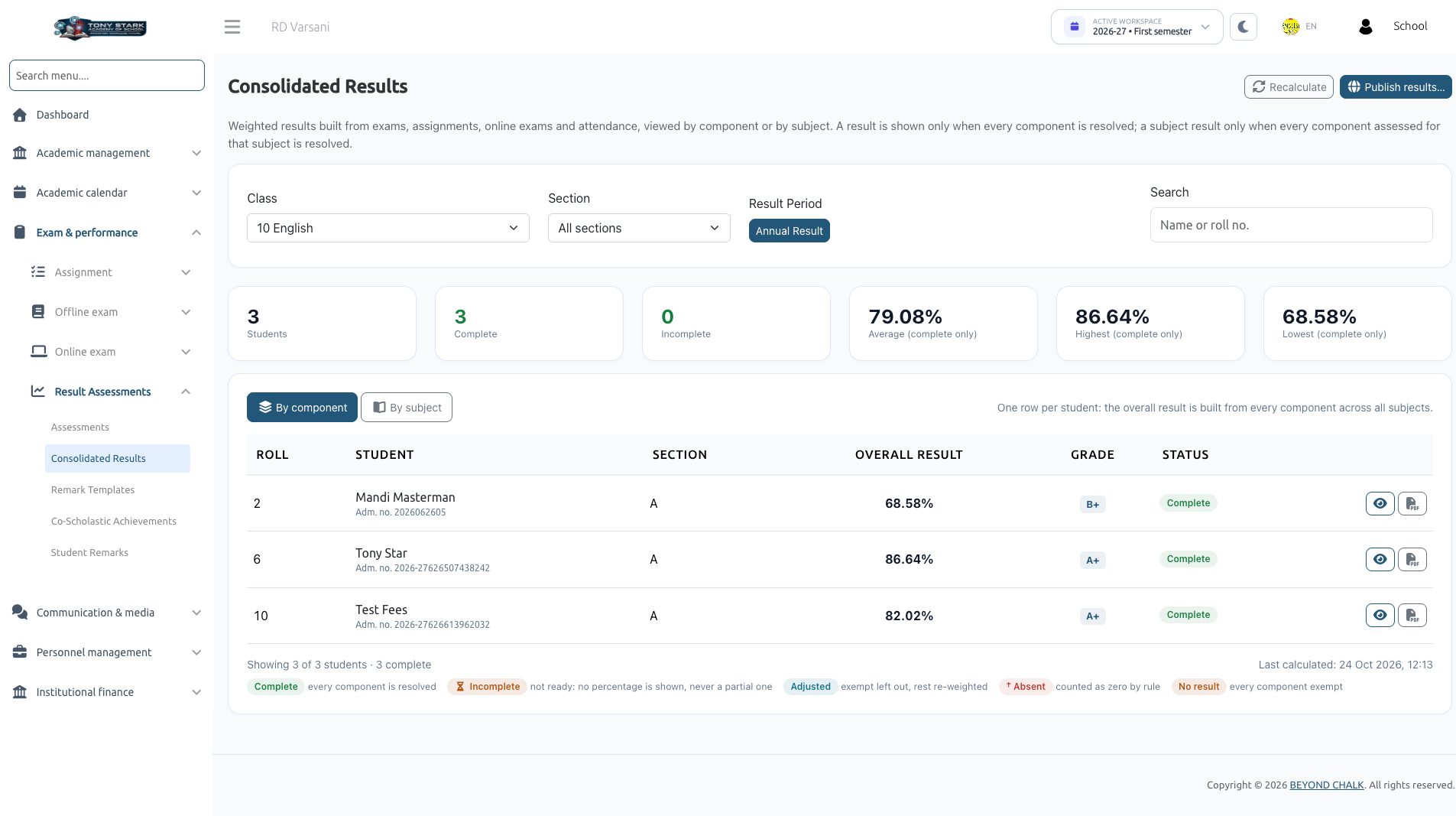
Consolidated Results is the central review dashboard where administrators and class teachers inspect computed student results, examine component-level and subject-level score breakdowns, handle absent/exempt exceptions, and publish results.
- School Admin: Full access to view, recalculate, mark students absent/exempt, publish, and unpublish results.
- Class Teacher: Can view consolidated results and student breakdowns for their assigned class section(s) in read-only mode.
1. Navigating Consolidated Results
Open Exam & Performance → Result Assessments → Consolidated Results.
- Select the Class, Section, and Result Period (e.g., Annual Result, First Semester, or Final Result).
- Use the search bar to locate students by Name, Roll number, or Admission number.
- Toggle between the two analytical views:
- By component: Displays one row per student with columns for each defined assessment component (percentage), followed by the Overall result, Grade, and Status.
- By subject: Displays one column per academic subject, derived exclusively from each subject's individual assessments.
Summary Statistics
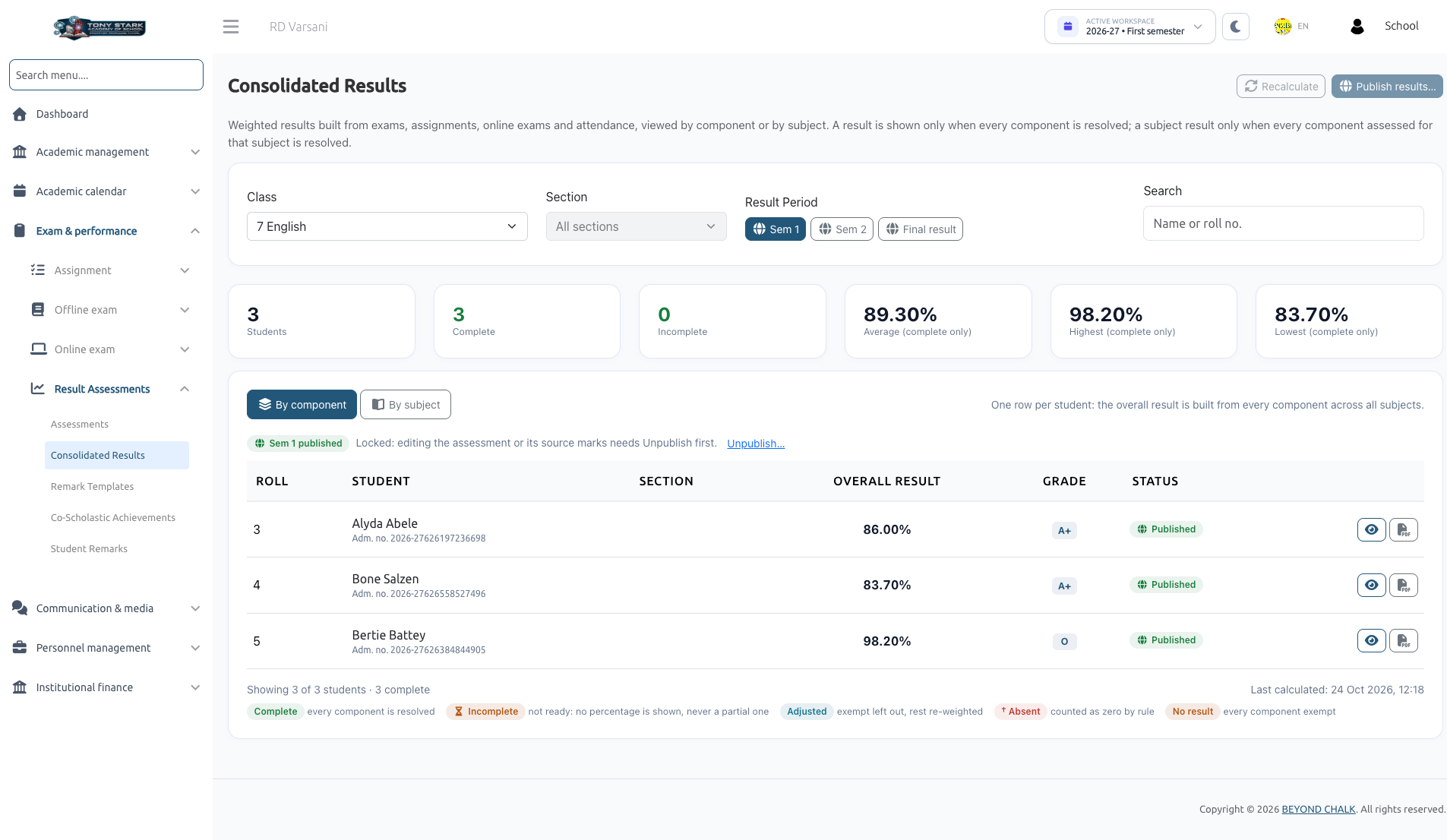
At the top of the grid, real-time metrics summarize cohort performance:
- Enrollment Counts: Total enrolled students, Complete count, Incomplete count, and No result (all exempt).
- Academic Benchmarks: Class Average, Highest, and Lowest percentages.
(Note: Averages include completed results only; incomplete students are never averaged in as 0). - Subject Statistics: Displays average, maximum, and minimum scores per subject.
2. By Subject View
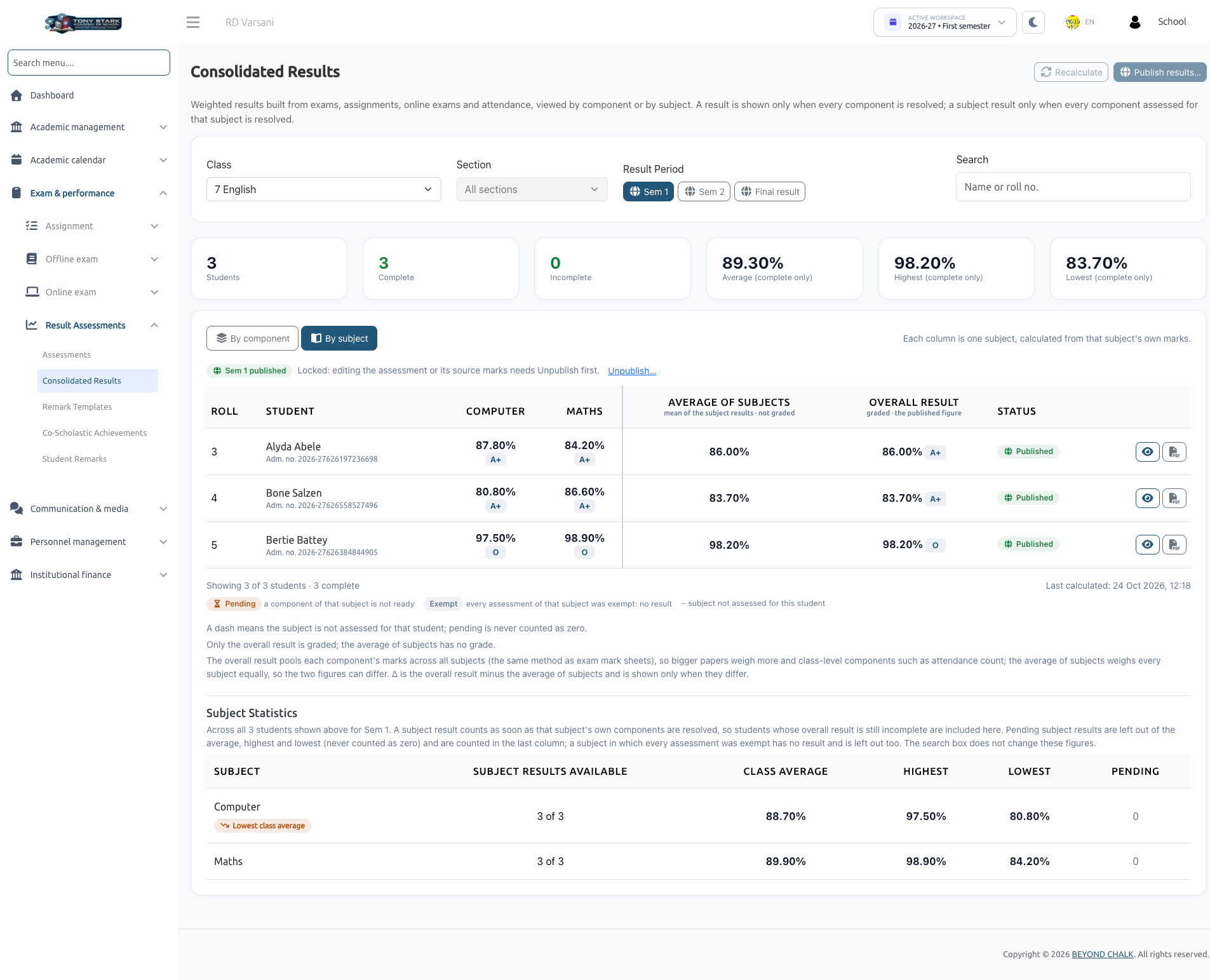
Switch to By subject to evaluate subject-specific performance across the section:
- Each subject shows the student's percentage and letter grade.
- Dash (—): Indicates an elective or non-applicable subject that the student does not take. It is never treated as zero.
- Pending: Indicates that marks for this specific subject are awaiting publication or review.
- Subject results become available as soon as their own components are resolved, even if other subjects or class-level components for that student are still incomplete.
3. Student Statuses & Visual Markers
| Status | Meaning & Calculation Impact |
|---|---|
| Complete | Every required component is resolved. The overall percentage and letter grade are displayed. |
| Incomplete | At least one component is pending. No overall percentage is displayed (never a partial estimate). The row specifies what is pending (e.g., "Waiting for 2: Online exams, Assignments"). |
| No result | Every component was marked exempt, leaving no data to compute. The School Admin must review exemptions. No grade is assigned (never 0% or "F"). |
| Not calculated | The assessment is still in draft mode, or has not been recalculated since this student enrolled. |
Diagnostic Markers
- Adjusted: An exempt or unattempted item was omitted and remaining weights were rescaled to 100%.
- Absent counted as 0: The student missed an exam or assignment and scored zero according to assessment rules.
- Absent · left out: The student was absent and the component was excluded from their total.
- Out of date: Marks, attendance, or assignments changed after calculation. The page displays:
"Source marks changed after the last calculation. Results below may be out of date."
Click Recalculate now to refresh scores. - Draft: The parent assessment is still a draft and requires activation.
4. Student Breakdown Drill-Down
Click any student's name to open their Student breakdown drawer:
Component Breakdown Tab
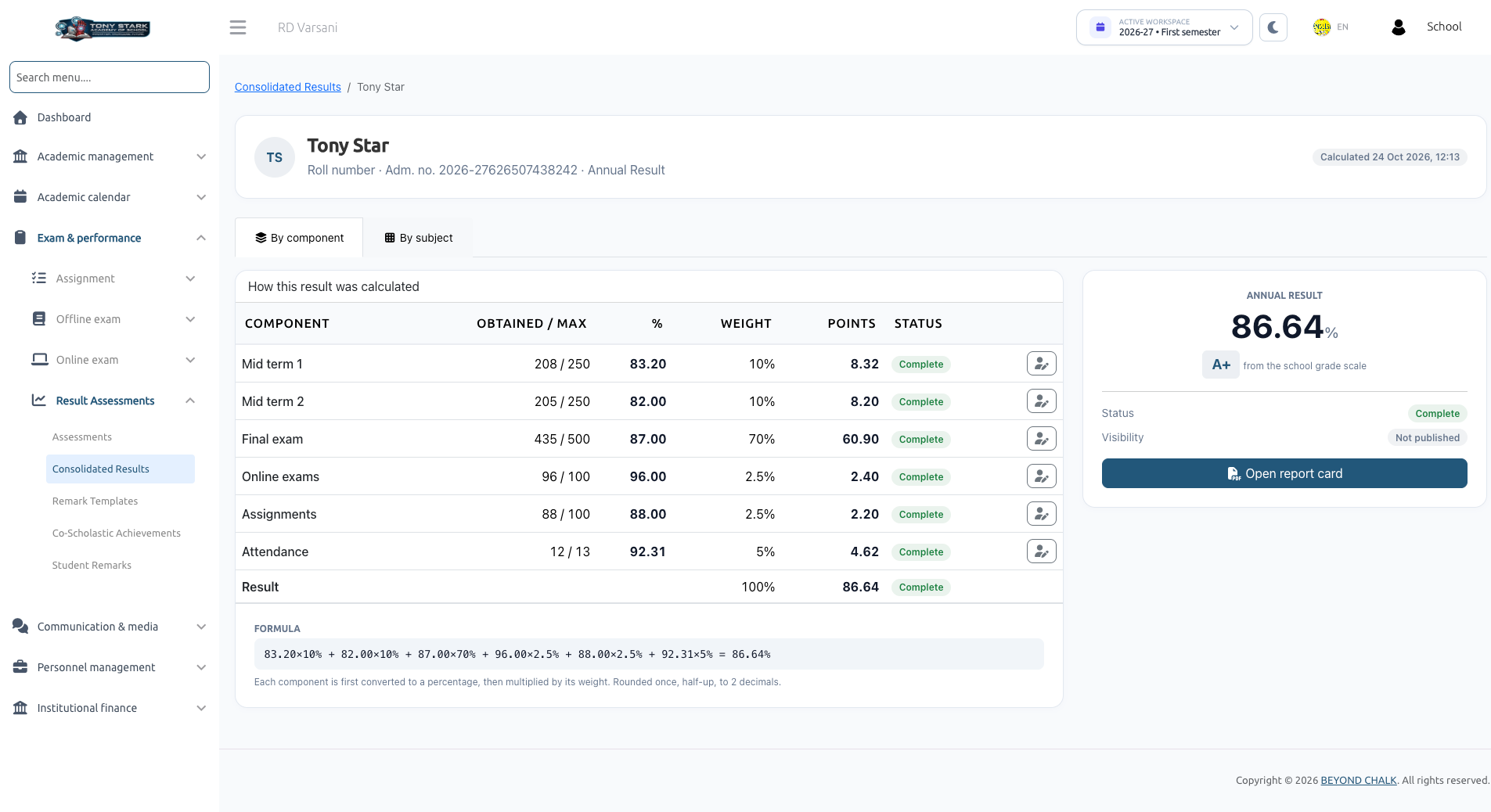
- How this result was calculated: Lists each component with its Obtained / Max marks, Weight %, Weighted Points, and Calculation Formula.
- Class-Level Items: Details attendance calculations (days present / working days).
Subject Breakdown Tab
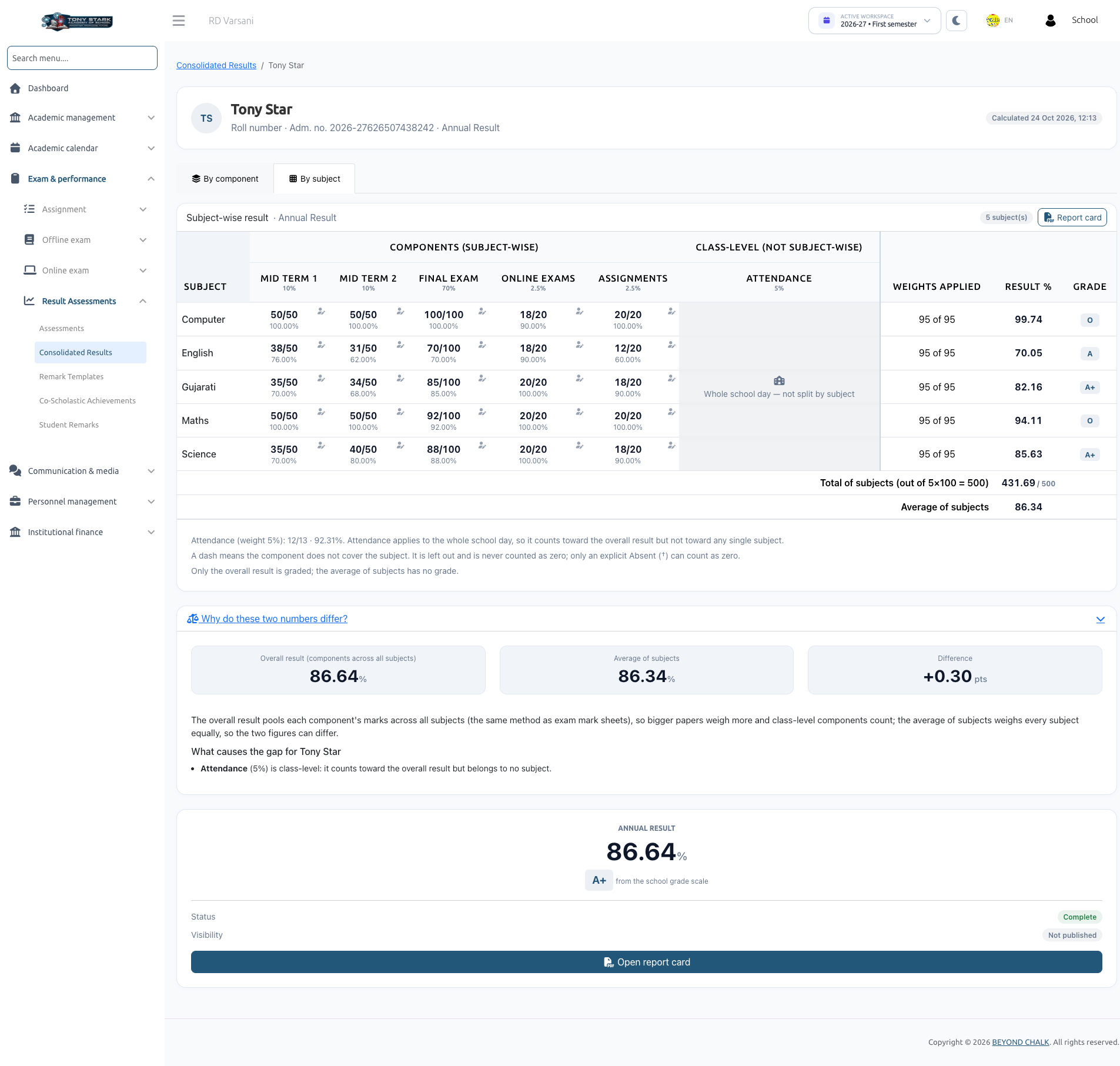
- Subject-wise result: Displays marks obtained across components for each subject, complete with subject totals, averages, and pending alerts.
- Why do these two numbers differ?: Explains discrepancies between the Overall Result and the Average of Subjects (e.g., varying paper sizes, attendance inclusion, or re-weighted components).
5. Setting Administrative Overrides (Absent & Exempt)
If a student missed an examination due to illness or approved leave:
- In the Student Breakdown, click Set status → Set component status.
- Configure the override:
- Apply to: Choose This subject only or Whole component (all subjects).
- Status:
- Absent: Applies the assessment's missing-result rule (0% or omitted).
- Exempt: Omits the item and rescales remaining weights to 100%. A Reason is mandatory (e.g., Medical leave approved by Principal).
- Click Save & recalculate.
Offline exam registers cannot natively store an "absent" mark. An absent student will show as Pending in Consolidated Results until an administrator explicitly records their status as Absent or Exempt here.
6. Publishing Results
When marks and remarks are finalized, the School Admin publishes results to students and parents:
- On Consolidated Results, select the Class and Result Period.
- Click Publish results....
- The system performs an automatic pre-publish recalculation and presents a summary:
"34 result(s) will be published.""2 will be skipped because they have no complete result"(with their names listed).
- Click Confirm & publish.
Important Publishing Rules
- Whole-Class Scope: Publishing applies across all sections of the class for that period.
- Only Complete Results: Incomplete students are skipped and will not see partial results in mobile apps.
- Frozen Snapshot: Publishing creates a locked snapshot. Future edits to exams or marks will not alter published results unless an administrator explicitly chooses to Unpublish → Recalculate → Publish.
- Final Result Precedence: To unpublish a semester that forms part of a published Final Result, you must unpublish the Final Result first.
Next Steps
Class teachers can add personalized feedback in Student Remarks and print final copies in Report Cards.