Co-Scholastic Achievements
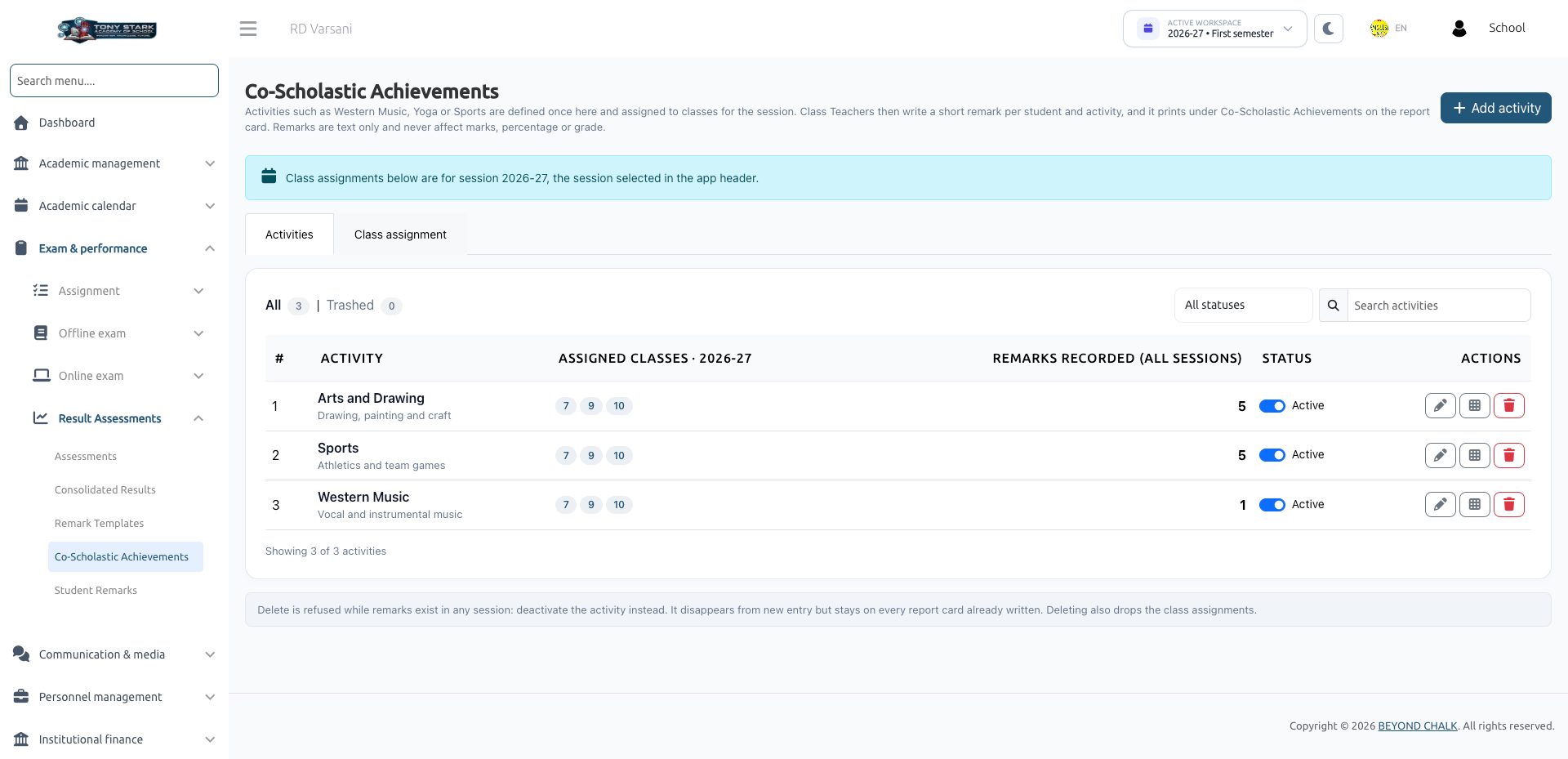
Co-Scholastic Achievements evaluates students in holistic, non-academic disciplines such as Sports, Art & Craft, Music, Yoga, Environmental Studies, and Leadership. Rather than numerical scores, students receive descriptive teacher remarks (e.g., Sports: Exemplary team captain; excellent athletic endurance) that print directly on their report cards.
Configuring co-scholastic activities and their class mappings is managed by School Administrators using the co-scholastic-activity-list, co-scholastic-activity-create, and co-scholastic-activity-edit permissions.
1. Activities Tab: Defining Activities
Navigate to Exam & Performance → Result Assessments → Co-Scholastic Achievements.
Creating an Activity
- On the Activities tab, click + Add activity.
- Enter the Activity name (up to 100 characters; must be unique among active activities).
- Optionally enter a Description (up to 255 characters).
- Ensure the Active — class teachers can enter remarks checkbox is ticked.
- Click Save activity.
Activity Table Columns
- Activity Name & Description: Title printed on report cards.
- Assigned Classes: Total classes offering this activity for the active session.
- Remarks Recorded (All Sessions): Total remarks entered across the entire school history.
- Status: Active or Inactive.
- Actions: Edit, Deactivate, or Delete.
2. Class Assignment Tab: Mapping to Classes
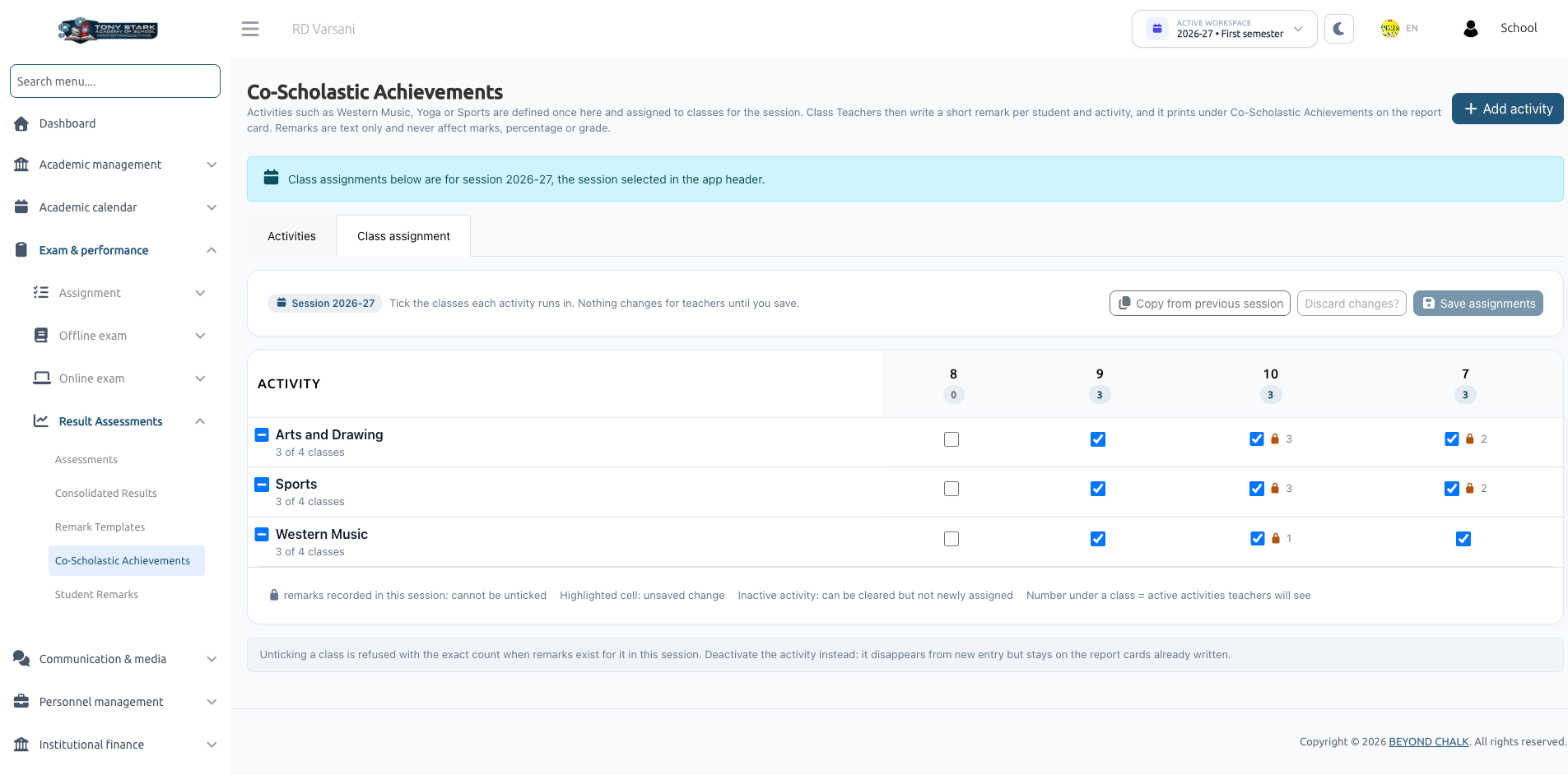
Activities must be assigned to specific classes for the current academic session:
- Switch to the Class assignment tab.
- The interactive matrix displays all activities down the left column and classes across the top.
- Tick the checkboxes for the classes in which each activity is conducted.
- Click Save assignments.
Click Copy from previous session to automatically replicate class mappings from the previous academic year. This copies the assignment structure only; individual student remarks are never copied.
3. Activity Lifecycle & Safety Rules
- Deactivating an Activity: If an activity is suspended or discontinued, set its status to Inactive. This prevents teachers from entering new remarks, while preserving all historical remarks already recorded on student report cards.
- Deletion Protection: An activity cannot be deleted if any student remarks are attached to it in any academic session. Administrators must deactivate it instead.
- Trash & Restore: Deleted activities without remarks move to Trashed and can be restored (provided no new activity has taken the name).
- Renaming Warnings: Renaming an activity modifies the label printed on all historical and upcoming report cards. The system requires explicit confirmation before saving a rename.
- Class Un-mapping Safeguard: You cannot uncheck a class for an activity if any student in that class has already received a remark in the active session.
Next Steps
Class teachers can enter remarks for assigned activities in Student Remarks.