Remark Templates
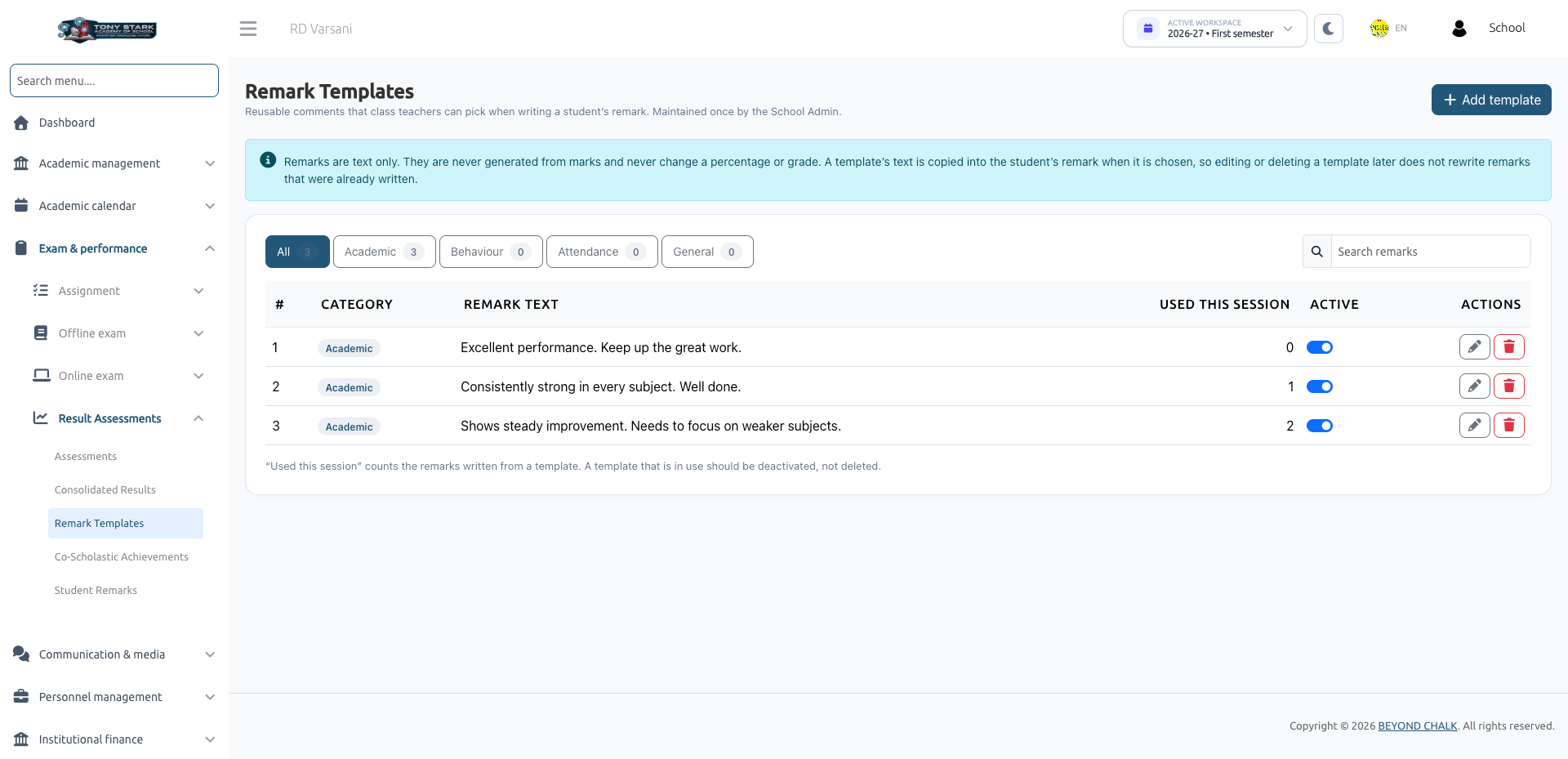
Remark Templates provide a centralized comment bank of pre-written teacher evaluations. School Administrators create and maintain standard feedback statements so Class Teachers can quickly populate student evaluations while maintaining consistency across report cards.
- School Admin: Full access to create, edit, deactivate, and delete remark templates.
- Class Teacher: Read-only access to select active templates when writing evaluations in Student Remarks.
1. Navigating Remark Templates
Navigate to Exam & Performance → Result Assessments → Remark Templates.
The templates are organized into four core categories:
- Academic: Comments on scholastic achievement, subject mastery, work habits, and intellectual curiosity (e.g., "Excellent academic performance. Consistently strong across all subjects").
- Behaviour: Feedback regarding classroom deportment, peer collaboration, discipline, and respectfulness (e.g., "Exemplary classroom conduct; highly respectful to peers and staff").
- Attendance: Observations on punctuality, attendance consistency, and dedication (e.g., "Maintains outstanding attendance and punctuality").
- General: Broad holistic observations and seasonal encouragements (e.g., "A proactive and motivated learner with great potential").
2. Creating & Managing Templates
Adding a New Template
- Click + Add template.
- Select a Category (Academic, Behaviour, Attendance, or General).
- Enter the Remark text (up to 255 characters).
- Keep the Active — visible to class teachers checkbox ticked.
- Click Save template.
Usage Tracking
The Used this session column tracks how many student evaluations currently use each template. This helps administrators identify popular remarks and clean up obsolete phrasing.
3. Important Template Behaviors
Copy-on-Select Principle
When a class teacher selects a template for a student, the system copies its text directly into the student's remark record.
- Modifying or deactivating a template later will never alter or erase remarks already written and saved for students.
- Teachers can personalize or edit the copied text freely on a student's record.
Deactivation vs. Deletion
- Deactivating In-Use Templates: If a template has been used during the session, it should be deactivated rather than deleted. Deactivated templates remain preserved on existing report cards but are hidden from the teacher dropdown for future entries.
- Deleting Templates: Templates with zero recorded uses can be deleted safely.
Next Steps
To configure non-academic evaluation areas, see Co-Scholastic Achievements.