A customer orders a pizza. Before it goes in the cart, they want to pick a crust, add extra cheese and grab a cold drink. Most online stores can't handle that cleanly. With the new Food Module add-on, SnapBuy can.
WRTeam has released the Food Module, a new add-on for SnapBuy. Once you add it, any product in your catalogue can ask the customer questions before checkout, like size, crust, spice level, toppings or a side drink. Every answer is priced, taxed, tracked in stock and printed on the invoice.
If you run a restaurant, a cloud kitchen, a grocery store with a hot food counter, or a multi-store delivery business, this add-on turns SnapBuy into a quick commerce software that can sell a real menu. Here is what it does and how to set it up.
Why food is hard to sell online
Grocery items are simple. A bag of rice has one price and one Add button.
Food isn't like that. The same pizza can be thin crust or cheese burst. The same biryani can be mild or hot, with or without raita. A lot of a restaurant's margin sits in the extras: one more roti, extra cheese, a drink at the end.
Until now, an online store gave you two poor ways to handle this. You could list every combination as a separate product, and a 12-item menu would grow into 90 entries that are painful to price and maintain. Or you could ask customers to type their wishes into an order note. That note isn't priced, isn't counted in stock and doesn't appear on the invoice. Someone in the kitchen reads it and hopes they got it right.
The Food Module removes that trade-off. One product stays one product, and the customer builds it the way they want.
What the Food Module adds
Switch on Food Item for any product and you can attach groups of options to it. Each group is one question for the customer, and you decide how it behaves.
|
Setting |
Example |
|
Pick one or pick many |
Crust is pick one. Toppings are picked as many as you like. |
|
Required or optional |
Size must be chosen. Dips can be skipped. |
|
Minimum and maximum |
"Pick any two of these four sides." |
|
Quantity per option |
Two portions of extra cheese as one line, with a stepper. |
|
Free options |
A sauce sachet that costs nothing but still gets counted. |
Two kinds of options
An option can be a simple name you type, like Extra cheese, Thin crust or Less spicy. You set its price yourself.
An option can also be a real product from your catalogue. Attach a 500 ml Coke to a thali and the customer adds a drink without leaving the item page. The option shows the Coke's own image, can use the Coke's own price, and uses the Coke's own stock.
Priced per outlet, in each outlet's currency
SnapBuy already lets you price products per store. Options work the same way. Extra cheese can cost ₹20 at one outlet and be unavailable at another. Since SnapBuy supports multiple countries and currencies, each outlet can charge in its own currency too. A customer only sees options that the outlet serving them can actually make.
Veg, non-veg and eggetarian marks
Every option carries a diet mark, so the green or red dot shows next to a topping and next to the product. When the option is a linked product, the mark comes from that product's own setting. Your menu and your catalogue can never disagree about whether something is vegetarian.
One stock count for products and addons
This is the part that matters most for operations.
When a drink is sold on its own, it comes off the shelf. When the same drink is added to a meal, it comes off the same shelf. There is no separate inventory for addons, so you won't end up selling 40 colas from a fridge that holds 30.
Stock stays correct through the whole order:
-
Added to cart: the item is reserved at that outlet.
-
Order placed: the stock is committed.
-
Order cancelled or returned: the stock goes back.
-
Out of stock at one outlet: the option is hidden there, while other outlets keep offering it.
The cost of the added item is also included in the order line. Your margin reports show the real cost of the meal and don't treat the drink as free.
For anyone looking for an ecommerce management system that keeps menu, stock and reporting in sync across stores, this is a big step.
What your customers see
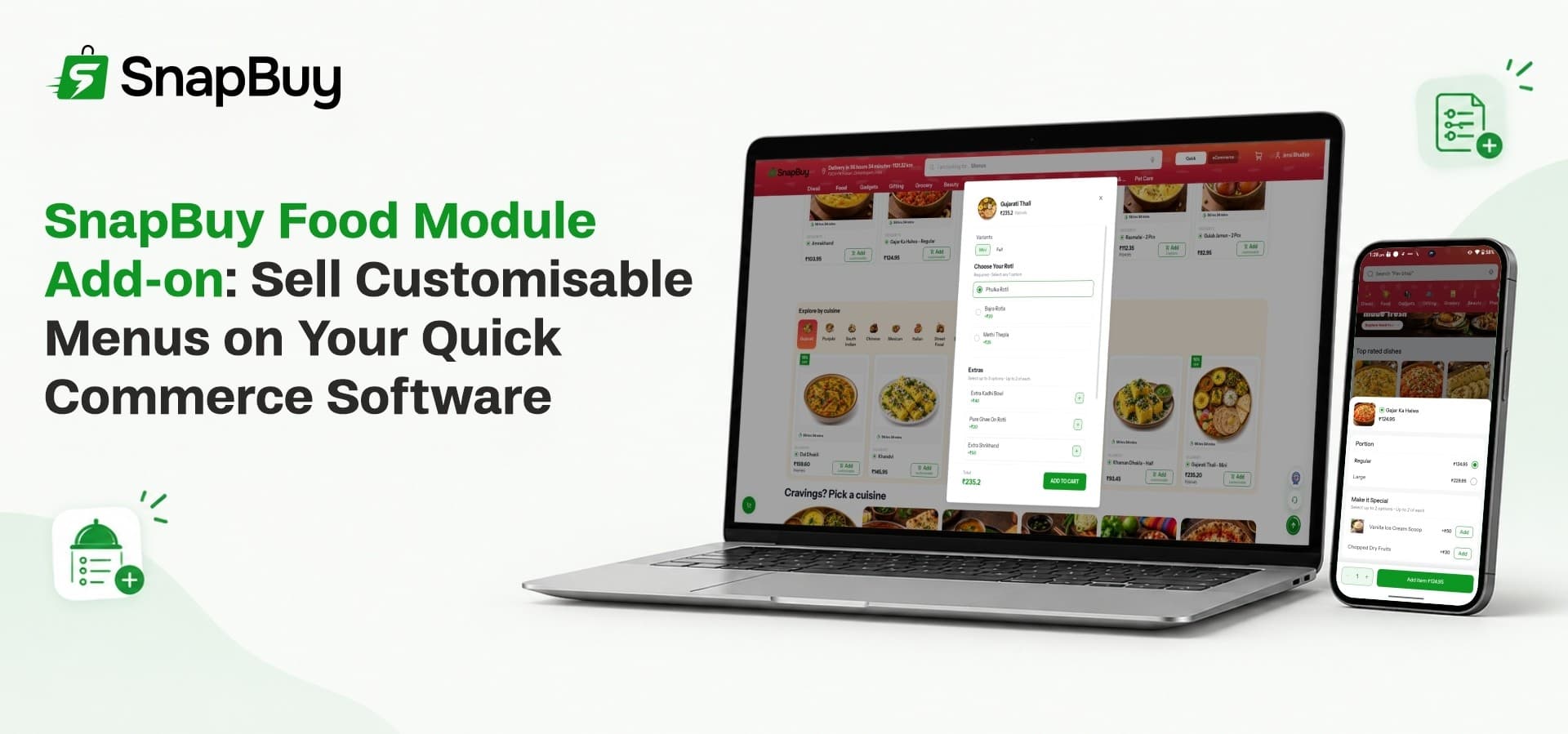
The customer opens a product. Below the price, they see the questions: Choose crust, Add toppings, Add a drink. Each one says whether it's required and how many they can pick.
As they choose, the price updates. Discounted options show a strike-through price, and each option has its veg or non-veg dot.
In the cart, their choices are listed under the product as part of it. They won't see a confusing separate line for a drink they don't remember adding.
If they order the same product again with different choices, it becomes its own line. A thin crust with olives and a cheese burst with paneer are different orders, and the kitchen sees them that way.
The invoice, the thermal receipt, the delivery slip and the delivery partner's app all show the same choices with quantities, like "2 × Extra cheese". The rider at the door holds the same list the customer built.
Setting up your menu
There are a few ways to add options, depending on how much you need to set up.
One product. Open the product, switch on Food Item, and an Addons tab appears. Add a group, add its options, set prices per outlet. It takes a few minutes.
Many products with the same options. Set up one product properly, then copy its options to another product, or apply them to as many selected products as you want at once. Every pizza gets the same crust question without retyping it.
A full restaurant menu. Download the product sheet and fill in its Addons tab, one row per option. Products, variants, outlet prices and all the options go up in one file. When you export the sheet later, it comes back filled in, so updating prices means editing cells.
You'll also find a setting called Sold Only As Addon. Use it for things like a 50 ml dip or an extra portion of curry. The item exists as a real product with real stock, but it's hidden from listings, search and the home page. It only appears as an option on other products.
Not only for restaurants
The setting is called Food Item because restaurants benefit most, but the questions are yours to write. A gift shop can ask about wrapping and a greeting card. A pharmacy can ask about dosage. An electronics store can offer installation.
That makes SnapBuy a more flexible ecommerce marketplace software for mixed catalogues, where food outlets and retail stores run side by side on the same hyperlocal ecommerce platform.
How the Food Module helps your business
Bigger orders at the right moment. The customer has already decided to order the biryani. Asking "Add a drink?" right there costs them one tap. The upsell your counter staff make in person now happens online too, without a discount or an ad.
Fewer wrong orders. A choice picked from a list can't be misread like a typed note. The kitchen ticket, invoice, delivery slip and rider app all show the same words and quantities.
Fewer refunds. An option that's out of stock at an outlet is never shown there, so every order that reaches the kitchen is one it can prepare.
A cleaner catalogue. One product stays one product, however many ways it can be built. When a topping changes, you update it once.
Get the Food Module add-on
SnapBuy is WRTeam's complete eCommerce solution for quick commerce and scheduled delivery, with customer apps, a delivery partner app, a web storefront, a store panel and an admin panel. With the Food Module, it now handles restaurant menus as well as grocery and retail.
Try the live demo or get SnapBuy on the WRTeam Marketplace