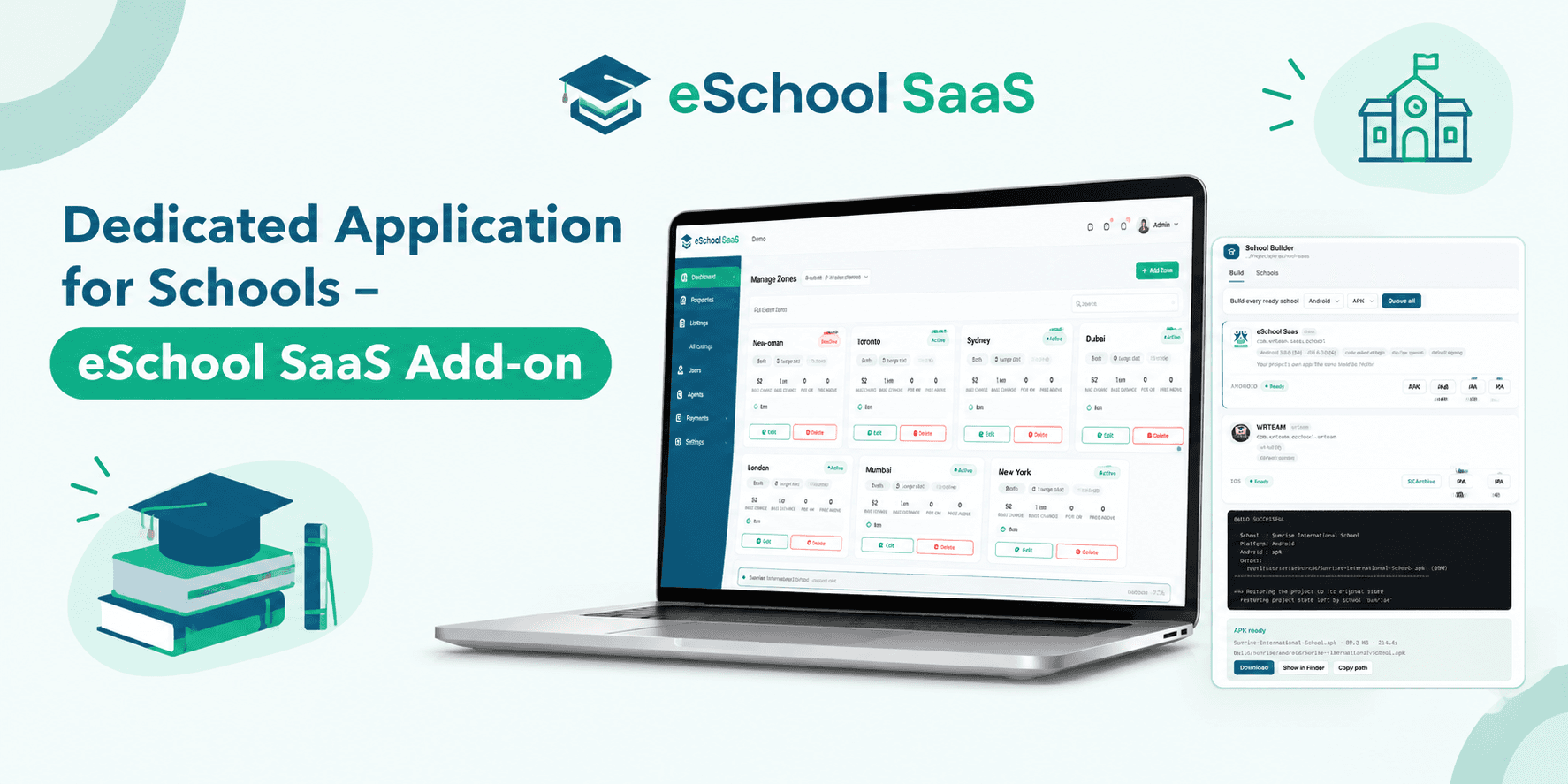
Every school wants to be known by its own name. Parents look for that name in the app store, teachers expect to see it on their home screen, and students trust an app that feels like it belongs to their school. For anyone running a platform that serves many schools, delivering that experience has usually meant copying code, editing files by hand and hoping nothing breaks. A dedicated school app for every institution solves this problem, and Dedicated Application for Schools makes it practical to offer at scale.
This add-on gives each school on your platform its own branded Student/Parent and Staff/Teacher apps on Google Play and the App Store, all built from one codebase. In this guide you will see what it does, how its two parts work together, what goes into each app, and what you need before you begin.
What Is Dedicated Application for Schools?
Dedicated Application for Schools is an eSchool SaaS add-on from WRTeam that lets you offer every school its own app name, package ID, launcher icon, logo, splash screen, colours and Firebase project. You build each school's app from your single eSchool SaaS project, with no duplicate code and no files to edit by hand.
The add-on also covers the business side. From your Super Admin panel you can sell branded apps as part of your subscription plans, see which schools are eligible, track each app until it is published, and email the store links to the school's admin. It takes the school management app experience that schools already get from eSchool SaaS and lets each school present it under its own identity.
One point to settle before you buy: this add-on requires an active installation of eSchool SaaS v1.12.0 or later, including its admin panel and both mobile apps. It cannot operate on its own. It also has its own purchase code and licence, separate from the core eSchool SaaS licence.
Why Schools Want an App of Their Own
Schools want an app with their own name and logo, not a shared one. A branded school app appears under the school's name in the store and on every device that installs it, so the school's identity is in front of parents and teachers each time they open it. That is a simple and powerful reason for a school to ask for one.
For you as the platform owner, the same demand becomes an opportunity. Instead of asking every school to share a general app, you can include a dedicated app in your subscription plans or sell it as a separate feature add-on. Schools that care about their identity have a clear reason to choose the plan that includes it.
Two Parts, One Add-on
The add-on works in two places, and the order matters. Part 1 is the Super Admin panel, which you set up first. Part 2 is the School Builder, which you set up second. Complete the Super Admin setup before you start the mobile app setup.
Part 1: The Super Admin Panel
Installed from the Add-ons page of your Super Admin panel, this part adds the School Mobile App feature to your subscription plans and gives you a dashboard to follow every school's apps. Here is what you get:
-
Sell it in your plans: Add the School Mobile App feature to any subscription package, or sell it as a separate feature add-on.
-
Eligible schools appear automatically: Schools whose plan includes the feature show up on the dashboard by themselves, and leave it when their plan ends.
-
Track every app: Follow each school's Student/Parent and Staff/Teacher apps through Pending, In Progress, In Review and Published, with a full activity log.
-
Store links in one place: Save each app's Google Play and App Store links. You can publish on Android first and add the iOS link later if Apple's review takes longer.
-
Email the links to schools: Send the store links to the school's admin using an email template you can edit and preview. Links to apps that are not yet published are left out.
-
Protected school logins: A school-specific app checks the school's plan when users log in. Access stops if the plan expires or no longer includes the feature, and returns when the school renews.
Part 2: The School Builder
Added to your Student/Parent and Staff/Teacher app projects, the School Builder opens in your browser with one command. Think of it as a school mobile app builder where you add each school, enter its branding and build its apps without touching the code. Its main strengths are:
-
Branded per school: Each school has its own app name, package ID and bundle ID, launcher and adaptive icon, in-app logo, splash screen, notification icon, theme colours and Firebase project.
-
Point-and-click control: Add, edit and duplicate schools, then build each app with one click.
-
Build every school at once: Queue every ready school and they build one after another, with a live log and a download for each finished app.
-
Checked before it builds: Each school is checked before it builds, including that its Firebase files match its package IDs, so problems show up in the form and not in a failed build.
Branded Apps for Both Audiences
Every school receives its own student parent app, made for students and their parents and published under the school's name. The school's logo, colours and splash screen greet users from the first launch.
The same school also gets a teacher staff app for its teachers and staff, carrying the same name, logo and colours. Both apps are built from your one eSchool SaaS project, so nothing is copied and nothing is maintained separately.
One Codebase, Many Schools
Cost and effort usually grows when you maintain multi-school mobile apps, because every copy of the code has to be updated on its own. Here, every school's app is built from your single eSchool SaaS project, so there are no copies of the code to keep up to date.
That also means no files to edit by hand. You enter the school's details in the builder, and the add-on takes care of the rest. A school that joins next month is added the same way as the first one, and a school that looks similar to an existing one can be duplicated and adjusted.
Android and iOS Builds
The builder produces an Android and iOS school app for each school. APK and AAB files can be built on Windows or macOS, while IPA files are built on a Mac with Xcode. When the files are ready, you upload each app to Google Play and the App Store, then save the store links in your Super Admin panel.
Because each school is checked before its build begins, you can queue many schools with confidence. The live log shows progress as each app builds, and a download is ready as soon as an app finishes.
Two Kinds of App
In the builder, you choose the type of app for each school.
School-Specific App
This type is made for one school. Its school code is built in, so users never have to type it, and logins are checked against the school's plan.
General App
This type is shared by several schools, like your default app. Users enter their own school code when they log in.
Having both options means you can give a school a fully dedicated app while other schools continue to use a shared one.
What Is Built In and What Stays in Your Admin Panel
Knowing which changes need a rebuild saves time, so here is the split.
Built into each school's app (change it, then rebuild the app):
-
App name, package ID and bundle ID
-
Launcher icon, splash screen and in-app logo
-
Theme colours
-
Firebase project for push notifications
-
Admin panel URL, school code and app type
-
Version name and build number
Managed from your admin panel (changes reach the app without a rebuild):
-
School settings and details
-
Enabled features and modules
-
Languages and labels
-
Payment gateways
-
Everything else configured in the panel
How It Works: From Purchase to Published App
You can purchase Dedicated Application for Schools from the WRTeam Marketplace and download the add-on files with your purchase code. After that, the journey has six steps:
-
Purchase the add-on: Buy it and download the add-on files with your purchase code.
-
Install it in the Super Admin panel: Open Add-ons, enter your purchase code, upload the add-on ZIP file and install it, then switch the add-on to Active.
-
Add it to your plans: Add the School Mobile App feature to a subscription package or a feature add-on. Schools that subscribe appear under Eligible Schools.
-
Install the School Builder: Copy the add-on into your Student/Parent and Staff/Teacher app projects, then open the builder with one command.
-
Add schools and build: Enter each school's details, branding, Firebase files and signing key, then build its APK, AAB or IPA file.
-
Publish and share the links: Upload each app to Google Play and the App Store, save the store links in the Super Admin panel and email them to the school's admin.
Remember the setup order: complete steps 2 and 3 in the Super Admin panel before you start the mobile app setup in step 4.
Requirements
Since each build produces a Flutter school app, your build machine needs the right tools in place. Here is the full list.
Admin panel
-
eSchool SaaS v1.12.0 or later
-
PHP 8.3 or higher
-
SMTP email set up in the Super Admin panel
-
The add-on's purchase code
Building the apps
-
eSchool SaaS app code v1.12.0 or later
-
Windows 10/11 or macOS for Android builds
-
A Mac with Xcode for iOS builds
-
Flutter 3.47.6 with the Android SDK
-
Python 3.8 or later
For each school
-
A Firebase project
-
An Android signing key, or one key shared by all schools
-
Google Play and Apple developer accounts to publish the apps
Who Is This Add-on For?
If you run school ERP software for many institutions on eSchool SaaS, and your schools keep asking for apps with their own name, this add-on is built for you. It suits:
-
Platform owners who want to sell branded apps as part of their subscription plans
-
Teams that want to manage every school's app status and store links from one dashboard
-
Businesses that want one codebase behind every school's app, with no duplicated code
Give Every School Its Own App
Dedicated Application for Schools turns a common request into a clear offer. Each school gets its own name, logo and colours on Android and iOS, you keep a single codebase, and your Super Admin panel keeps every app, store link and school email in one place. Version 1.0.0 is the initial release and works with eSchool SaaS v1.12.0 and later.
Ready to see the full details? Explore Dedicated Application for Schools on the product page.