Proxy attendance, forgotten registers, and end-of-month disputes over hours worked are a familiar headache for school administrators. A teacher signs in for a colleague, a register page goes missing, or nobody can agree on whether someone worked a full day or a half day. Manual tracking makes all of this hard to catch and even harder to prove.
eSchool SaaS Version 1.11.0, released on 7 September 2026, addresses this with QR-Based Staff Attendance. Teaching and Non-Teaching Staff now Punch In and Punch Out by scanning a school-specific QR code, with GPS location verification and automatic Present, Half Day, or Absent calculation. This post walks through what the feature does, how the working-hours logic works, and how to set it up.
What Is QR-Based Staff Attendance in eSchool SaaS

QR-Based Staff Attendance lets Teaching and Non-Teaching Staff mark their attendance by scanning a QR code available at the school. Staff can Punch In and Punch Out multiple times during the day, and the system calculates total valid working hours to determine whether the day counts as Present, Half Day, or Absent.
Every scan is protected by a location check: staff must be physically within the school's configured attendance radius before the QR scanner becomes available. The existing manual Staff Attendance module stays in place for corrections and exceptional cases, so QR attendance adds a layer of accuracy without removing the admin's ability to intervene.
How It Works for Staff
The process is designed to be quick for staff while staying tamper-resistant:
-
Staff opens QR Attendance on their device.
-
The system checks GPS status and location permission.
-
It gets the staff member's current location and compares it to the school's configured location.
-
It calculates the distance and validates it against the allowed radius.
-
If the staff member is within range, the QR scanner opens. If not, or if GPS or location permission is unavailable, the scanner does not open.
-
Staff scans the school's QR code.
-
The server stores the punch. The staff sees a confirmation message.
The system automatically determines whether a scan is a Punch In or Punch Out: first scan of a new session is Punch In, the next is Punch Out, and so on, alternating through the day. Staff can Punch In and Punch Out multiple times in a single day, for example, out for a break and back in.
How Working Hours Become Present, Half Day, or Absent
Three pieces of configuration work together to turn raw punches into an attendance result: School Timing, Staff Shift, and the QR Punches themselves.
Staff Shift is mandatory for QR Attendance. Each shift (Morning, Afternoon, General, and so on) has a Start Time, End Time, Minimum Full Day Working Hours, and Minimum Half Day Working Hours. For example, a Morning Shift might run 7:00 AM to 1:00 PM, with 5 hours required for a Full Day and 2 hours 30 minutes for a Half Day. Staff Shift is assigned directly to each staff member and is not derived from a teacher's timetable, so it stays reliable even for staff without a class timetable.
This is separate from Class Shift, which only governs class or section timing and remains optional. A class does not need a shift assigned for its teacher to use QR Attendance.
It's also separate from School Timing, the overall school start and end time (for example, 7:00 AM to 7:00 PM). School Timing does not determine required working hours; it determines when the day's attendance gets finalized.
Shift-Based vs. Day-Based Calculation
School Admins choose one of two calculation modes:
Shift-Based: Only working hours that fall inside the staff member's assigned shift count.
Day-Based: All completed Punch In/Punch Out hours for that date count, even hours outside the assigned shift.
Worked example, using a Morning Shift of 7:00 AM to 1:00 PM:
-
Staff punches In at 11:00 AM and Out at 4:00 PM. Actual punch duration is 5 hours.
-
Under Shift-Based, only 11:00 AM to 1:00 PM falls within the shift, so valid working hours are 2 hours.
-
Under Day-Based, the full punch duration counts, so valid working hours are 5 hours.
In both modes, the staff member's Shift still supplies the Full Day and Half Day hour requirements.
Result Rules
Only completed Punch In/Punch Out pairs are counted toward working hours.
|
Valid Working Hours |
Result |
|
Meets or exceeds Full Day requirement |
Present / Full Day |
|
At least Half Day requirement, but below Full Day |
Half Day |
|
Below Half Day requirement |
Absent |
Using the Morning Shift example (Full Day: 5 hours, Half Day: 2h 30m): 5 hours or more is Present, 2h 30m up to just under 5 hours is Half Day, and anything under 2h 30m is Absent.
Daily Finalization
QR punches accumulate throughout the day, but the final Present, Half Day, or Absent status is settled automatically once the school day ends.
The finalization job runs at School End Time plus 1 hour. For a school with a 7:00 AM to 7:00 PM School Timing, finalization runs at 8:00 PM. At that point, the system collects the day's punch records, calculates valid working hours using the selected calculation mode, applies the staff member's shift requirements, and updates the final attendance status.
School End Time, rather than each individual shift's end time, is used for this trigger, so that all staff shifts have already finished before the day is settled. Staff with no punch record for the day can be marked Absent, subject to existing Holiday and Leave rules.
Missed Punch Out and Corrections
If a staff member Punches In but forgets to Punch Out, the system does not invent a Punch Out time. The incomplete punch stays on record for review.
At the end of the day, staff with a missed Punch Out are notified that their attendance is incomplete. The system also compiles a list of all staff with missed Punch Out or incomplete punch records and emails it to the School Principal. The email can include:
-
Staff Name
-
Staff Type (Teaching or Non-Teaching)
-
Assigned Shift
-
Punch In Time
-
Missing Punch Out status
-
Attendance Date
The Principal or School Administration reviews these records and makes the necessary correction manually through the existing Staff Attendance module. The system never assumes Shift End Time or School End Time as a stand-in Punch Out time, so no attendance record is fabricated.
If a staff member has some completed punch pairs and one incomplete pair in the same day, for example, two completed sessions plus a Punch In with no matching Punch Out, the completed sessions still count normally toward working hours. The incomplete session is excluded from the calculation and left available for admin review. Punch state also resets each new day, so an incomplete punch from a previous day does not carry over or affect the next day's first scan, which is always treated as a fresh Punch In.
Holidays, Leave, and Shift Changes
QR Attendance respects the school's existing Holiday and Leave rules. Configured holidays do not generate normal QR attendance, and staff on approved leave are not overwritten as Absent by the daily finalization job.
If a staff member is moved to a new shift, the new shift applies only to future attendance. Historical attendance continues to use the shift and rules that applied at the time it was generated, and changes to shift timing or Full/Half Day requirements do not recalculate past records.
Setting It Up as a School Admin
Before QR Attendance can be enabled, a School Admin completes the following setup, in order:
-
Configure School Timing. Set the school's overall Start and End Time.
-
Configure Shifts and required hours. Create shifts (name, start time, end time) and set Minimum Full Day and Half Day Working Hours for each. Half Day hours must be less than Full Day hours, and Full Day hours must not exceed the total shift duration.
-
Assign Shifts to Staff. Give each Teaching and Non-Teaching staff member an active shift.
-
Configure School Location. Capture or select the school's location so the system has coordinates to check against.
-
Configure the Allowed Attendance Radius. For example, 100 meters.
-
Select the calculation mode. Choose Shift-Based or Day-Based.
-
Enable QR Staff Attendance.
-
Generate the Attendance QR Code and display it at a controlled location, such as the Admin Office.
The same QR code is used by all staff for both Punch In and Punch Out, and it is specific to that school. If needed, Admins can regenerate the QR code at any time; doing so invalidates the previous one.
Key Benefits for Schools
-
Removes proxy attendance risk. GPS verification means staff must be physically present at the school to scan.
-
Consistent, rule-based results. Present, Half Day, and Absent are calculated the same way every time, based on shift rules rather than manual judgment.
-
Clear audit trail. QR punch history is preserved as the original record, even after manual corrections.
-
Less manual entry. Staff self-service punches reduce the daily workload on admin staff.
-
Built-in exception handling. Missed punches are flagged and routed to the Principal instead of silently going unrecorded.
-
Flexibility retained. Manual attendance stays available for GPS issues, device problems, or other exceptions.
Conclusion
QR-Based Staff Attendance in eSchool SaaS v1.11.0 replaces manual, dispute-prone attendance tracking with a location-verified, shift-aware system that calculates Present, Half Day, and Absent status automatically, while keeping a full punch history and giving admins the tools to handle exceptions.
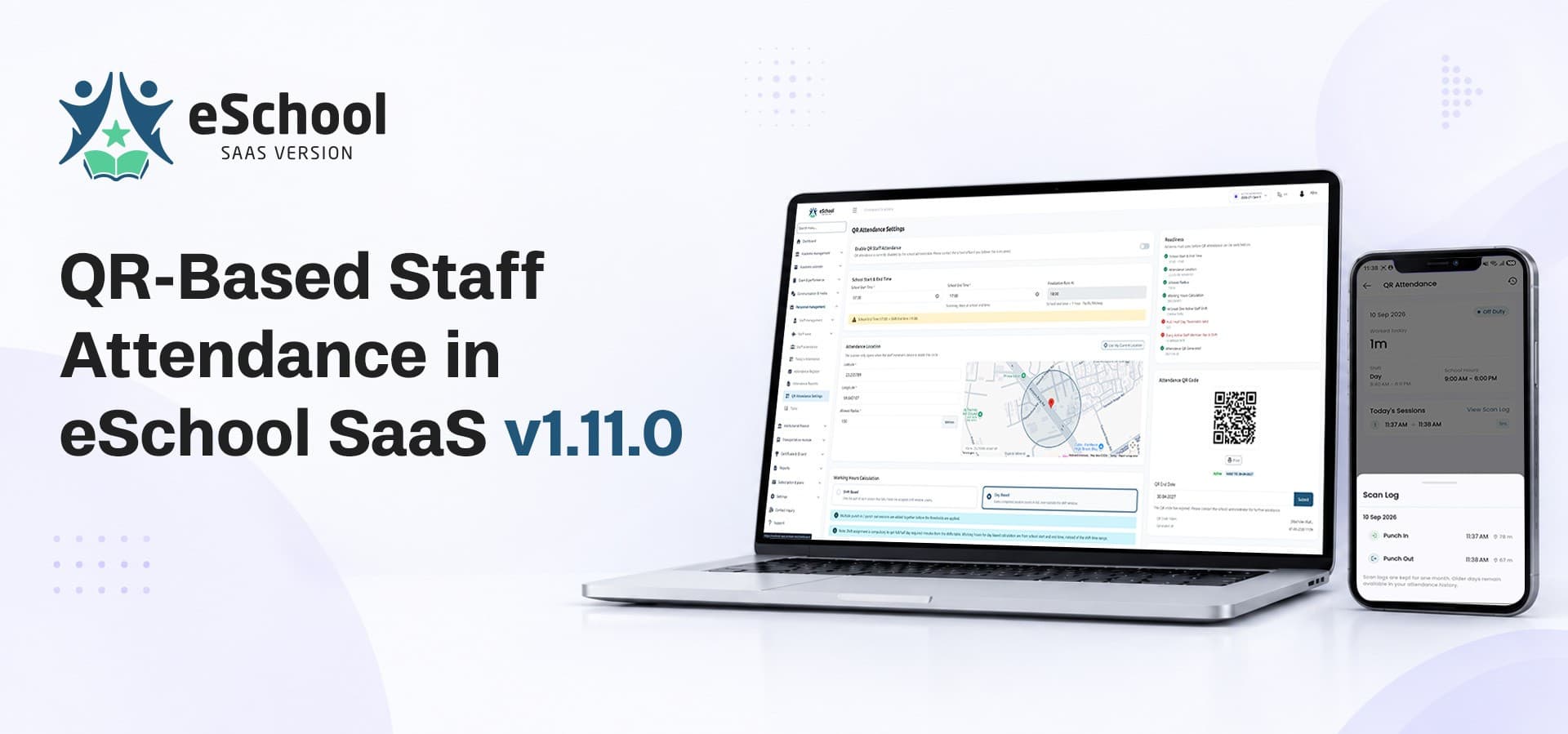
Checkout Admin Panel to see QR-Based Staff Attendance in action, or update to v1.11.0 to start using it at your school.
eSchool SaaS is built to run one school or several from a single, organized platform. Explore the full feature set and licensing options on the eSchool SaaS product page.